

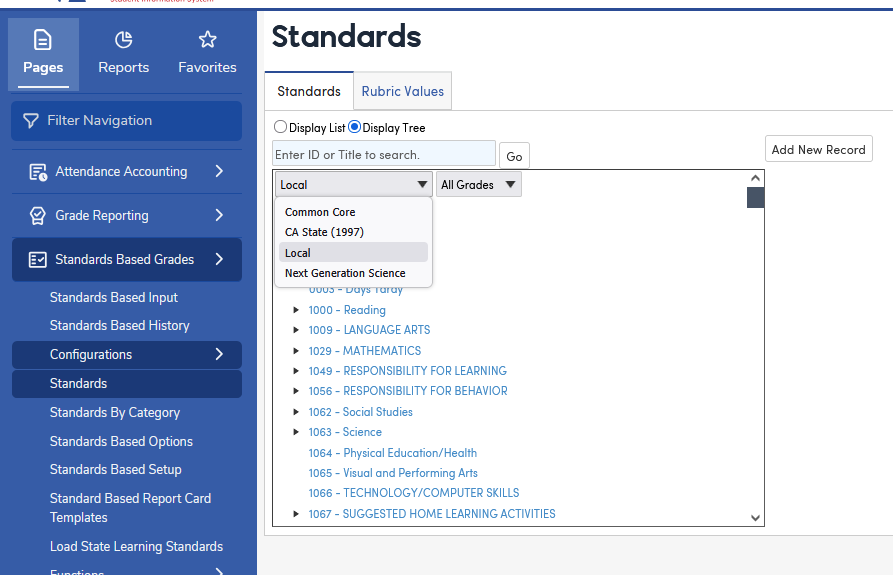
The Standards page is found in Grade Reporting | Configurations. It is also available under Standards Based Grades | Configurations. Select Display List to show a list of all standards, or Display Tree to show the hierarchy of the standards. A Search box is available to search by standard ID or title. In Display Tree view, filters are also available for the type of standard and grade level.
Click on the Add New Record button to enter a new standard into the table. In the screenshot below a 12th grade Writing standard is being added to the Standards table. Enter the Standard ID (up to 20 characters; it must be unique), Title, Type of Standard, and if it is a substandard, then select the higher level standard that it is under in the Category field. If the standard will be receiving a grade on the report card, set Mark Type1 to the mark type that the standard will be graded with, typically Progress Toward Standard. Teachers choose from the Valid Marks defined for that mark type. Select whether or not the standard will display on the Missing Mark Report in the Count on Missing Mark Report? field.
Select the terms when this standard is assessed and the grade level(s) that it applies to. Up to six translations can be entered for each standard. Select the Correspondence Language code and enter the translation into the field next to it. Click on the Save button when complete.
Other fields on the standard include Long Description, Mark Type2 (available once Mark Type1 is set), Include in Transcript? for each mark type, Use Term Based Mark Types (to use a different mark type in each term), Status and Last School Year Active (to inactivate a standard), Not Linkable to Gradebook Assignments?, and Rubric Values Type. The Apply To All button selects all grade levels. Rubric values are maintained on the Rubric Values tab.
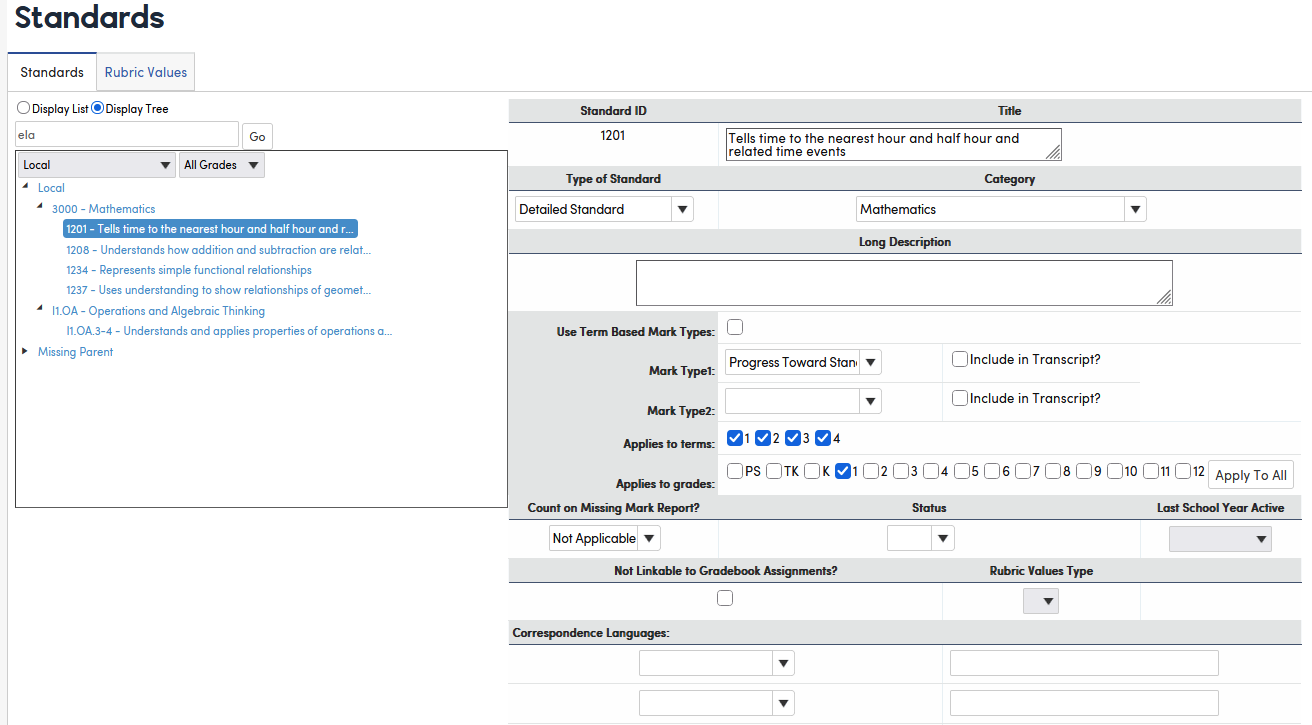
To edit a standard select the standard in the Display List. The standard definition will display on the right. Select the Change button. Once all changes have been made, select Update, or Cancel to discard the changes.
A standard can be deleted with the Delete button only if it is not being used. Otherwise, the message “This standard cannot be deleted. Other tables are using it!” displays.
NOTE: Standards should not be modified once the Grade Reporting Cycle has been initialized. Aeries does not prevent changes, but grade records for standards are created when the cycle is initialized, so a standard added to a course afterward cannot be graded until the next time the cycle is initialized.
Load State Learning Standards
State standards can be quickly imported by using the Load State Learning Standards page. The page is available to California districts at the District level, for users logged in with an Admin-type account who also have Admin permission to Standards (STN). It can be found under Standards Based Grades | Configurations in the navigation. The page has four tabs: Load Selected Standards (CS) for the CA Content Standards, Load Common Core (CC), Load Next Generation Science (NG), and Load CA ELD Standards (CS).
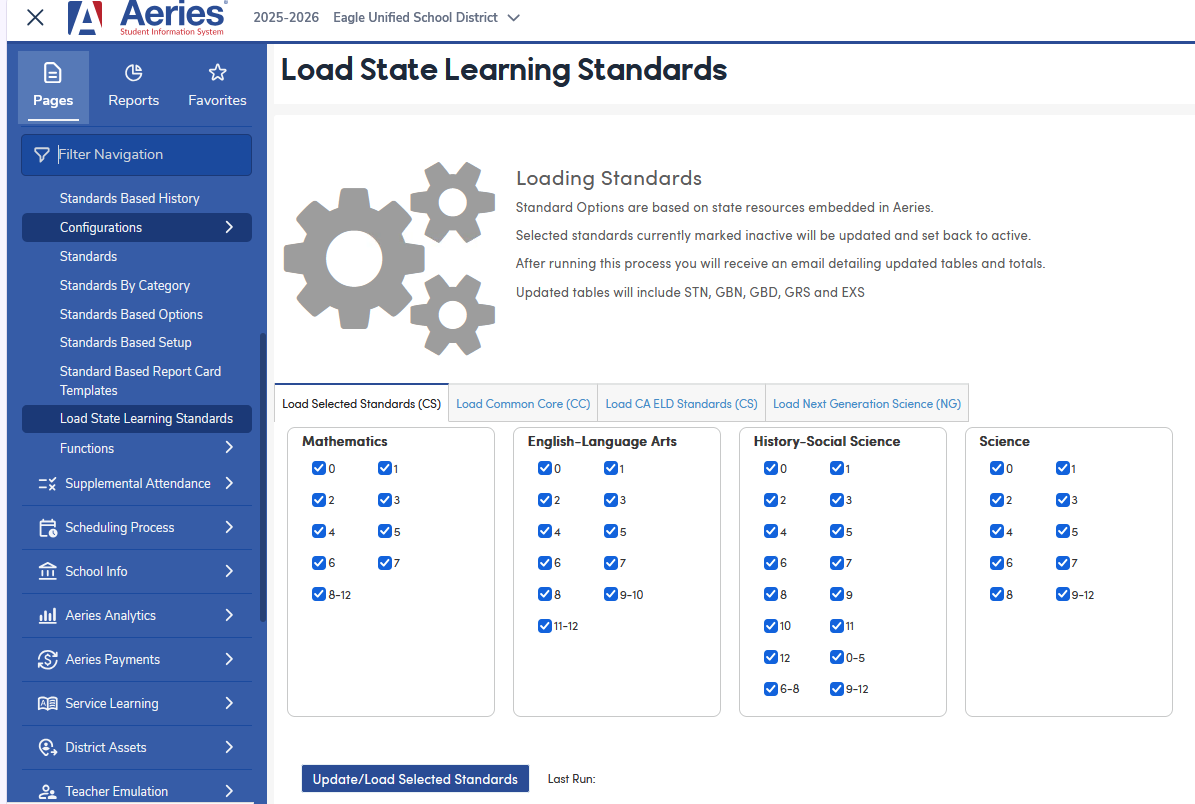
The Update/Load Selected Standards button processes the standards and grade levels selected on the current tab. It updates existing standards, renames standard IDs that have changed (including on gradebook and grade records), sets inactive standards back to active, and adds any new standards. The process runs in the background, and an email with a summary of the updated tables and totals is sent when it is complete.
Please review the Load State Learning Standards articles for more information on how to update/load state standards into Aeries.
Defining Standards for a Course
The Standards tab in the Courses page is used to define which standards apply to each course and if they display on the report card. Standards assigned to courses at one school or at the District level will apply for all schools. Users need Update permission to Course Data to edit or delete the standards associated with a course.
The Courses page can be found under Scheduling Process in the navigation. Click on the Standards tab to view any standards associated with a course, or add, edit or delete that association.
To define a standard for a course, open the Course Search panel and type the Course Name or Course ID into the Search box. The list filters as you type. Select Include Inactive Courses to include inactive courses. Select the course to view it. Click on the Standards tab. Click on Add Standard(s).

The following form will display. To search for a standard enter a key word or the first few letters to filter for in the Search box. Select the Type of Standard to choose. The options are Common Core, CA State (1997), Local, or Next Generation Science. In Texas, the options are TEKS Standards or Local. These standards must already be defined in the Standards table in order to choose them. Select the Grade level of the standard from the drop-down to limit the number of standards that appear in the list. Click on Go.

A list of all of the standards that meet the selection criteria will come up. Click on the standard that will be associated with the course to select it. If the standard has sub-standards and you wish to also associate those standards to the course leave the Include Related Standards? option selected. All levels of sub-standards below the selected standard are added. Standards that are added are set to print on the report card. Click on OK to complete this process.

NOTE: To add only the higher level standard to a course without its’ substandards, de-select the Include Related Standards option before clicking on OK to add the standard.
To prevent a standard from displaying on the report card or to delete the association of a standard to a course select the Edit Standards checkbox. The RptCard? option can be used to de-select any standards that should not be printed on the report card. Changes are saved immediately.

To delete an association to a standard click on the Delete icon and click on OK to the prompt confirming that you wish to delete the standard from the course. Deleting a standard does not delete its sub-standards from the course. The standard will be lined out. Once the page is refreshed the standard will no longer display.


NOTE: For Elementary Standards Based Grades courses the best practice when associating standards to courses is to ensure that for a typical student's schedule each standard that is on the student's report card is associated with only 1 course that the student is taking. This will ensure that the appropriate teacher will be able to enter grades for the standards that they are teaching according to the course's section number in the Master Schedule. For example, if all 4th grade students in an elementary school have a "4th Grade" course and a PE course, then the "4th Grade" course would include all of the 4th grade report card standards except for PE, and the PE course would only include the 4th Grade PE standard.