

Table of Contents
Pushing Options to Other Schools
Overview
Navigate to Grade Reporting > Configurations > Grade Reporting Options at the School level. This page is not available at the District level.
The Grade Reporting Options form is used to select the Grade Reporting Options and the Secondary Standards Based Grade Reporting Options. Please see the Grade Reporting documentation for information on how to set up the options for the secondary report cards. At the bottom of the page are the options for Secondary Standards Based Grade Reporting Options. These options can be pushed to other school(s) by users with the proper permissions.

Security ↑
| Table | Permission | Description |
| PushPullSetupTables | Administer | Admin Users have full permissions to this page and available tables to Push/Pull. Non-admin users can also be given Administer permissions to this page to Push/Pull specific tables. |
| Standards Based Valid Marks (SBV) | Read, Insert, Update, Delete | Needed to view, add, change, and delete Valid Marks |
| Codes (COD) | Read, Update | Needed to change Mark Type descriptions and translations |
| Option Set: GradeRptgSbg Grade Reporting Options (GRO) | Read, Administer | Each User/Group needs to be given 'Administer' permission to the individual tables required by the Option Set they wish to push |
Configurations ↑
In order to use secondary standards based grades, the Secondary SBG Options tab needs to have the grade range entered that will be using the secondary standards. Both the low and the high grade must be entered. If either one is left blank, secondary standards based grades are turned off for this school. To enter a grade range click on the Change button. Enter the grade range that will be using secondary standards based grades and click on Update to save the changes or Cancel to leave the screen without saving.
When the grade reporting cycle is initialized for a school with a grade range entered, the Initialize New Grade Reporting Cycle page displays “Secondary SBG Will Also Be Initialized for Grades X - Y,” and secondary standards based grade records are created for the standards on each student’s courses that are set to print on the report card.

Pushing Options to Other Schools ↑
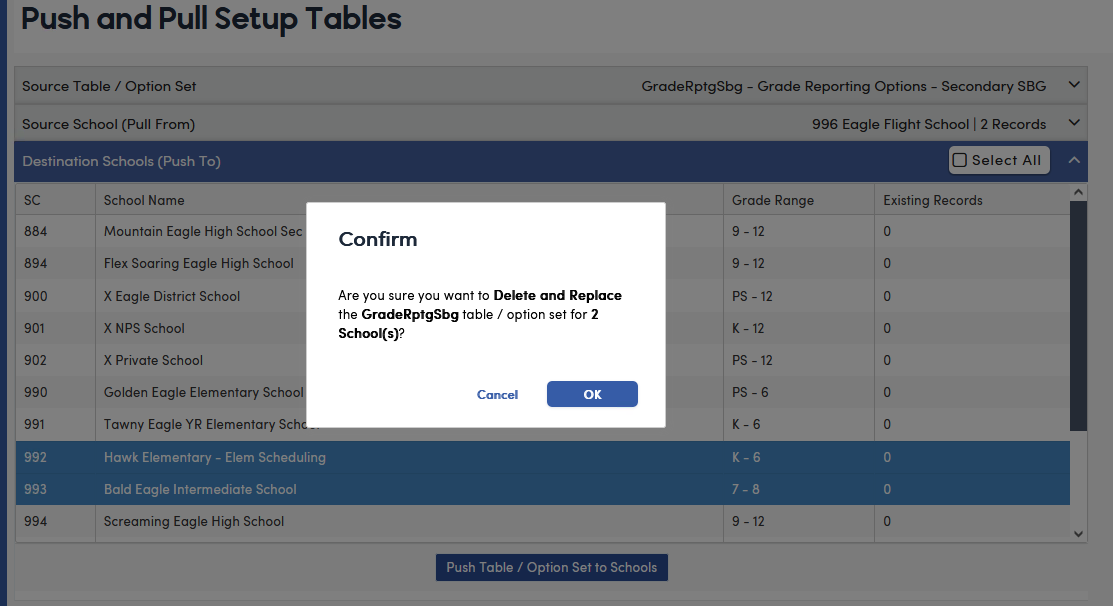
These options can be pushed to other school(s) by clicking on the Push button. The Push and Pull Setup Tables page will open. The GradeRptgSbg Option Set will be automatically selected, along with the current school you are logged into. Select the school(s) you wish to copy the Option Set to and click on the Push Table/Option Set to Schools button. A confirmation box will appear. Click OK to copy the Option Set to the other school(s) or Cancel. Pushing deletes and replaces the grade range at the selected school(s).
A green confirmation message will appear, confirming the action taken.

NOTE: Each school can define their own grade range that will use secondary standards based grades.
Mark Types ↑
The Mark Types codes are automatically set up with default descriptions.
Mark Type 1 (default is Achievement) is used to define a student’s level of accomplishment for the subject being graded.
Mark Type 2 (default is Effort) is used to define a student’s effort towards the grade level standards.
Mark Type 3 (default is Progress Toward Standard) is used to define a student’s progress towards each standard that is set up.
Mark Type 4 Check Mark displays as a checkbox when teachers enter grades. Valid Marks cannot be defined for this Mark Type.
Mark Type 5 Other Comment Graded 1-5 is graded Level 1 through Level 5. Valid Marks cannot be defined for this Mark Type.
To change the Description, click on the Edit icon next to the Mark Type Code. Enter the new description. Click on the Save icon to save the changes or the Undo icon to leave the screen without changing. The description of any Mark Type can be changed, including Mark Types 4 and 5. Mark Types 1 through 5 cannot be deleted. Changing Mark Types requires Update permission to Codes (COD).

Translations into another language can be done by selecting the Correspondence Languages option, clicking on the Edit icon next to the code, and entering the Correspondence Language Code and the Correspondence Language Description (translation). Click on the Save icon to save the changes or the Undo icon to leave edit mode without saving changes. Up to six language translations can be entered.
NOTE: Changes made to the Mark Types screen in one school will affect all secondary schools. These values are district-wide.
Valid Marks ↑
The Valid Marks screen is used to identify the marks that will be used for the secondary standards grade reporting.
Marks can be defined for Mark Types 1, 2, and 3 (Mark Types 4 and 5 do not use Valid Marks). The Add New Record icon towards the bottom of the list is used to add the new mark. There is no limit to the number of marks that can be defined, but only the first six Achievement (Mark Type 1) marks, in Sort Order, print in the Explanation of Marks on the report card. Marks longer than 3 characters may be cut off on the report card.
Each mark also has a Sort Order, Low/High Percentage and Low/High Rubric ranges, and a Not Taught option. The ranges are the district defaults used when teachers Load Grades from Gradebook. The Not Taught mark is loaded for a standard that has no qualifying assignment scores.

NOTE: The Valid Marks apply to all Grade Ranges in the Secondary Standards Based Report Grades.
To edit the Mark record click on the Edit icon next to the Mark value and enter the changes.


Click on the Save icon to save the changes, the Undo icon to leave the screen without saving changes, or the Delete icon to delete the entire Mark record.
Translations into another language can be done by selecting the Correspondence Languages option (up to six language translations per mark can be entered), clicking on the Edit icon next to the mark code, and entering the Correspondence Language Code and the Correspondence Language Title. Click on the Save icon to save the changes, the Undo icon to leave edit mode without saving changes, or the Delete icon to delete the entire record.
NOTE: Changes made to the Valid Marks screen in one school will affect all secondary schools. These values are district-wide.
Portal Options ↑
Prior to the teachers entering the secondary report card grades, the Portal Options need to be set up by the Aeries system administrator. Navigate to School Info | Portal Management | Portal Options to display the Portal Options page. Click on the Grades tab to review/update this page. The Grades tab displays the grading options and the grading windows for teachers. Secondary Standards Based Grades use the Open GRD Grading Windows for Teachers, the same windows as regular grade reporting. Each window has a Start Date, End Date, Start Time, and End Time. The Open SBG Grading Windows for Teachers apply to elementary Standards Based Grades only.

In Portal Options on the Grades tab, select the Support Standards-Based Grade Reporting option. The Support Standards-Based Grade Reporting option turns on standards in the gradebook. It must be selected if teachers will be adding standards to their gradebook assignments and using Load Grades from Gradebook to load standard grades. Whether a school uses Secondary Standards Based Report Cards is controlled by the grade range on the Secondary SBG Options tab.