

View Mode ↑
In View Mode, the Classes page (Student Data > Scheduling > Classes) displays a graphical picture of a student's current schedule, and provides options for printing. In Edit Mode, this form is used to add, change, and delete a student's courses and/or to choose sections of courses for the student's schedule.
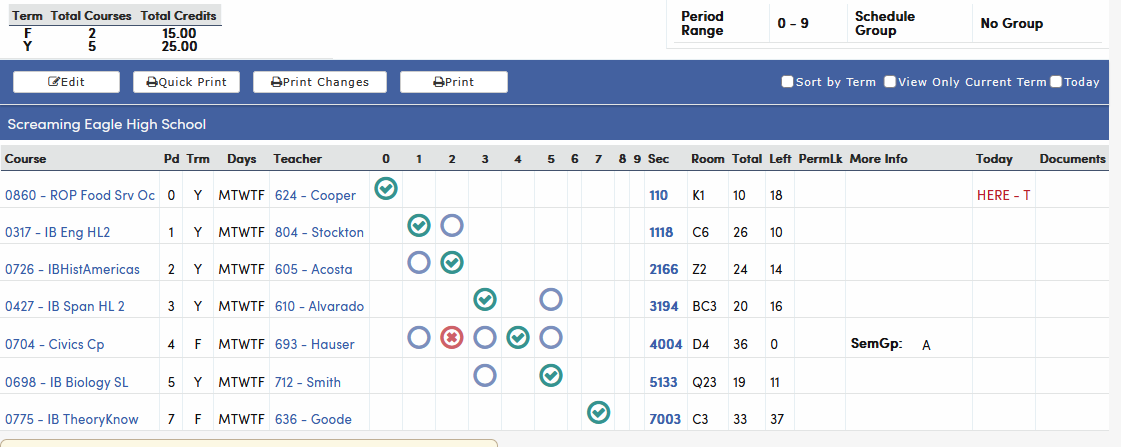
View Mode displays the following information about each course in a student's schedule:
- The course number and title, the period, the term, the days (or split term if applicable) that the class meets, the teacher's number and name, the section number, the room, the number of students enrolled (Total), the number of seats left (Left), and Perm Lock information (PermLk)
- A summary box showing, for each term, the total number of courses and total credits
- A More Info column showing the section's Track, Scheduling Group, Team Course Group, Team # and Semester Group, when they are filled in
- The class that the student is currently attending, according to the Bell Schedule (signified by HERE in the Today column)
- Links to more information about a specific course, teacher, or section
- Links to any documents provided for that course
- Supplemental Attendance Information, if applicable
- High School graduation status information, if applicable
View Mode also provides the following options:
- Printing the schedule in PDF or other formats
- Printing the changes made to the student's schedule, starting with a specified date
- Viewing the schedule sorted by term, for only the current term, or for the current date
Edit Mode ↑
In View Mode, click the Edit button to move into Edit Mode, which provides a workspace where the student's schedule can be changed. The Edit button displays for users with Update and Insert permission to Class Schedules (SEC). Inactive students can't be scheduled.
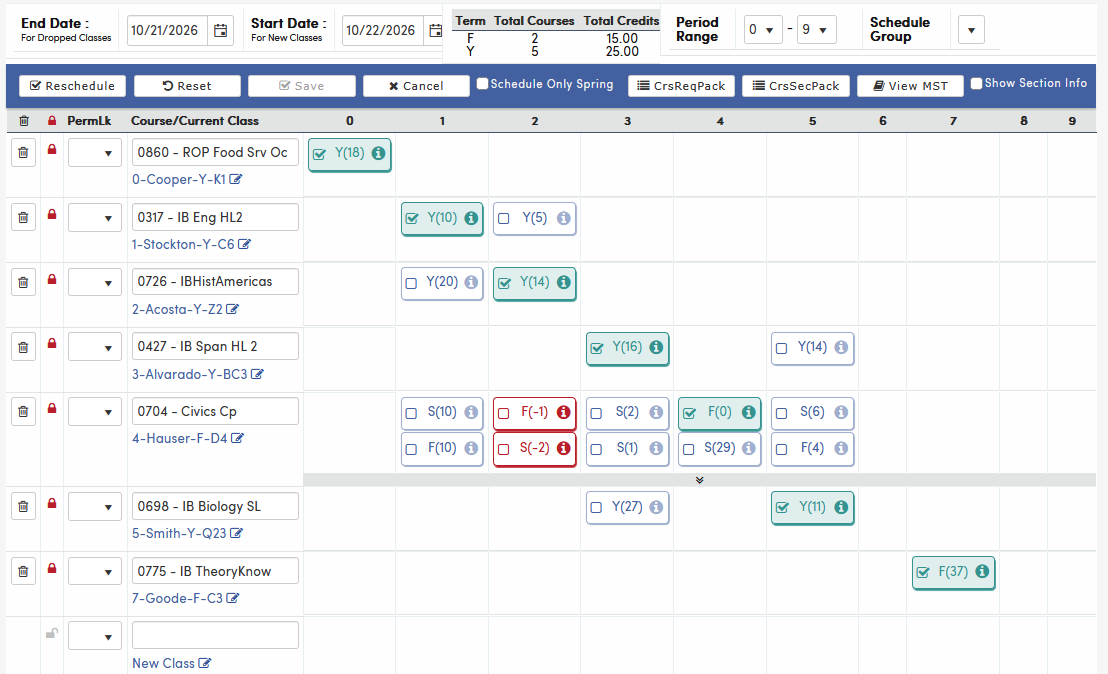
When changing sections in a student's schedule, check the End Date and Start Date. They keep the Course Attendance Record (CAR) table accurate; CAR keeps a record of when each student is enrolled in any section. The Start Date is the student's first day in the new class, and dropped classes end on the school day before the Start Date. If you change one date, Aeries adjusts the other to match. The dates only display if the school keeps Course Attendance (CAR) records, and before the first day of school only the Start Date displays.
Edit Mode allows the following actions:
- Adding a course, by typing a course number or name into the New Class box
- Adding a specific section by clicking the Add By Section (pencil) icon under the New Class box, typing the section number, and pressing Enter
- Deleting a course by clicking the Trash icon. Aeries asks "Are you sure you want to delete this course?", and asks a second time if the course has a Perm Lock
- Changing sections (click the "tile" for the new section in the grid)
- Reschedule allows Aeries to choose sections for the student based on the availability of seats
- Reset asks for confirmation, then abandons any changes made in the workspace and displays the student's original schedule from when Edit Mode was entered
- Save schedules the student into the selected sections, leaves Edit Mode, and returns to View Mode
- Cancel abandons any changes made in Edit Mode's workspace and returns to View Mode
- Schedule Only Spring allows Edit Mode to be used to only schedule sections that meet during Spring terms. When checked, the message "Students will be scheduled only into classes which meet during the spring semester." displays
- CrsReqPack allows Course Request Packets to be viewed and added to the student's Edit Mode workspace
- CrsSecPack allows Course Request Section Packets to be added; each section in the packet is added and selected
- View MST displays the Master Schedule to locate available sections and add them to the workspace (see View MST)
- Show Section Info expands each section's "tile" to show more information about that section
- Lock a section by clicking the Lock icon, or choose a reason in the PermLk column. The PermLk choices come from the PL codes set up for the SSS table, and the code is saved with the student's class
- Period Range and Schedule Group at the top of Edit Mode are saved as soon as they are changed (a green check displays); they do not wait for Save
When Save is clicked, Aeries may ask "Continue anyway?" for an overloaded class or teacher, a change to the student's primary class in the current term, or a mismatched Team # in a Team Course Group. Users without permission to override a full class or an overloaded teacher can't add the section.
Class Link - Linking Classes ↑
In View MST, sections with a Class Link (MST.CL) value display a chain icon in the section number column, and the value displays in the last column, ClsLink#. Clicking the plus button to add a section to the student's schedule automatically includes the other linked sections with a matching Class Link value.

NOTE: A linked section will not be added if it is in a term prior to the term of the selected section (i.e., if a Spring section is selected, a linked Fall section will NOT be added. However, if a Fall section is selected, a linked Spring section will be added). Once the selected section has been added, the linked section(s) will immediately be added with no validation checks such as outside grade range or full class.
Linked sections are also added when Save is clicked, however the first section was chosen (a tile, the section number, or View MST). If a class that has linked sections is dropped, Aeries asks "A class with linked section(s) is being dropped. Drop the linked section(s) too?". Linked sections in an earlier term are never added or dropped.