Please reach out to support@jumpro.pe if you have questions about setting up Class Grades for your school.
1. Review Grading Periods
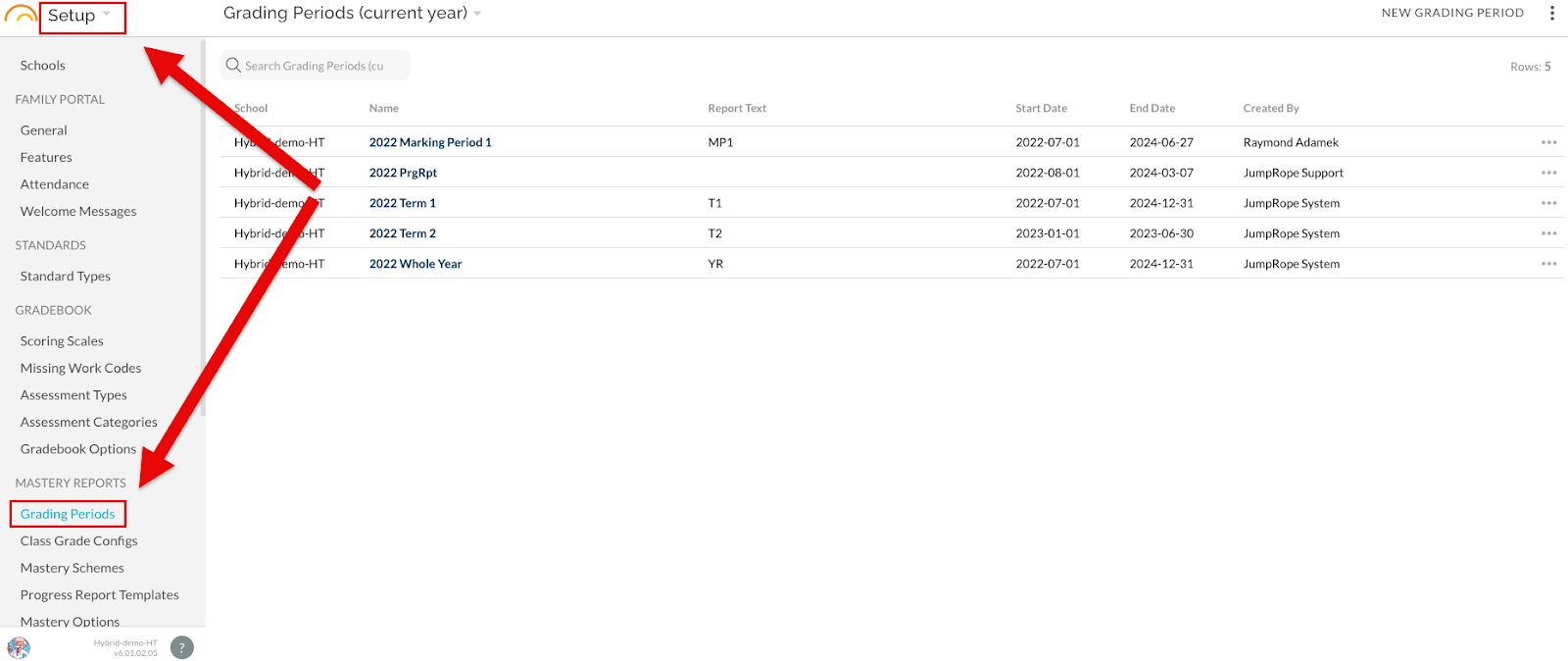
In order to enter Class Grades, an administrator will create a grading window date range aligned to the grading period (marking period). Create a new grading period if necessary. Additional grading periods can be created throughout the year. Here is a helpful article to guide this work: How to - Create and Edit Grading Periods.
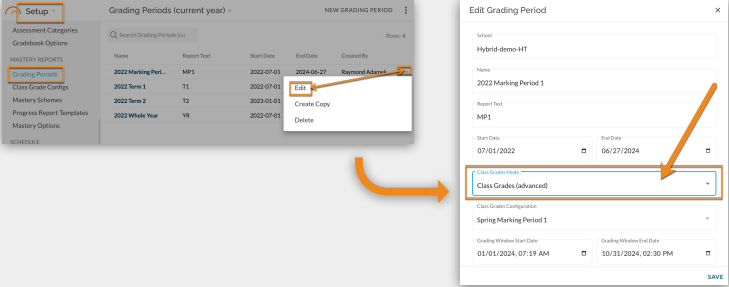
2. Class Grades Mode / Class Grades (advanced)
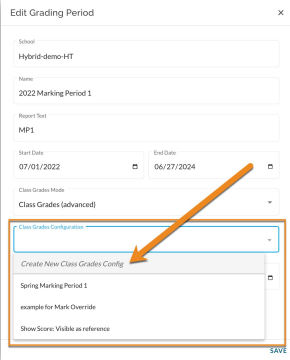
3. Class Grades Configuration / Create New Class Grades Configuration
Selecting "Create New Class Grades Config" will allow the administration the option to setup a new configuration for this grading period. Please note that if you have previously created a Class Grade Configuration for this or an earlier Grading Period, the option to select it will become available as part of the dropdown. In order to use the previously created class grade configuration, simply select it and adjust the Grading Window Start Date / Grading Window End Date for the current grading period.
A record of the previous Class Grade Configuration is also available in the Setup module under Class Grade Configs. See Class Grades How to - Edit Class Grade Configurations
4. Grading Window Start Date / Grading Window End Date
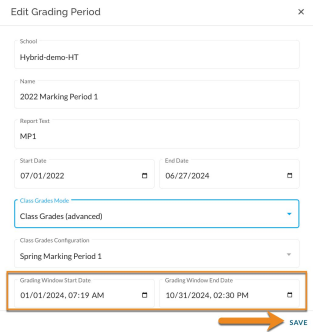
After Class Grades Configuration is completed, set the Grading Window Start Date and Grading Window End Date. This will "open" the option for teachers to enter grades in Class Grades and will set a reminder on their class cards for the deadline / closing of the window for grade entry. Please note, adjusting the grading window end date to a later point in time, will "open" the options for teachers to enter grades for the entire school. The grading window is a school-wide setting.
Be sure to SAVE