

Celebrate that A+ as soon as the assignment is graded in Aeries. Clear, detailed and beautiful gradebook assignment readouts are always at your fingertips in Aeries Mobile Portal.
Grades
When you view the Grades screen, you'll see a list of the student's classes and/or gradebooks. This list matches the Class Summary on the Aeries Parent/Student Portal Home page. Use Selected Term (iPhone) or the Current Terms menu (Android) to switch between current, prior and future terms.
A letter grade and percentage display on the right-hand side for each class, for a quick at-a-glance look at how the student is performing across all classes. The letter grade shows only if the teacher has chosen to display the final mark to parents and students, and the percentage is hidden if the teacher has chosen to hide it.
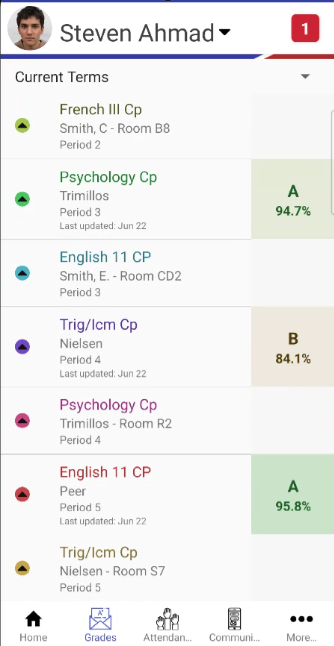
Grade color meaning
Each class's grade tile is colored by the class percentage: green for 90% and above, olive and tan shades in the 70s and 80s, and pink to red below 70%. This gives an at-a-glance view of student progress without having to look at every class in detail.
Classes graded with a rubric, or that don't have a mark yet, show in light gray.

Disable Grade Colors
To turn grade colors off, tap More, tap Settings, then turn off Grade Colors. The setting is saved on that phone.
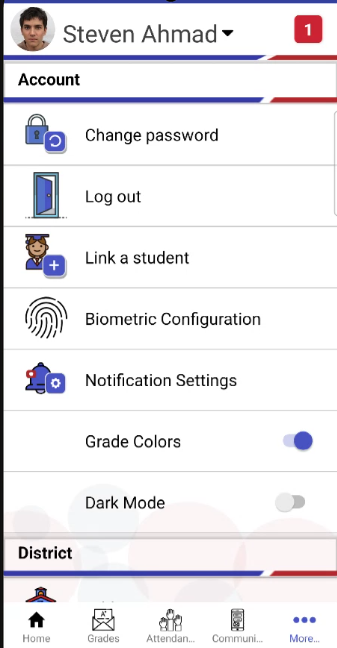
When the toggle is off the Grades page will display the letter grades in a gray shade.

Assignment Categories
Tap on any course shown in the grades list to drill down to assignment categories for that class. Viewing assignments broken down by assignment category is useful for gauging specific areas of improvement or success for a particular student - e.g., perhaps they are under-performing when it comes to homework assignments, but generally excel in other areas.

Course Assignments
Tap on any assignment category - or scroll down to and tap "Overall" to view all assignments together - to drill down to the assignment list for that category. For assignments that have already been graded, the assignment score will show.
To return to the list of classes, tap the class name again (iPhone) or tap the back arrow next to the class name (Android).
To try out "what if" scores, open a class and tap the pencil icon at the top right. See Aeries Mobile Portal App Features - 'What if' grade calculator.

Assignment Details
Tap on any assignment listed in the course assignments drilldown to view the assignment details. Here, you'll see information like:
- Category - the type of the assignment
- Description - the assignment name
- Score - the assignment's score, if the teacher has made scores visible. If the school only shows check marks for scores, this shows that the assignment was scored instead of a number.
- Gradebook - the Aeries gradebook that the assignment comes from
- Date assigned - the date it was assigned
- Due date - the date the assignment must be submitted
- Date completed - the date the assignment was marked completed in Aeries
- Grading completed - Yes if the teacher has marked grading complete for the assignment
- Comment - the score status (if any) and the comment the teacher entered
- Assignment Description - any longer description the teacher entered
