

Setting up the Default Term - Changing the Term That Teachers See First
The default term will be that which is displayed to teachers upon their login. Depending on settings that have been administratively enabled, teachers may have access to work within previous or upcoming terms. From Setup -> Terms -> select to edit the desired term and choose "Set as Default".
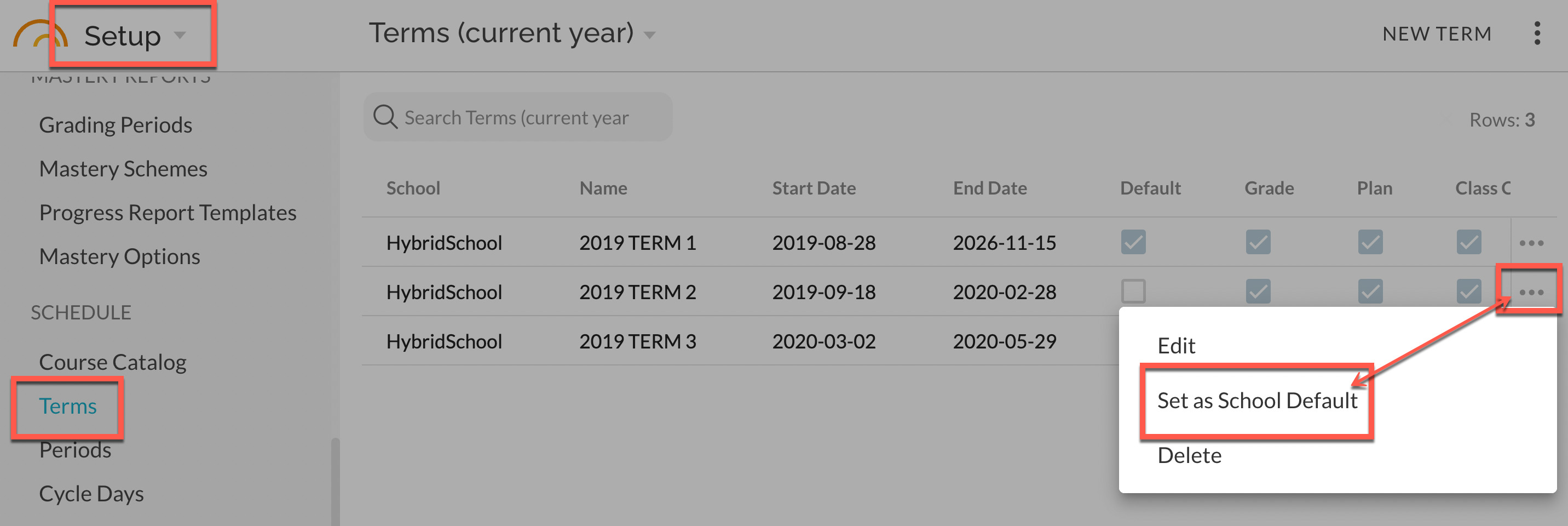
Here's more on how to set the default and manage accessibility permissions for previous terms.
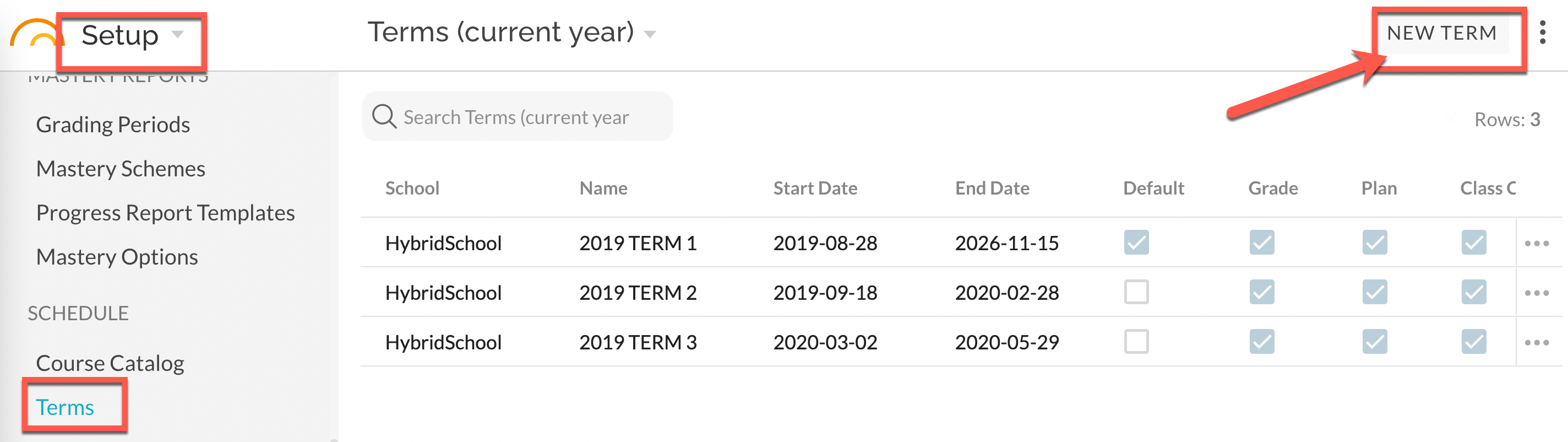
Create a New Term
If additional terms do not yet exist for the given school year (depending on settings for the previous school year, terms may have already been created automatically) they can be created in Setup as described here.
Access Permissions on Past TERMS
In Setup -> Schedule -> Terms, select the more menu and Edit for the desired Term.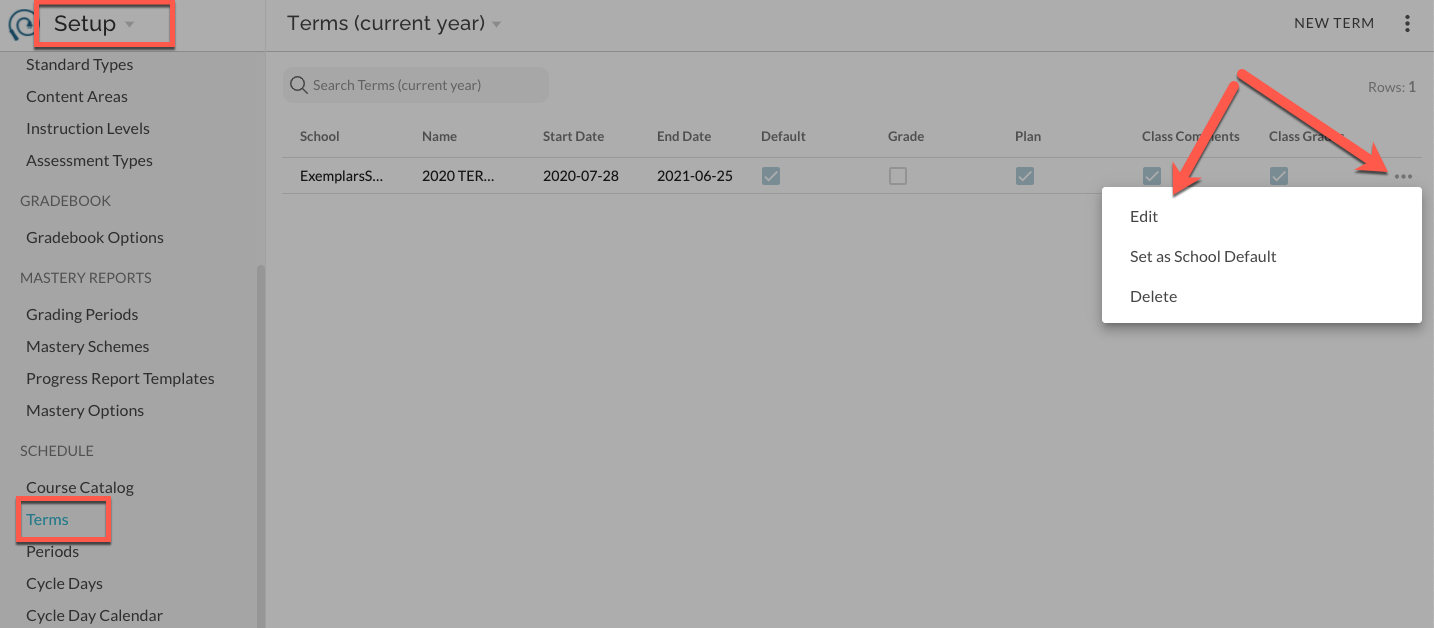
Toggle "Allow" switches as desired and Save.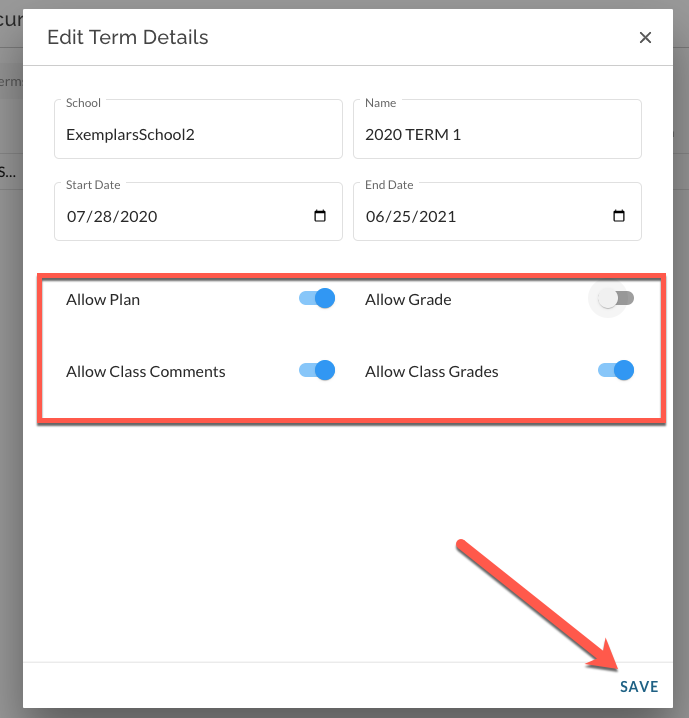
Permissions for non-Default Terms
All permissions will default to 'Allow' for the current school year for both default and non-default terms.
- Allow Plan- Allows access to the Plan tab and features for the given term
- Allow Grade- Allows access to create or edit scores in the Grade tool for classes in this term.
- Allow Class Comments- Allows teachers to add or edit the Class Comments for classes in this term.
- Allow Grade Override- Allows teachers to override final class grades for classes in this term.