

In Setup -> Progress Report Template, select New Progress Report Template.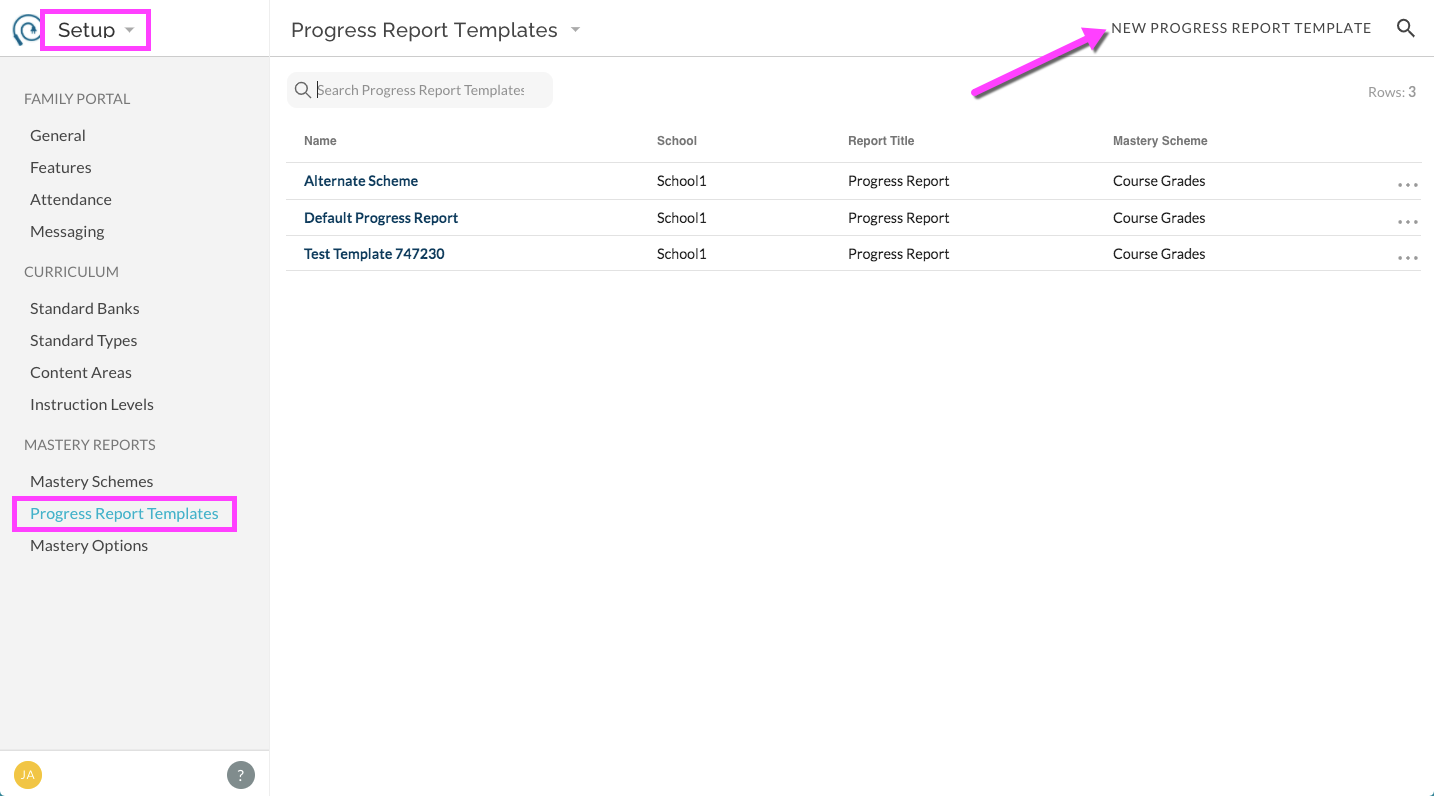
If prompted, select school. This will navigate you to the report preview workspace. Note that individual templates for additional schools must be created, a template cannot be shared among schools. See below for how to copy a template to another school.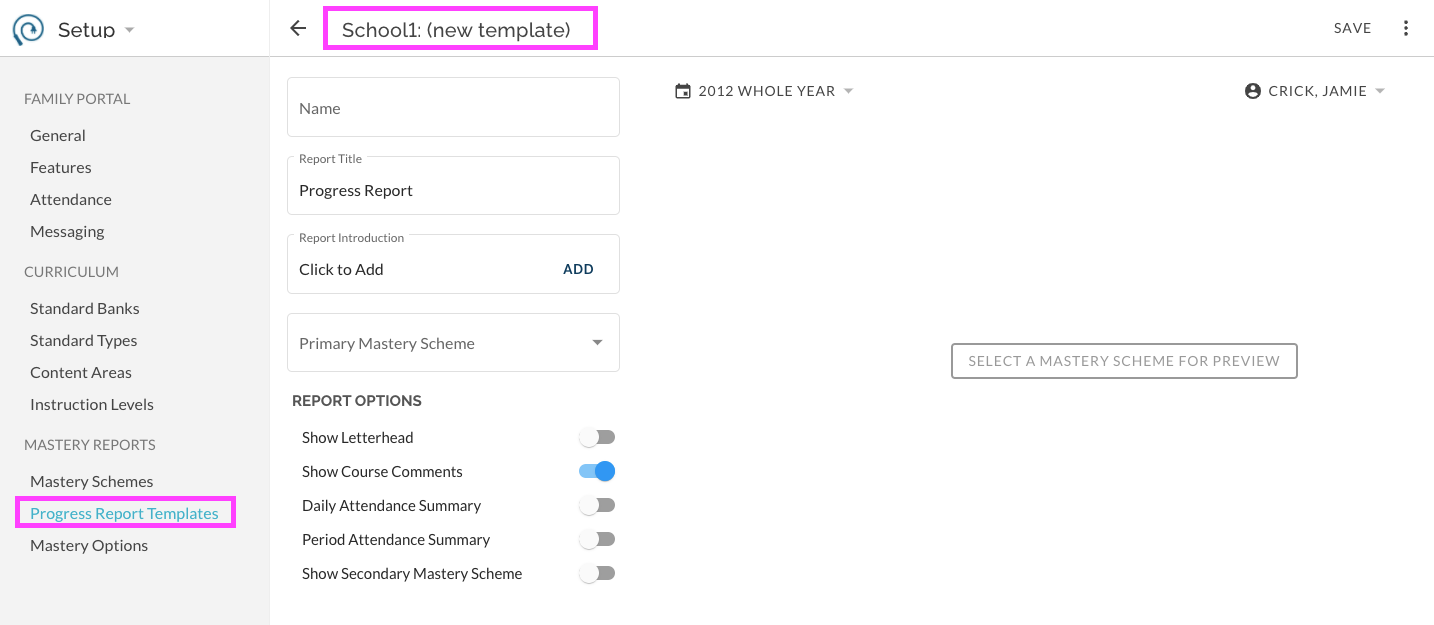
Make selections to preview report.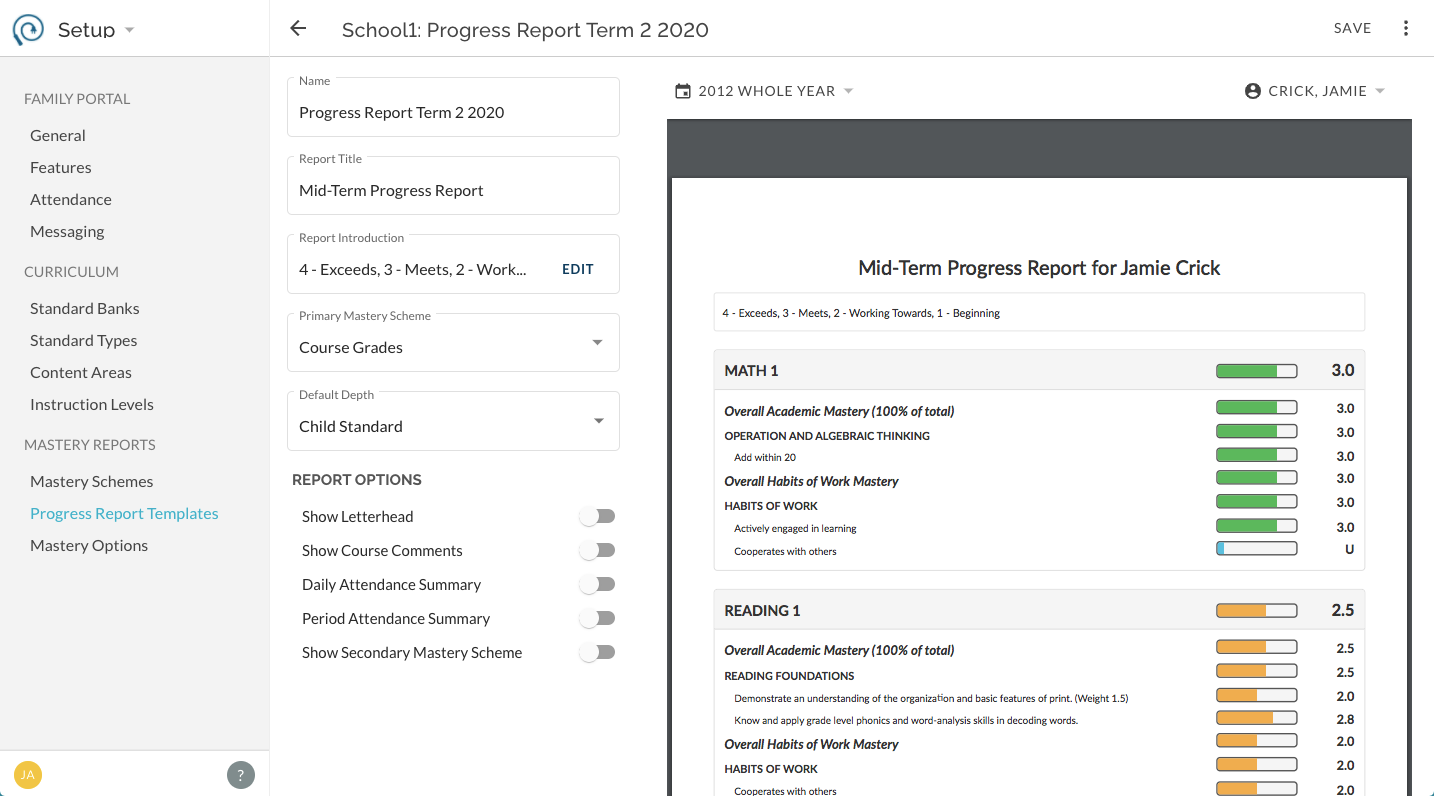
- Name: Enter a name for your template. Consider including the term and year so as to distinguish this template and to clearly communicate with other users.
- Report Title: This text will be displayed at the top of the report appended with 'for'. For example, if you enter a report title of "Progress Report" the resulting report for Tyrone will have a heading of "Progress Report for Tyrone Boone".
- Report Introduction: Text field for content to be included before score listings. Commonly used as a 'key' or 'legend'.
- Primary Mastery Scheme: Select pre-created Mastery Scheme that represents your desired Grouping of data elements.
- Default Depth: Select detail expansion level of report.
- Show Letterhead: Show or hide letterhead.
- Show Course Comments: Show or hide teacher written Course narrative comments.
- Daily Attendance Summary: Given that school uses attendance features: show or hide.
- Period Attendance Summary:_ Given that school uses attendance features: show or hide._
- Show Secondary Mastery Scheme: In addition to the report generated using the Primary Mastery Scheme, include a second report with a different Mastery Scheme. Upgrade/replacement of Legacy "Work Habits Box".
- Preview Options:
- Date Range - Select desired Grading Period for report.
- Student Name - Select a student. Their data will be used to generate the on-screen preview example._
_
Copy a Progress Report Template
- In the list, find the template you want to copy. Click on the ... menu for that item and select Create Copy.
- Select the school the copy will belong to and select the relevant Mastery Scheme(s).
- In the preview report, make any desired changes and then SAVE.
Edit an existing Progress Report Template
In the list, find the template that you want to edit. Click on the template name to open the preview workspace.
Note: You cannot edit the Grouping Scheme of an existing template but you can adjust the other elements (i.e. mastery bars, detail level, etc.).