

This guide walks school and district administrators through the process of submitting end-of-term class grades from JumpRope to Aeries using the built-in API write-back feature.
Before You Begin
The following must be in place before you can submit grades:
In Aeries:
-
An API certificate has been created in the Aeries admin console
-
The GRD table has been initialized for the current grading cycle (Aeries admin runs "Initialize New Grade Reporting Cycle" -- recommended the day before the grading window opens)
In JumpRope:
-
Your school has an active Aeries integration with API credentials configured
-
A Class Grades configuration exists for the grading period, with the correct Aeries marking period selected (M1-M12)
-
Teachers have entered and finalized grades for the grading period
We recommend clicking Import Valid Marks from Aeries on your Class Grades Configuration (Setup - Class Grades Configs) before the first submission. This pulls the list of accepted grade marks (e.g., A, B, C, D, F) from Aeries so that invalid grades can be caught before submission. This is done via automatic nightly import, but completing the process right before submission ensures that any recent changes are accounted for.
How to Submit Grades
Step 1: Open the Submission Wizard
Navigate to _Admin > Class Grades. _Select the grading period you want to submit 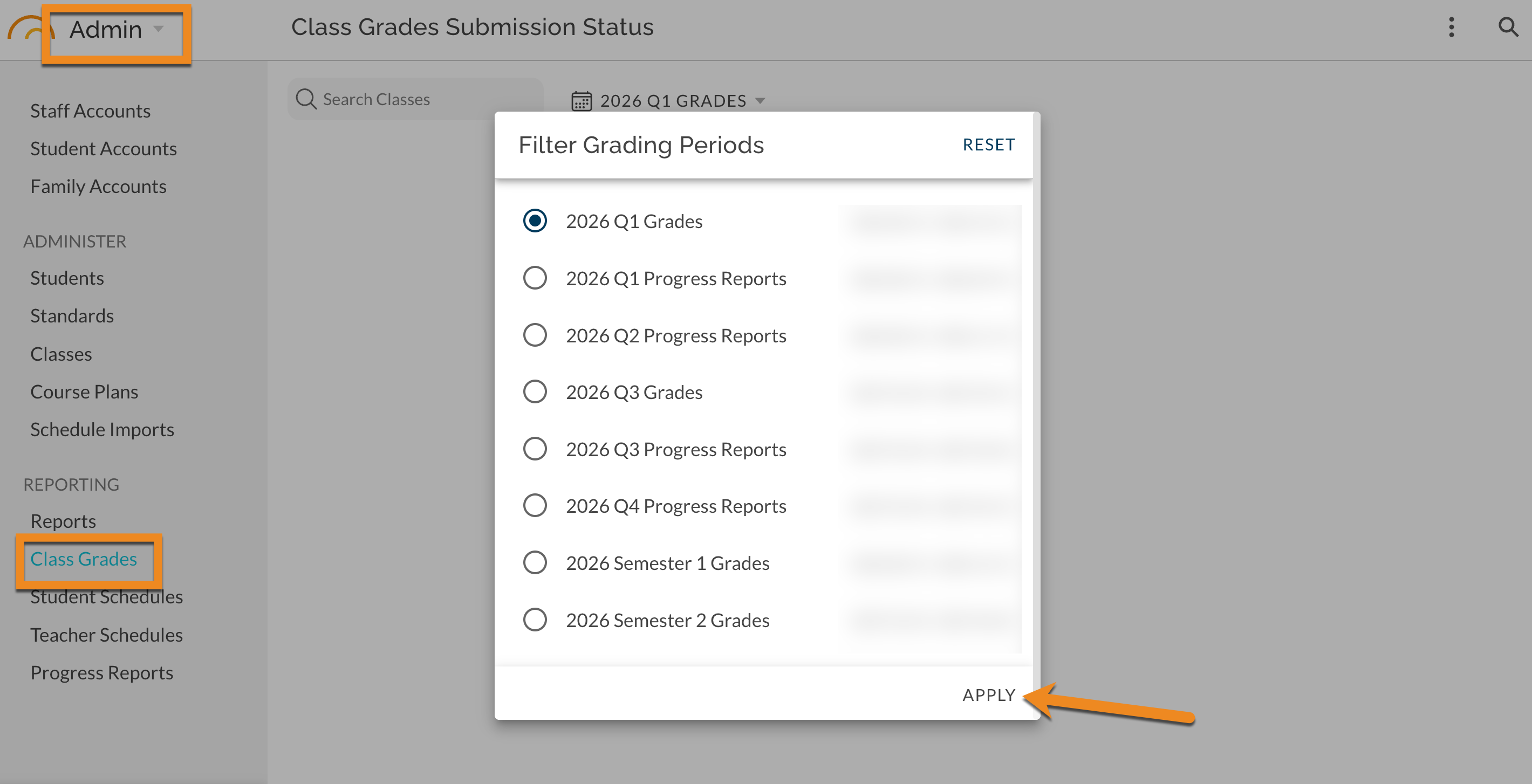
Click Submit Grades to Aeries in the toolbar 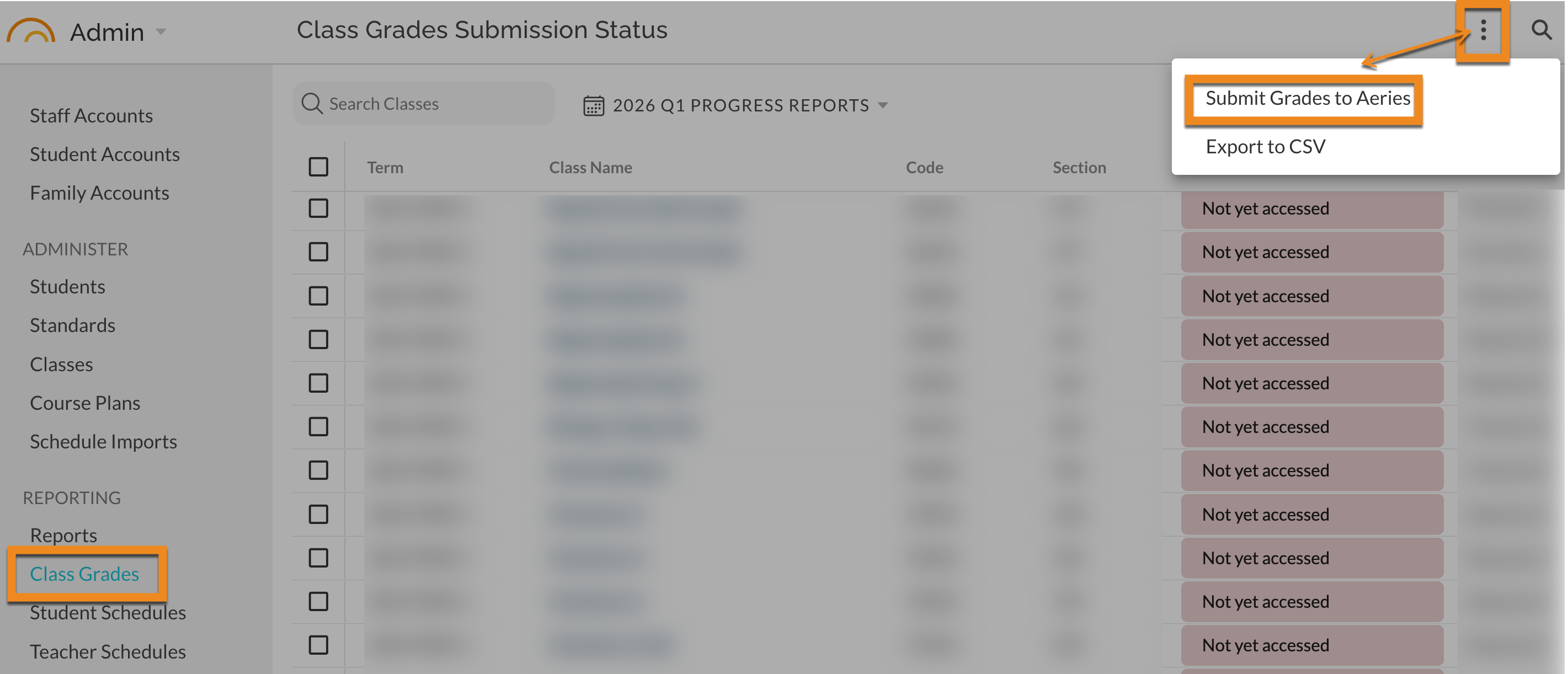
If your district has multiple schools, the grading period selector will show the school code prefix (e.g., [ABC] Q1 2024-25) so you can confirm you're submitting for the correct school.
Step 2: Validation
The wizard automatically validates your grades against Aeries requirements:
-
Each grade mark is checked against the school's valid marks list in Aeries (the GRC table)
-
If any grades are invalid, you'll see a list of affected students and sections with the message: "Grade 'X' is not valid for this school. Valid marks: A, B, C, D, F"
-
Invalid grades must be corrected by the teacher before you can proceed
If all grades pass validation, the wizard advances to the preview step automatically.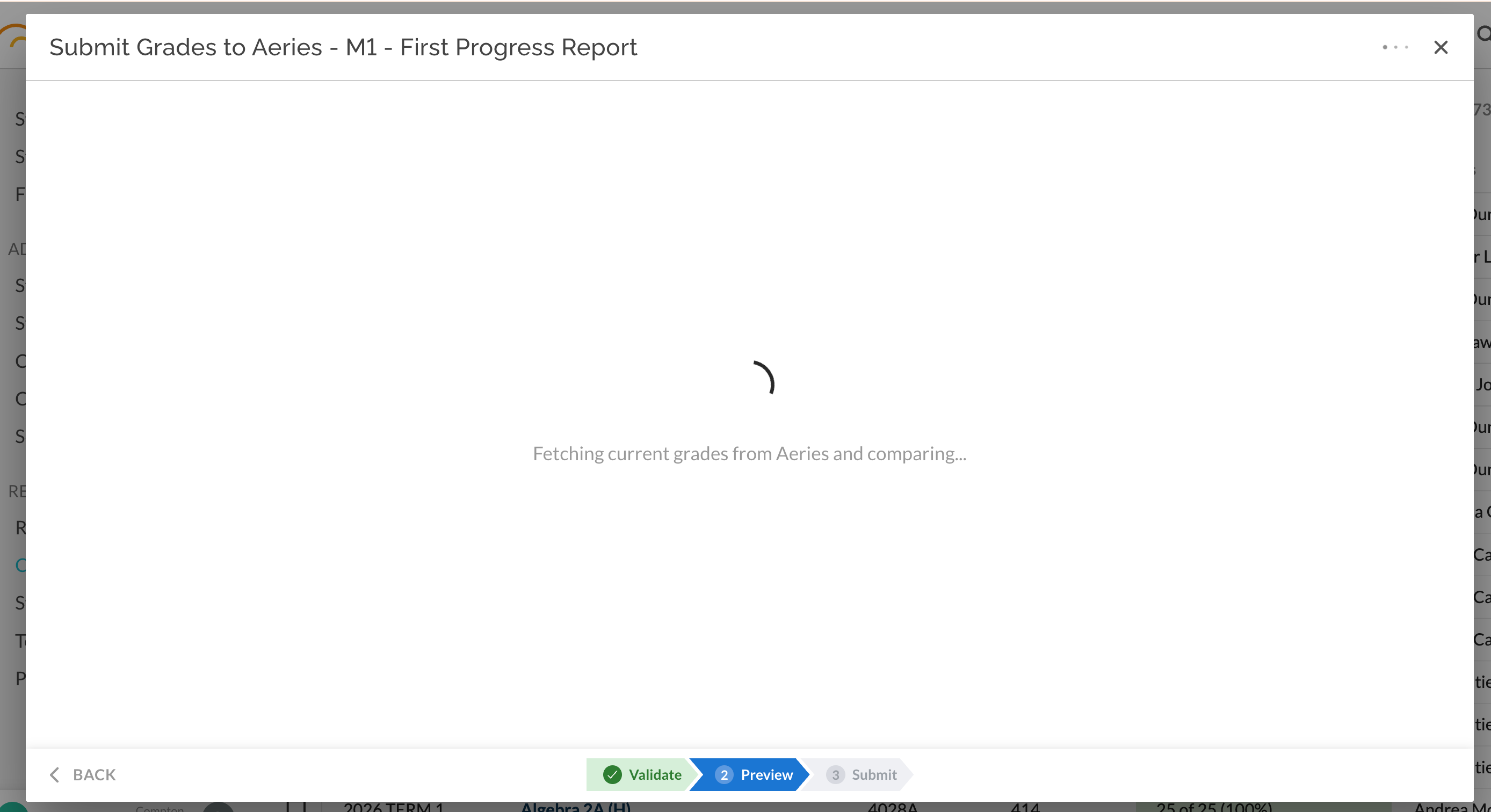
Step 3: Preview
JumpRope fetches the current grades from Aeries and compares them to your JumpRope grades. The preview shows:
-
Will Update -- Grades that differ from what's currently in Aeries (these will be sent)
-
No Change -- Grades that already match Aeries (these will be skipped)
-
Not in Aeries -- Students or sections that don't have a grade record in Aeries (these will be skipped)
If fewer than 50% of your JumpRope grades match Aeries records, the wizard will warn you. This usually means the wrong marking period was selected. Double-check that the Aeries marking period (M1-M12) on your Class Grades configuration matches the term you're submitting.
Review the preview and click Approve and Submit when ready.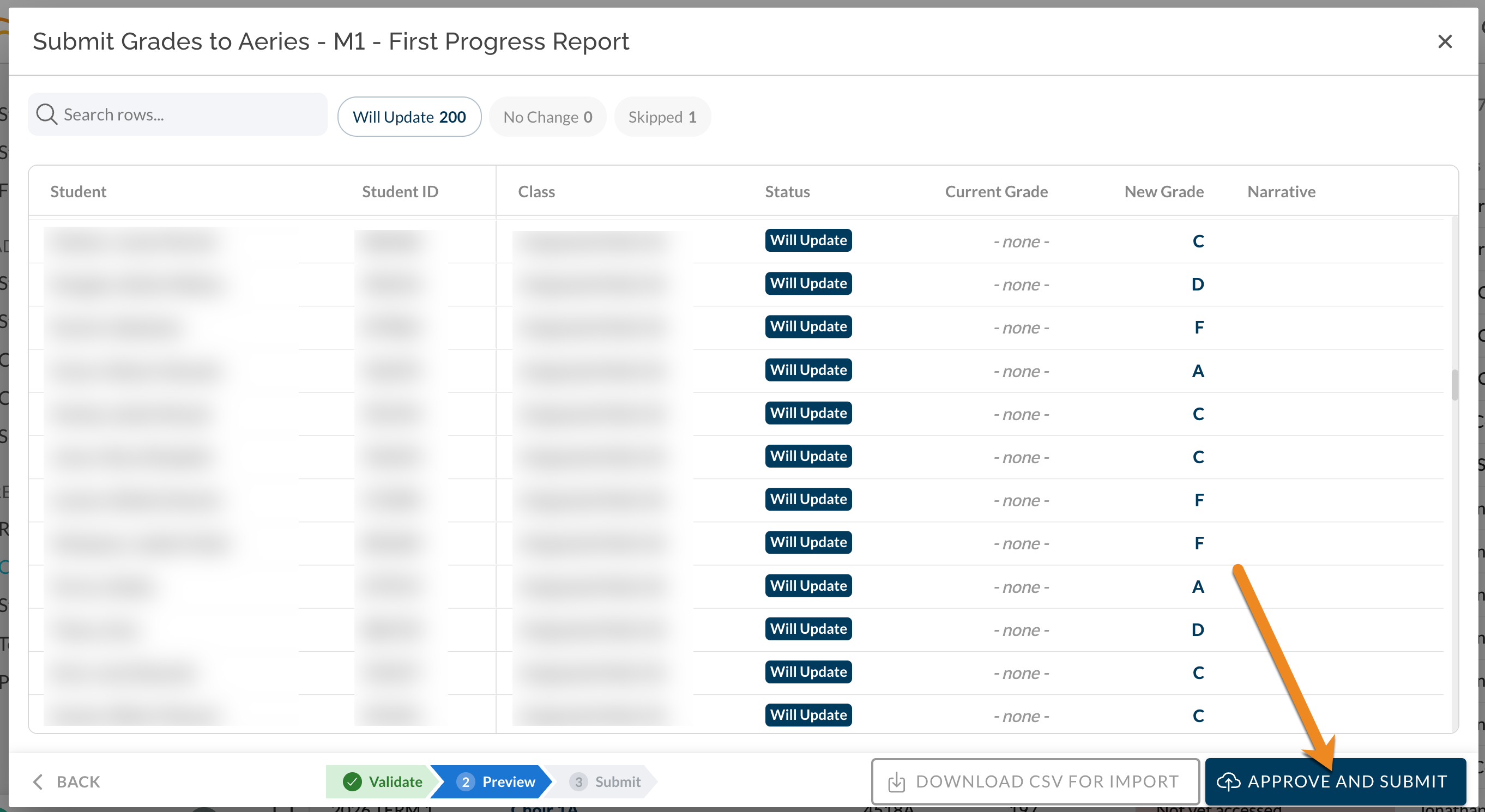
Step 4: Submission
After confirming, JumpRope submits grades to Aeries in batches. You'll see a progress indicator showing how many grades have been processed. Typical timing:
-
Small school (under 200 grades): under 1 minute
-
Medium school (200-500 grades): 1-3 minutes
-
Large school (500+ grades): 3-10 minutes
When submission completes, you'll see a results summary:
-
✅ Success -- All grades submitted successfully
-
⚠️ Partial -- Some grades succeeded, some failed (failed students listed with details)
-
❌ Failed -- Submission could not be completed
If any grades fail, review the error details shown in the results. Common causes include invalid marks or missing student records in Aeries.
Optional CSV Export for Manual Import into Aeries
On Preview step, select Download CSV for Import.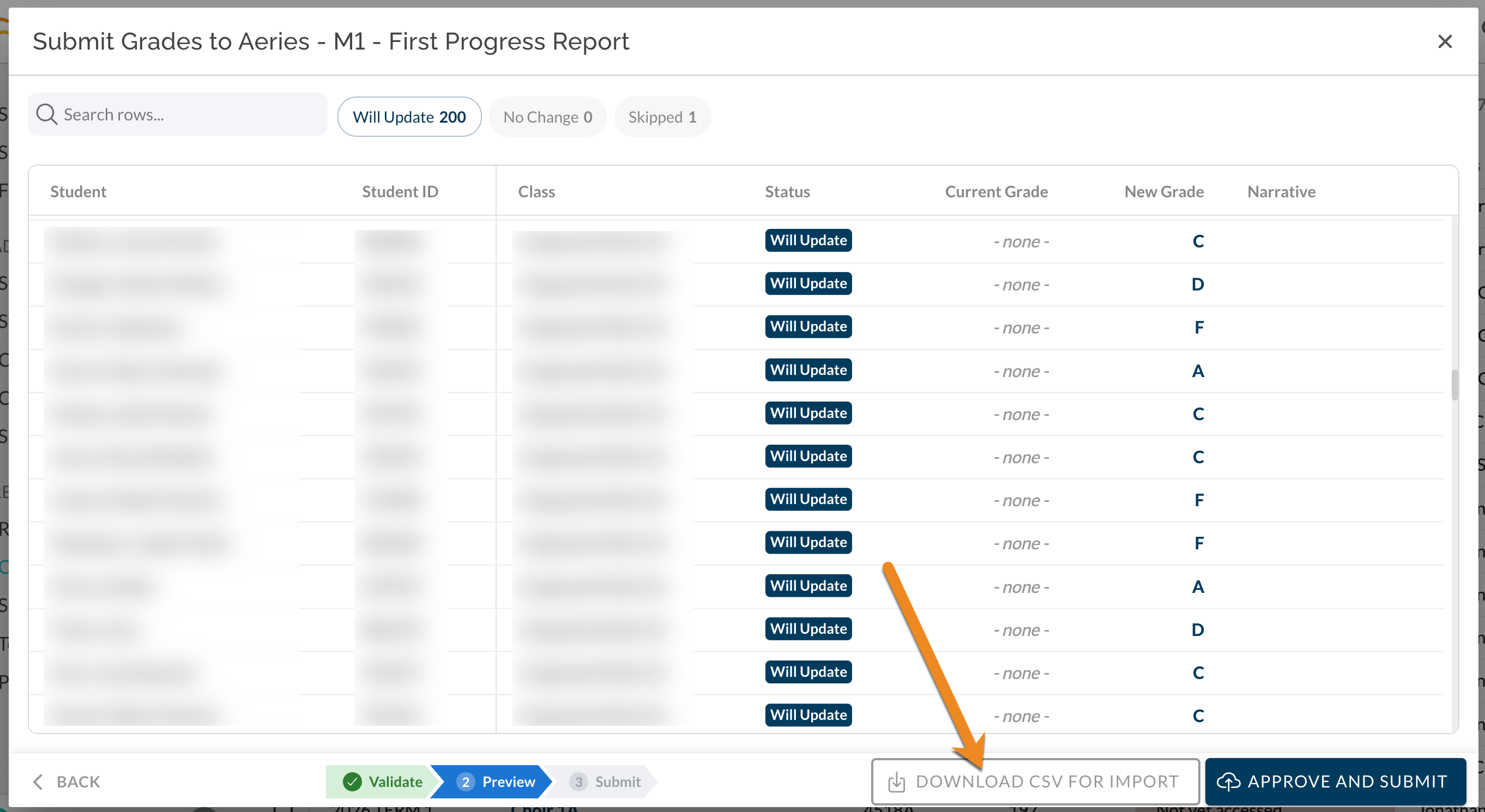
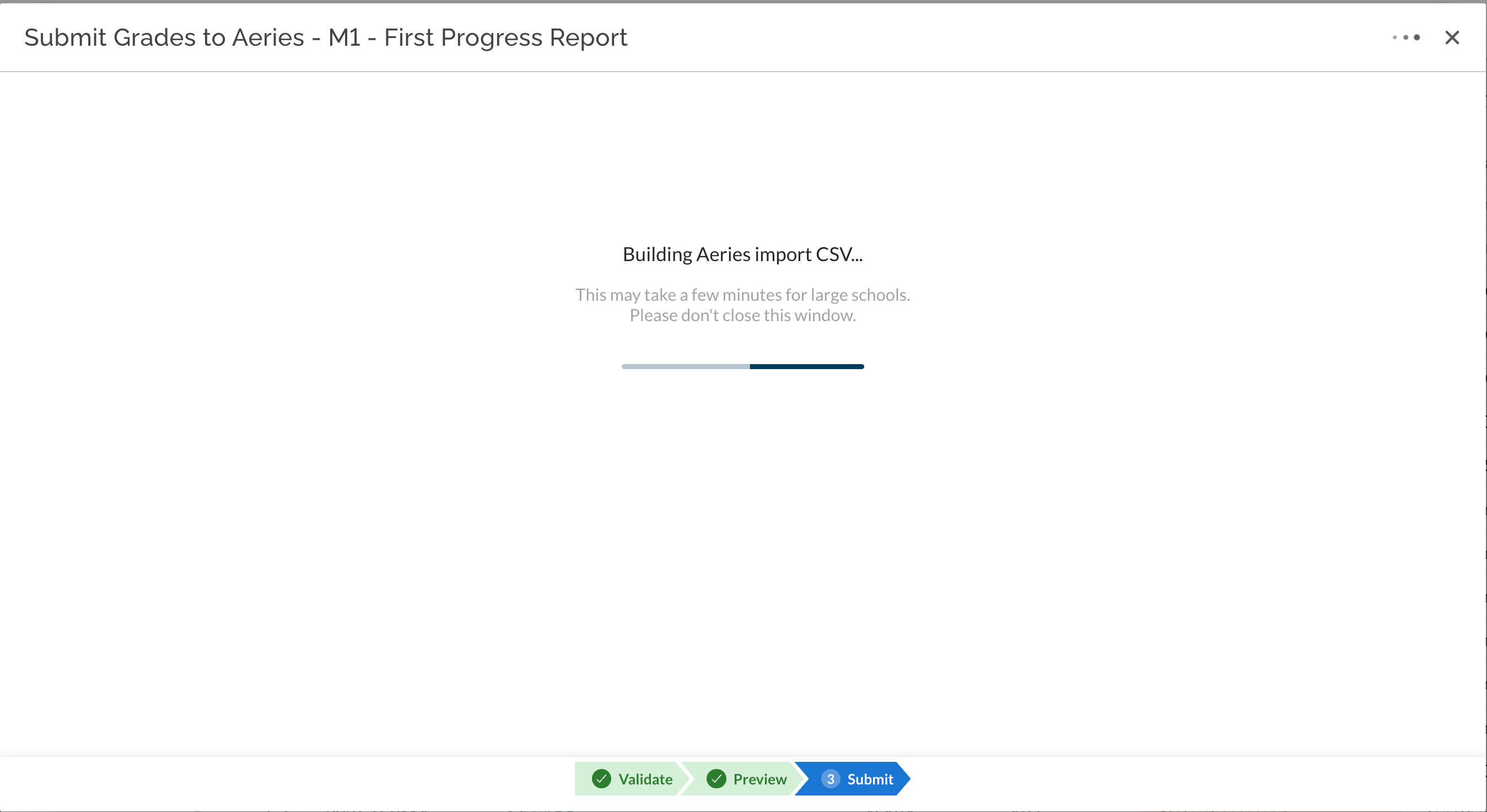
Download report. Follow instructions in wizard in order to import the report directly into Aeries.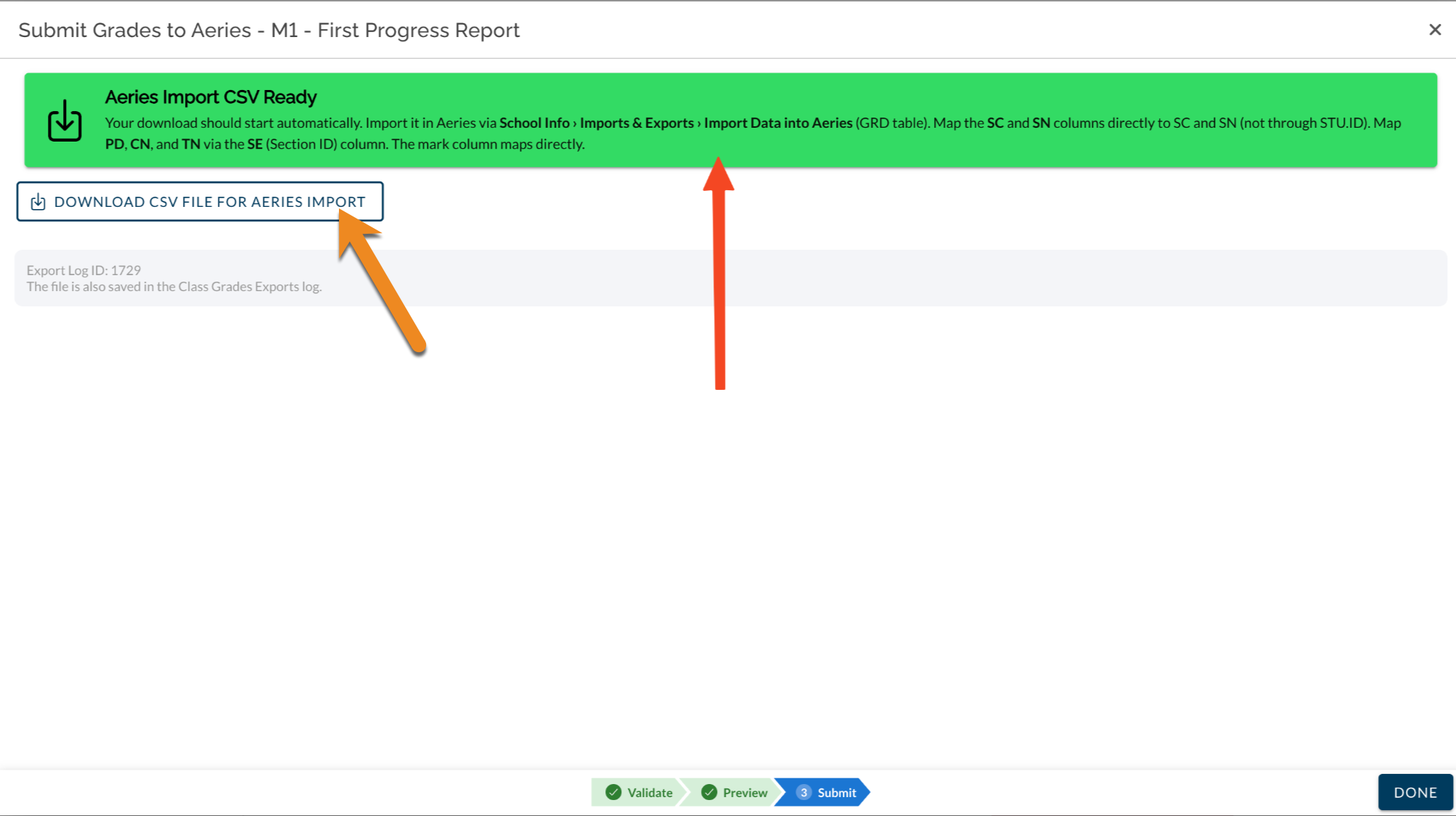
Re-Submitting Changed Grades
If a teacher corrects a grade after the initial submission, simply run the wizard again:
Navigate to Admin > Class Grades
Click Submit Grades to Aeries
The preview will show only the changed grades as "Will Update"
Confirm and submit
JumpRope only sends grades that have changed since the last submission -- unchanged grades are skipped automatically. You can re-submit as many times as needed.
Troubleshooting
| Issue | Cause | Solution |
|---|---|---|
| "Submit Grades to Aeries" button not visible | Missing API credentials or no active Aeries integration | Contact JumpRope support to verify your school's Aeries integration is configured |
| "No grade record found in Aeries" for students | GRD table not initialized in Aeries | Aeries admin must run "Initialize New Grade Reporting Cycle" for the current term |
| Invalid marks flagged during validation | Grade entered in JumpRope doesn't match Aeries valid marks list | Teacher updates the grade to a valid mark, or Aeries admin updates the valid marks (GRC) table |
| Low overlap warning in preview | Wrong marking period selected | Verify the Aeries marking period (M1-M12) on your Class Grades configuration matches the term |
| Submission takes longer than expected | Large number of grades being processed | Wait for the progress indicator to complete -- submissions can take up to 10 minutes for large schools |
What Gets Sent to Aeries
Included in Phase 1:
-
Grade marks (M1-M12 marking period slots)
-
Work habits grades (optional)
Not yet included (planned for a future release):
-
Comment codes (C1-C3)
-
Citizenship grades
Audit Trail
Every submission is logged automatically. JumpRope records:
-
Who submitted and when
-
Which grades were sent and their before/after values
-
Success or failure status for each student
-
A snapshot of the Aeries grade records at the time of submission
If you need to review past submissions, contact JumpRope support.