

Note: These features must be enabled by your account administrator.
Class Grades allows you to override class grades, one per student per class. When an override is entered, mastery data by standard & assessment will be unchanged by the override. However, instead of an overall calculated class mastery score, the override value will be displayed along with an asterisk. If scores are added or changed within a class that has a score override, the override will not update; it is the responsibility of the teacher to update the overridden score (or remove it to revert to a calculated score).
Note - If your school utilizes a course level conversion, entering a numeric value as an override will result in it being treated as a value in the conversion and calculated as such.
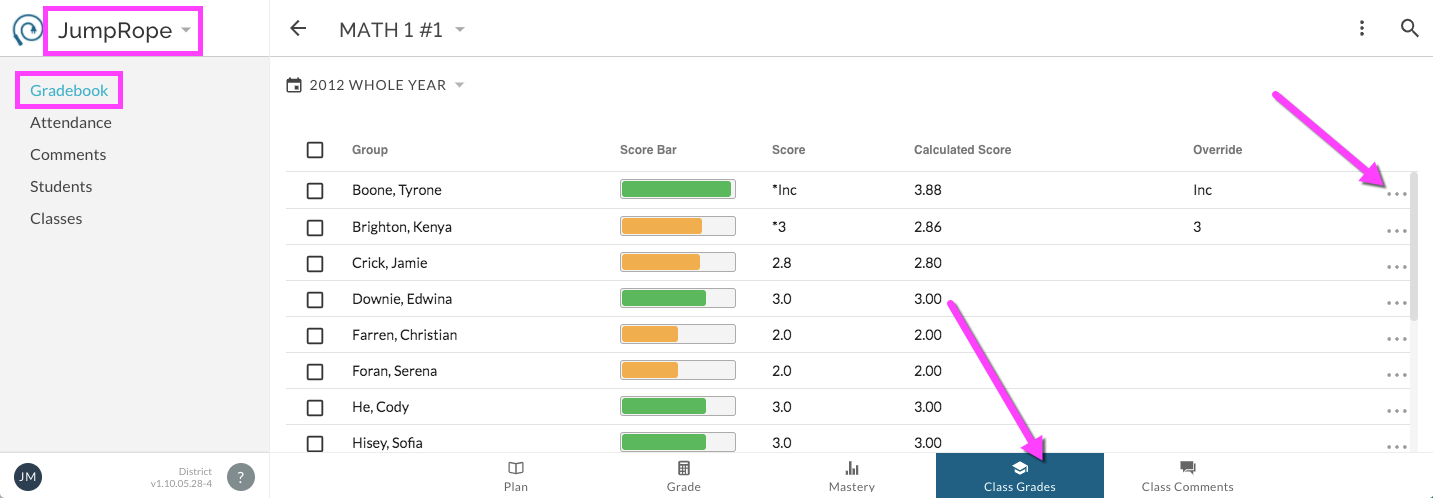
- To access Class Grades , navigate to JumpRope > Gradebook > Grade > Class Grades for the desired class.
- To add or edit an override score , click on the item menu to the right of the desired row and select Edit.
- To view the score prior to the override , refer to the Calculated Score or Conversion field, depending on your account settings.
To bulk update override scores , select one or more rows using the checkboxes on the left and use the bulk action menu that appears in the top right.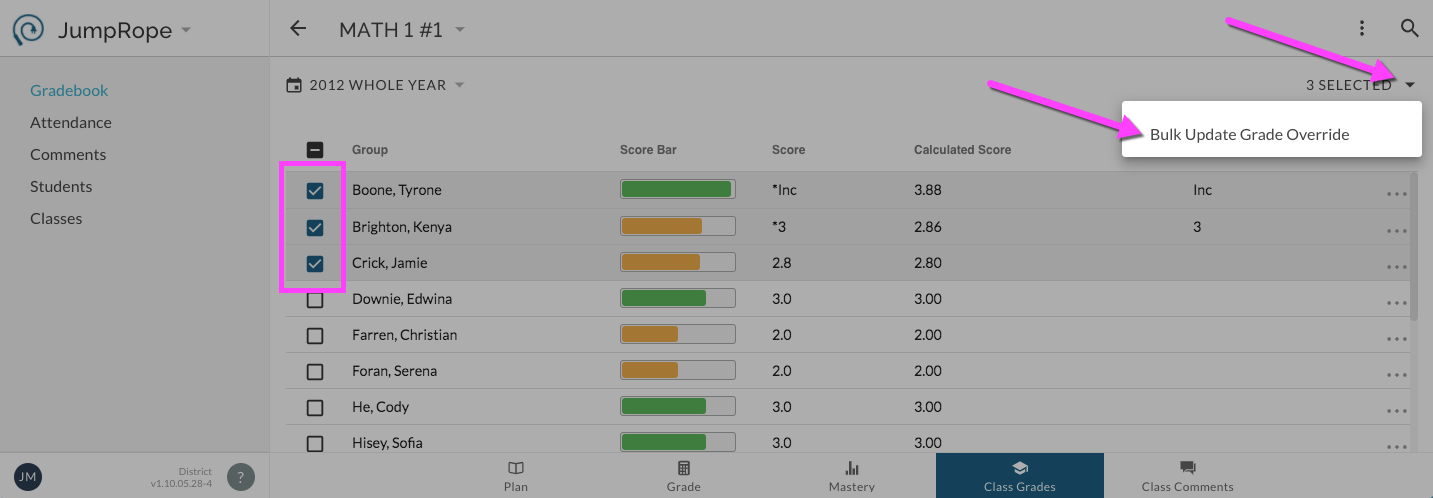
If you are looking to enter class narrative comments, select the Class Comments tab on the bottom. If you do not see this option, it may not have been enabled by your account administrator.
If enabled by your administration you may also have access to enter an override for a single standard using the Final Rating feature.
Specific to select NYC schools which utilize STARS, is a feature set, Class Grades. This is a different feature than what is described here. Please read more about NYC Class Grades options here.