

Use Grade to enter scores for your assessments and standards, or to create new assessments.
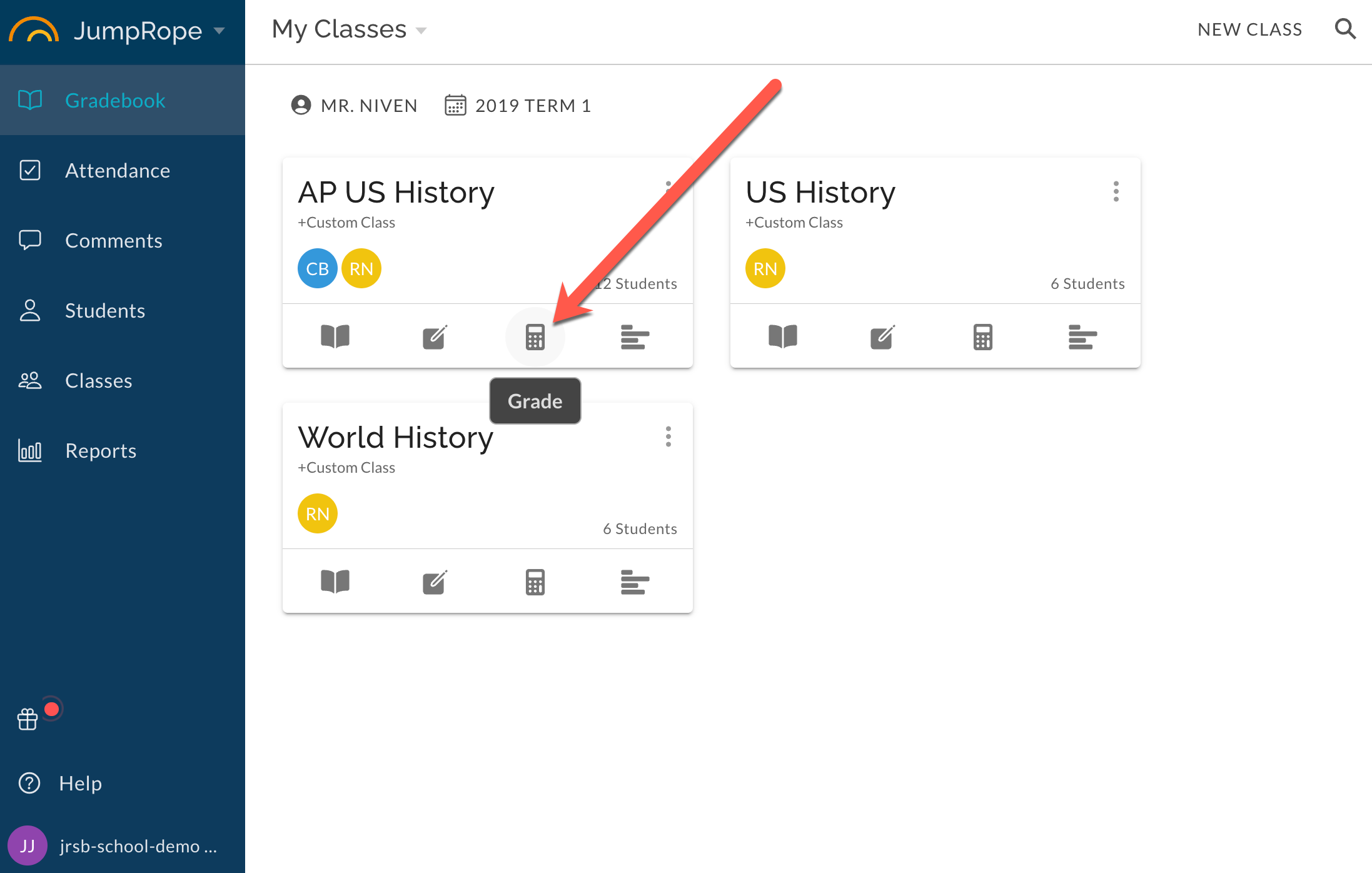
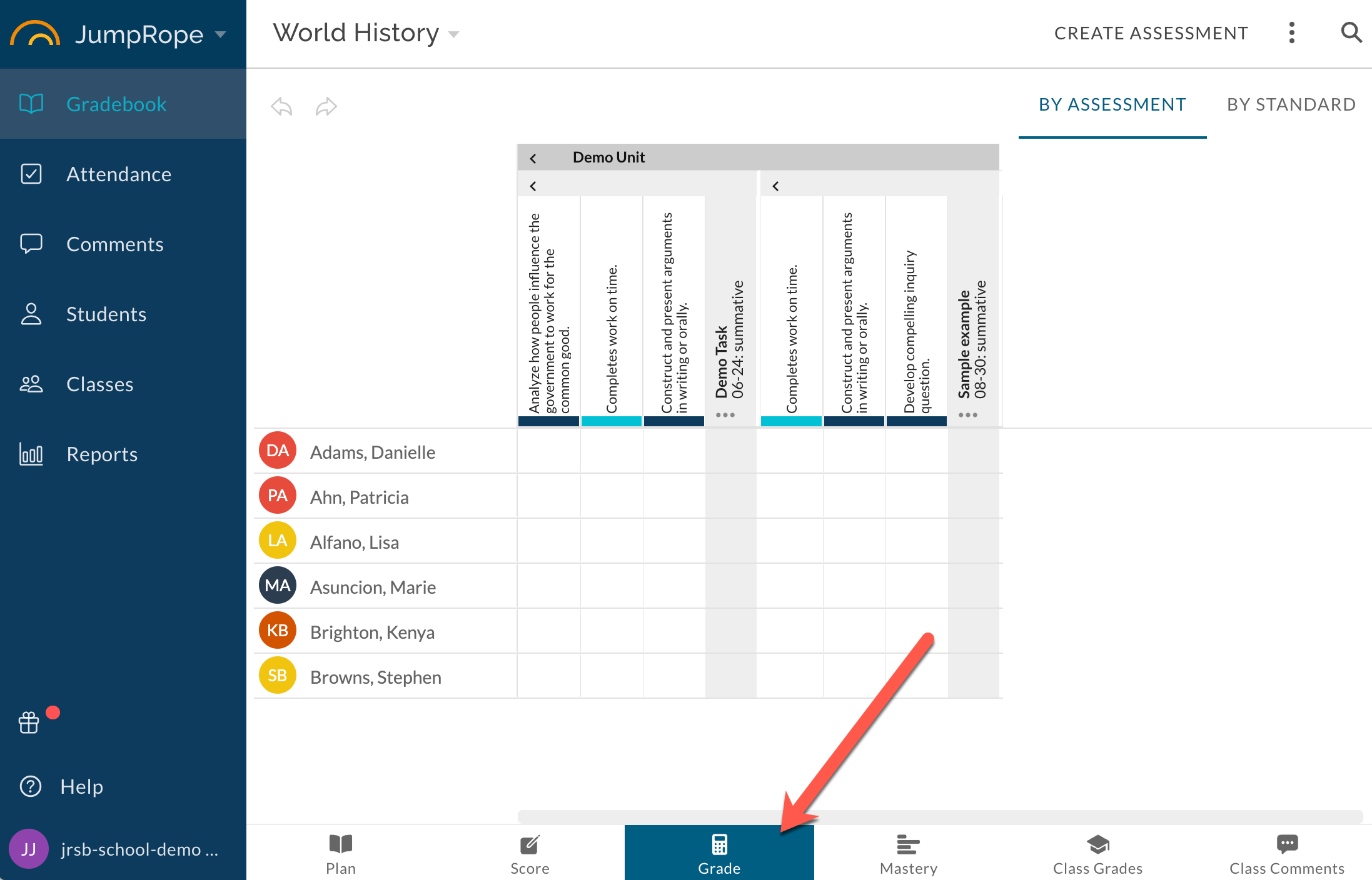
- To enter and edit scores , select any white cell and type a valid score (number or valid letter code). Scores save automatically when you navigate away from the cell.**
** - To create a new assessment , you can use the button in the top right. Here's more.
- To edit, copy, or delete an assessment , use the ... more menu just below the title of the assessment.
- To delete a score , highlight the score and press backspace or delete.
- To enter a score comment or date override , double-click a cell that already has a score entered.
- To collapse or expand a column group , click the small arrow in the top row. Your selection will be remembered for your next login session.
- To toggle view modes between grouping columns by assessment (the default) or by standard, use the By Assessment and By Standard buttons in the top right.
- To fill empty cells down a column , enter a score in a cell and either
- press CTRL+D or COMMAND+D while the score you want to fill is highlighted.
OR
- Right click on the cell and choose Fill Down Column
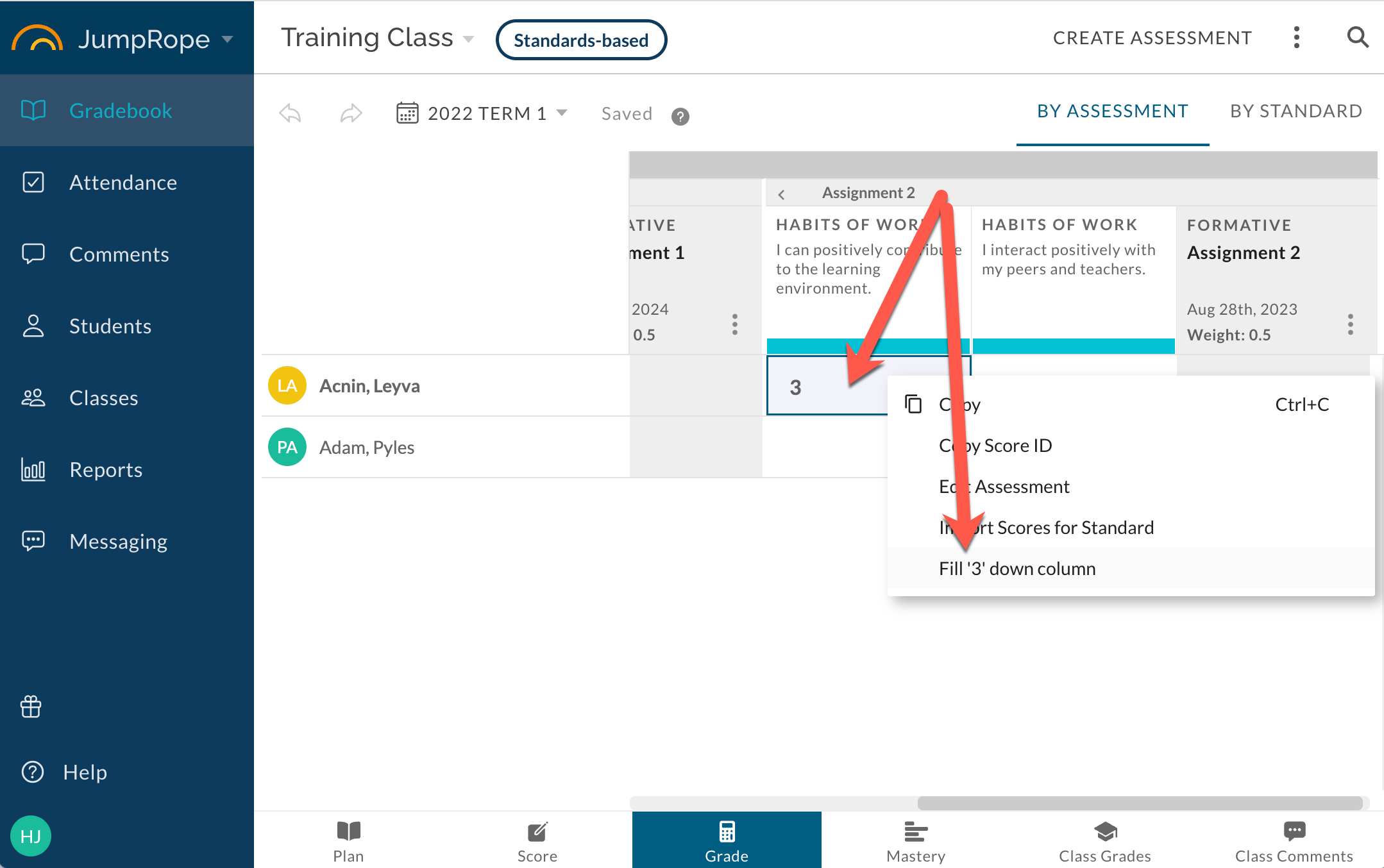
Only empty cells in the same column below the selected cell will be filled.