

Comments (also known as anecdotal or behavior comments) are anecdotal comments among staff members about students. They are never automatically shared with students or families, and are often used to document behavior incidents, parent contact, or positive interactions. All staff/teacher/admin users have access to these comments. Creating and/or editing a Comment initiates an email notification to members of the comment (i.e. Assignee, CC's, Issuer) minus the user who did the creating/editing. The Comment is also immediately viewable within JumpRope, see Comment Views.
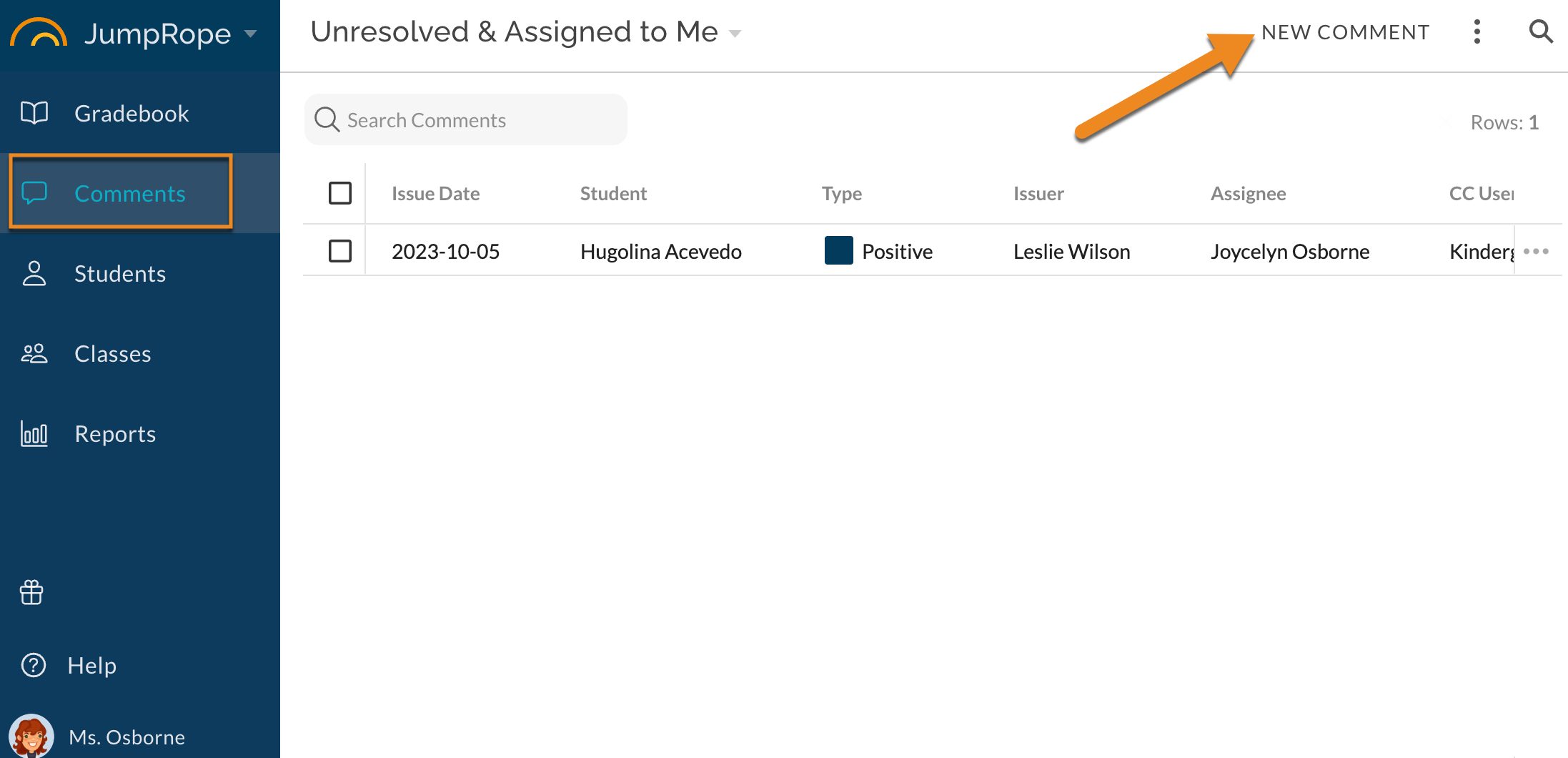
- To create a new comment , switch to Comments in the left menu click the New Comment button in the top right.
- To edit an existing comment or add follow-up details , double-click on the comment or use the Edit action on the right. Note: Creating or making updates to the contents of anecdotal comments generate email notifications to the issuer, assignee, and any CC'd users containing the name of the student and some of the details of the comment.
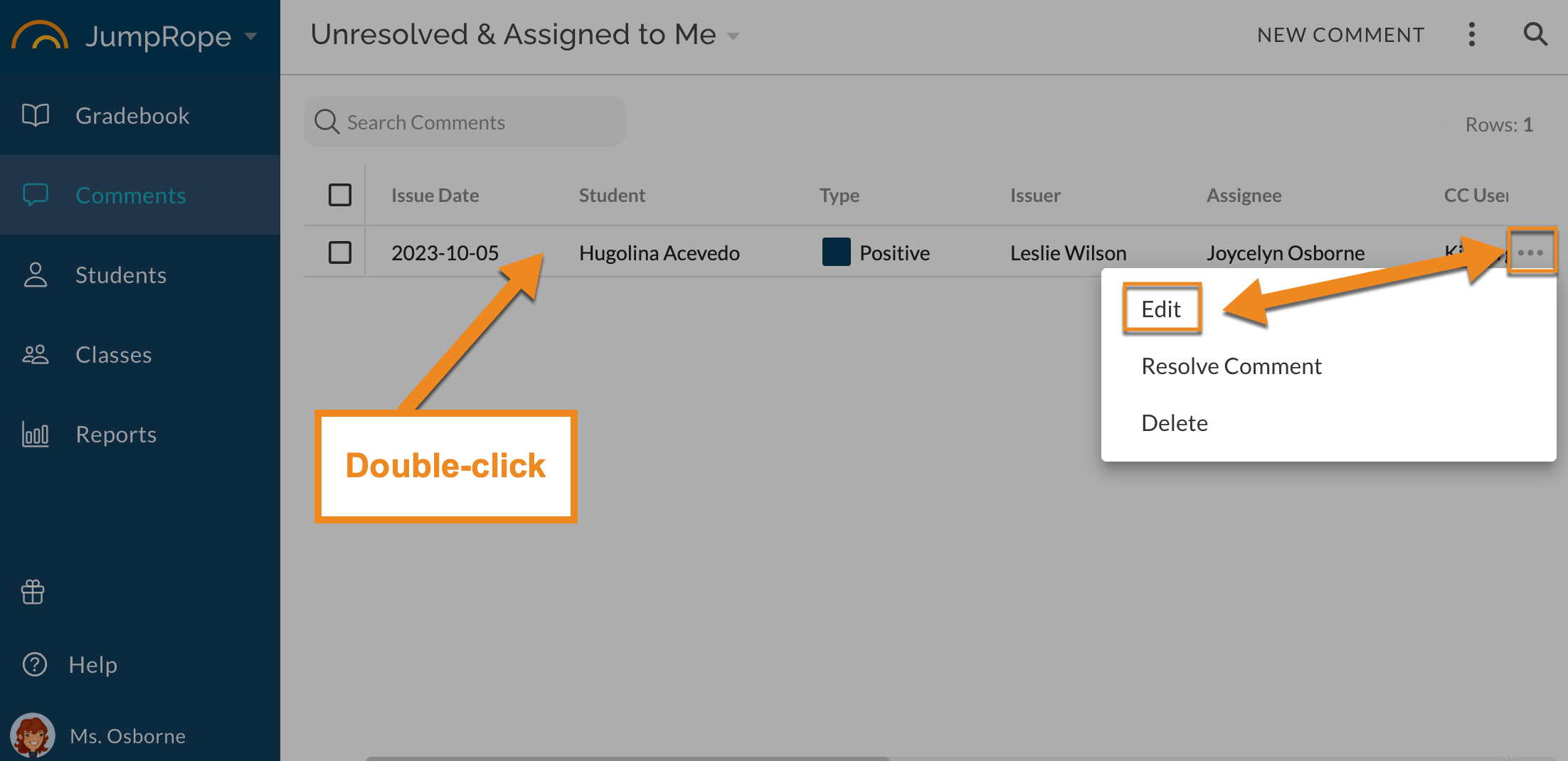
- To delete a comment , use the item action in the menu on the right.
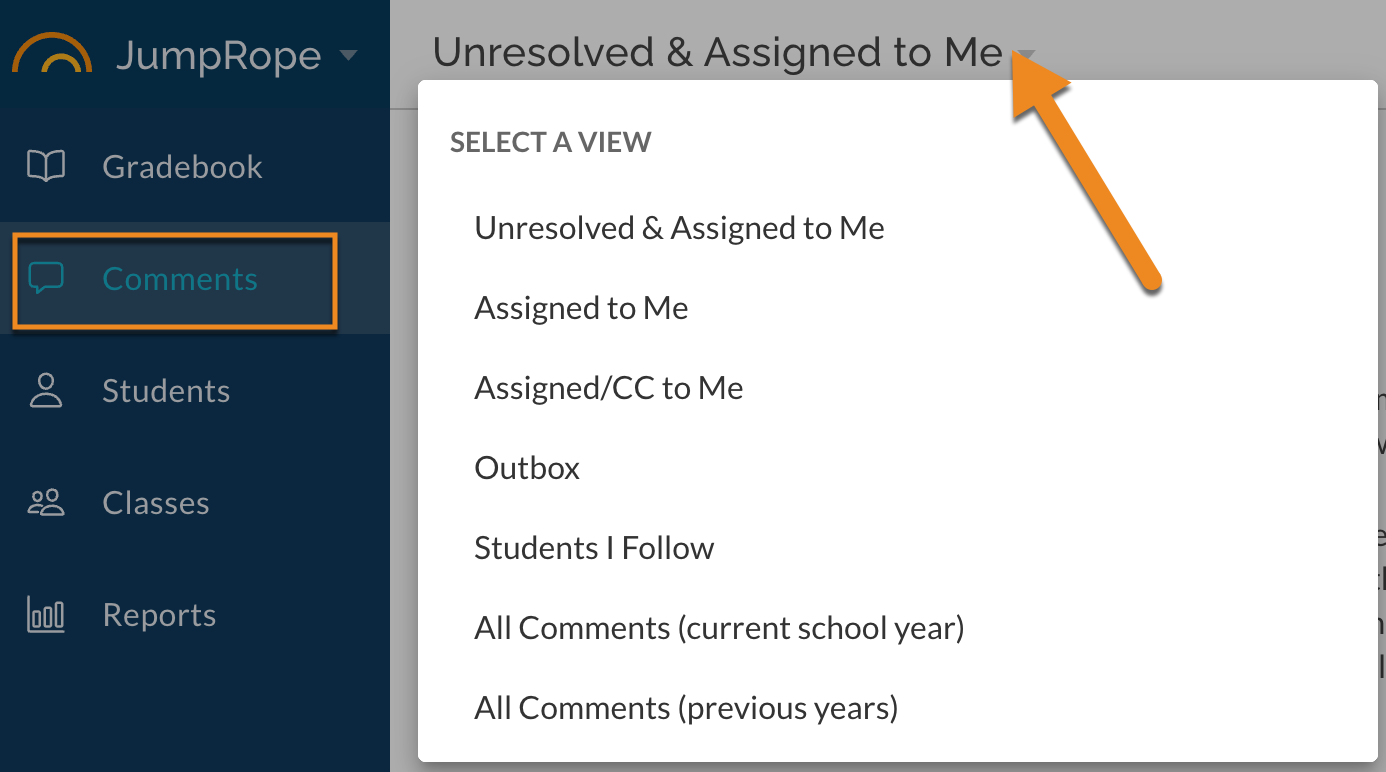
- To switch between the different comment views (such as inbox and outbox), click on the page header.
Comments have the following fields:
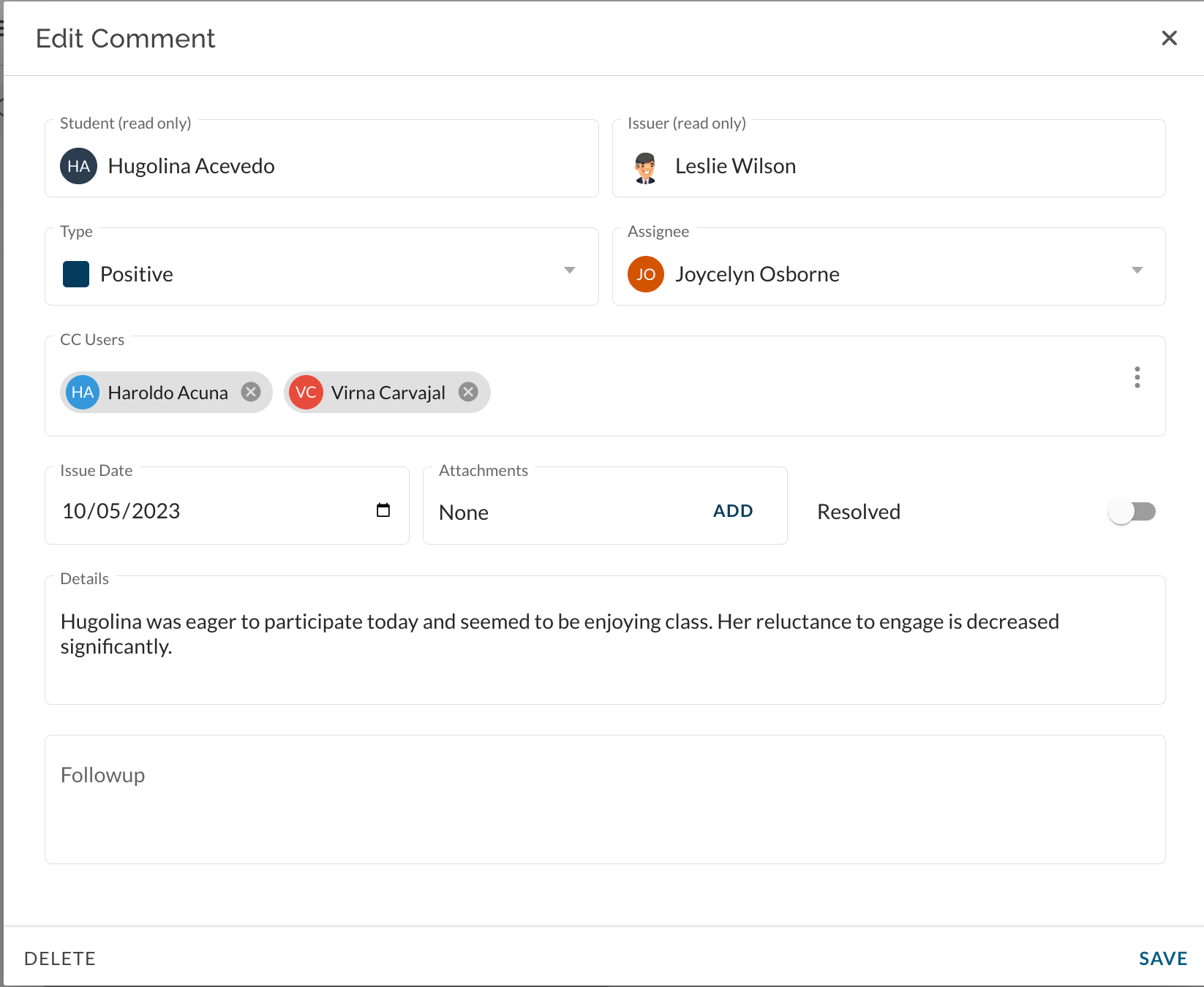
- Student* : each comment must be associated with at least one student. See also: How To - Create an Anecdotal Comment in Bulk
- Issue Date* : the date associated with the comment (defaults to the date it is written).
- Issuer* : the user account that created the comment.
- Assignee* : the user the comment is assigned to. Depending on Comment Type settings, this field may be selected by the Issuer or may be determined by the Type selected.
- CC Users : optional users to copy on the comment and notifications. Depending on Comment Type settings, this field may be selected by the Issuer or may be determined by the Type selected. .
- Use the menu in the CC field and select Auto CC Classroom Teachers to add all teachers who see the student in the active term to the CC list:
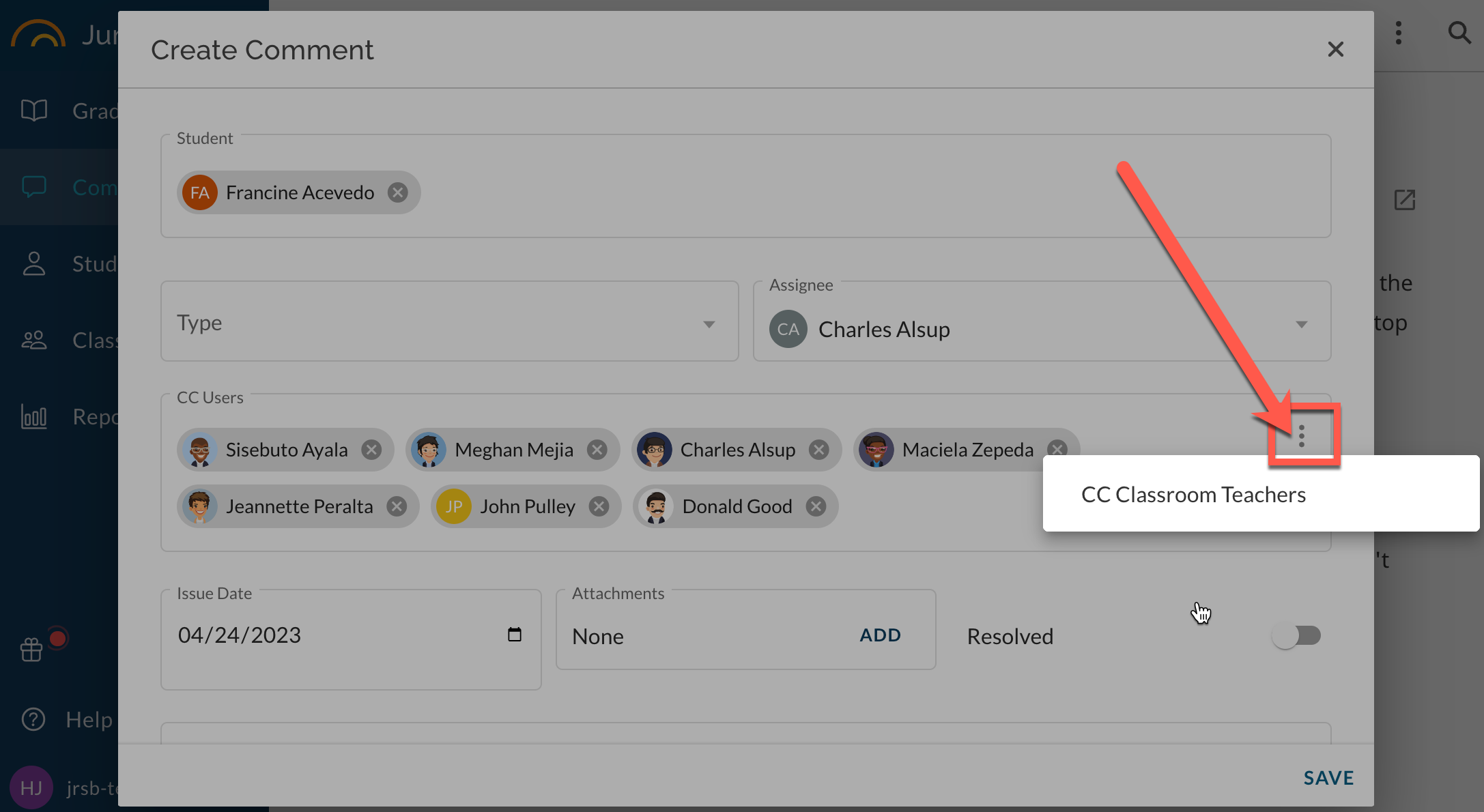
- Use the menu in the CC field and select Auto CC Classroom Teachers to add all teachers who see the student in the active term to the CC list:
- Type* : Available Types and colors are configured by the school in Setup. Depending on these settings, the selected Type may determine Assignee and CCs.
- Is Resolved : use this to indicate whether the comment is open or resolved; a check box on list views of comments will visually indicate this.
- Details* : the main body of the comment.
- Followup : optional follow-up details.
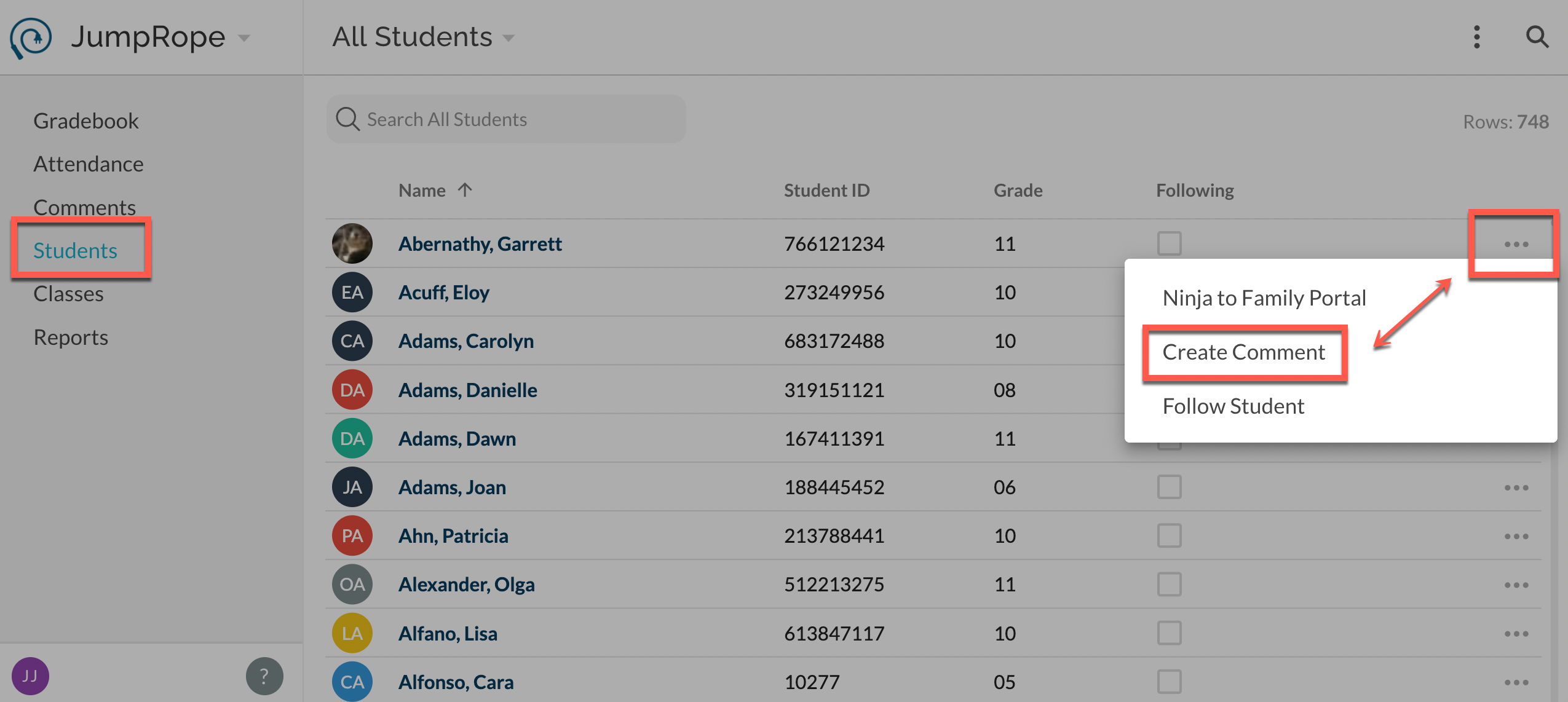
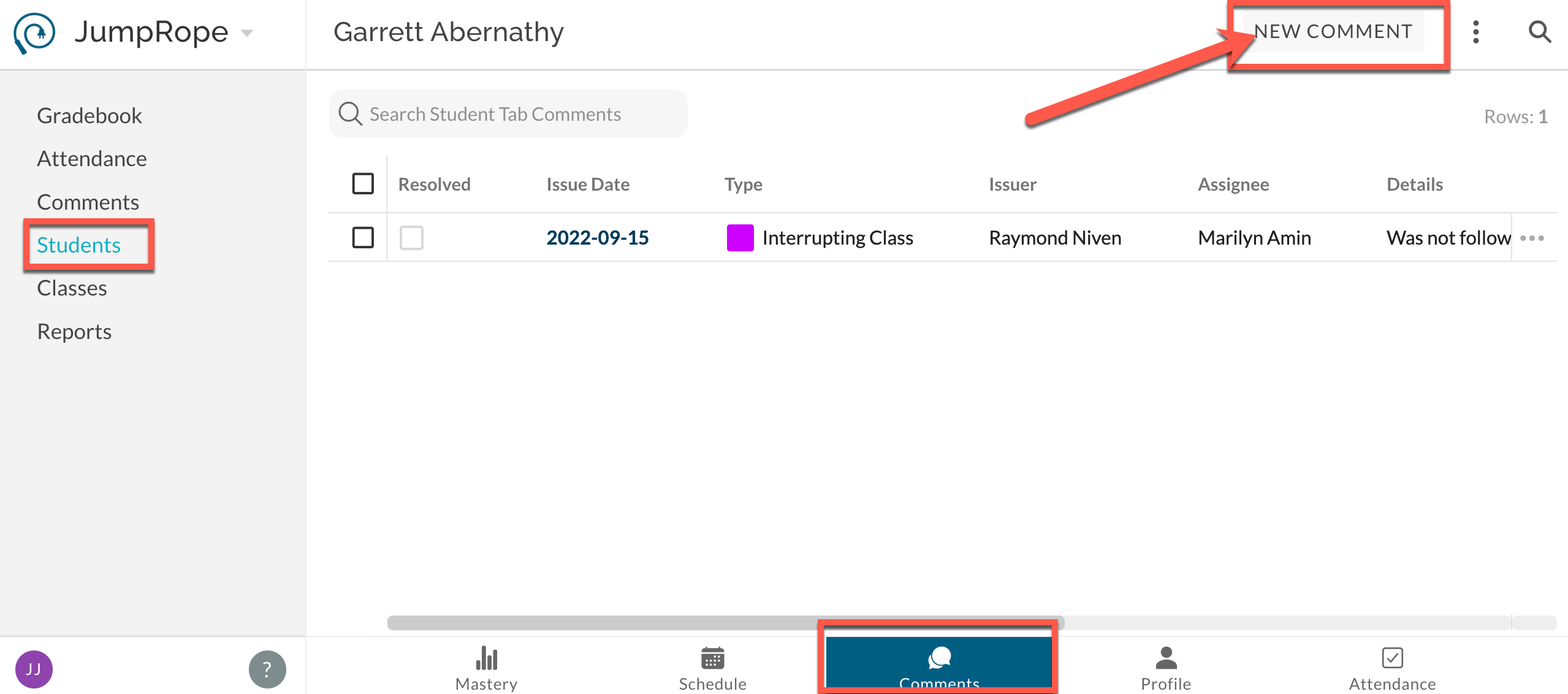
Additionally, internal Comments can be created per student from the Students menu. Select the extras menu by a student name or select the student and view their associated Comments.
Click to learn more about comment views and fields.