

Please reach out to support@jumpro.pe if you have questions about setting up Class Grades for your school.
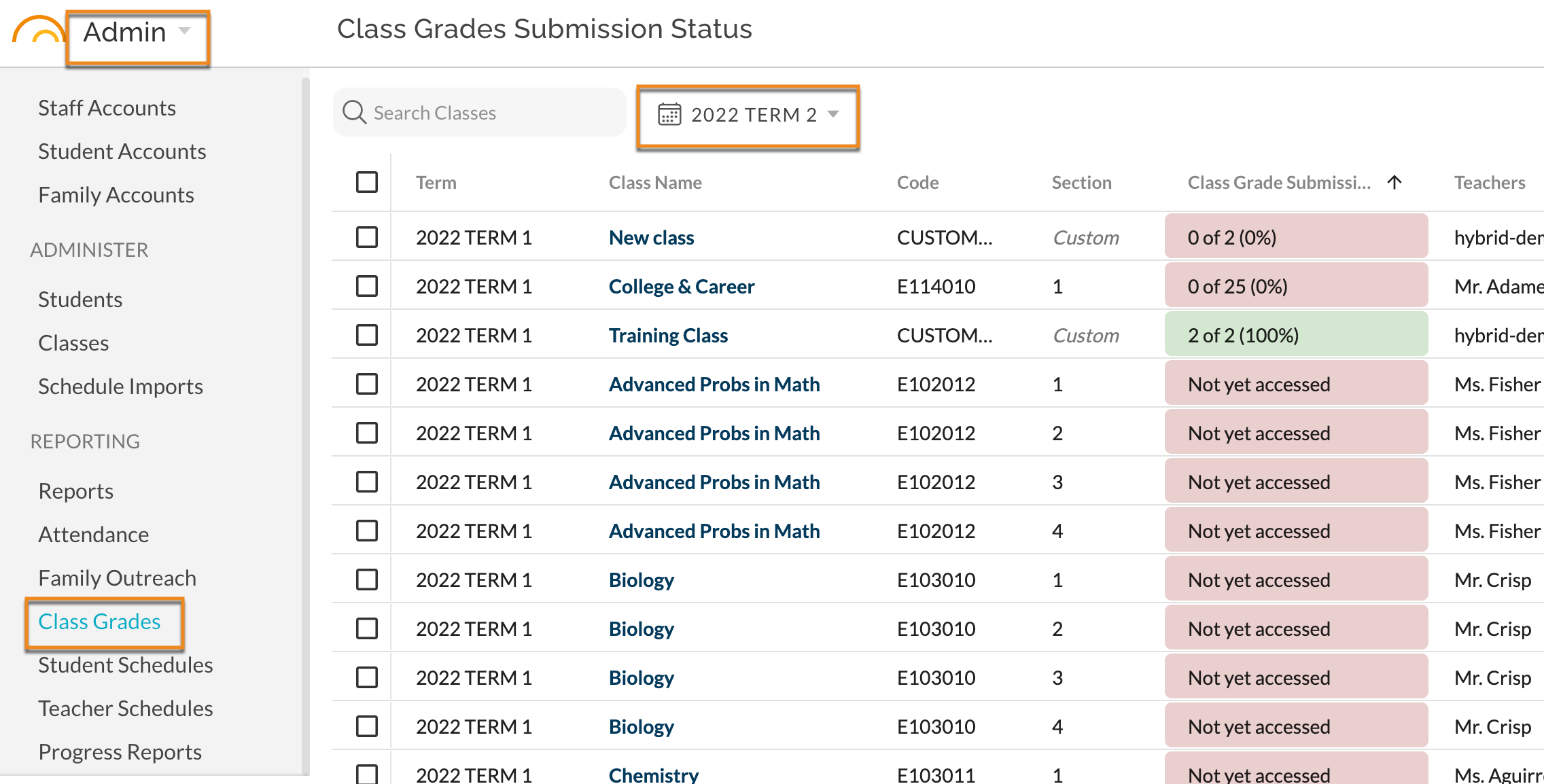
Within the Admin module, the Class Grades report allows you to filter Grading Periods, view the Term, class names, course codes, course section, class grade submission, and teachers. Each column header can be sorted in ascending or descending order, while some have filtering options.
Clicking on a Class Name will take you into the Class Grades teacher gradebook view.
Class Grade Submission
Class Grade Submission displays in green if all the required fields for Class Grades have been entered by the teacher for all students. If a required field (delineated by an asterisk) is incomplete by the teacher, the submission will remain red.
The Class Grade Submission also displays the number of students with the completed required fields out of the total number of students in the class. It also displays the completed percentage of grades entered in Class Grades.
Exporting Class Grades
At the conclusion of your Grading Window, first export the empty EGG file from STARS. (Exporting the EGG File from STARS (NYC)). Then upload the EGG file into JumpRope in Admin- Class Grades - Upload and Populate EGG for STARS. Please note, using the three dots at the top right-hand side of the view will display two options; Export EGG Data as CSV or Upload and Populate EGG for STARS.