

If your school has email address contacts listed for students, progress report PDFs can be sent directly to those addresses.
TEACHERS:Create and Send in One Step also applies to teachers sending reports for their individual classes.
ADMINISTRATORS: First, learn how to create reports by student body
Either by student body or by class, you can choose to create the reports for preview and send the email messages later or you can choose to create and send in one step.
Option 1 Admin - Create reports for preview. Send email as follow up step (recommended)
When creating for the full student body, in the first step of the wizard, toggle 'off' any email selections. 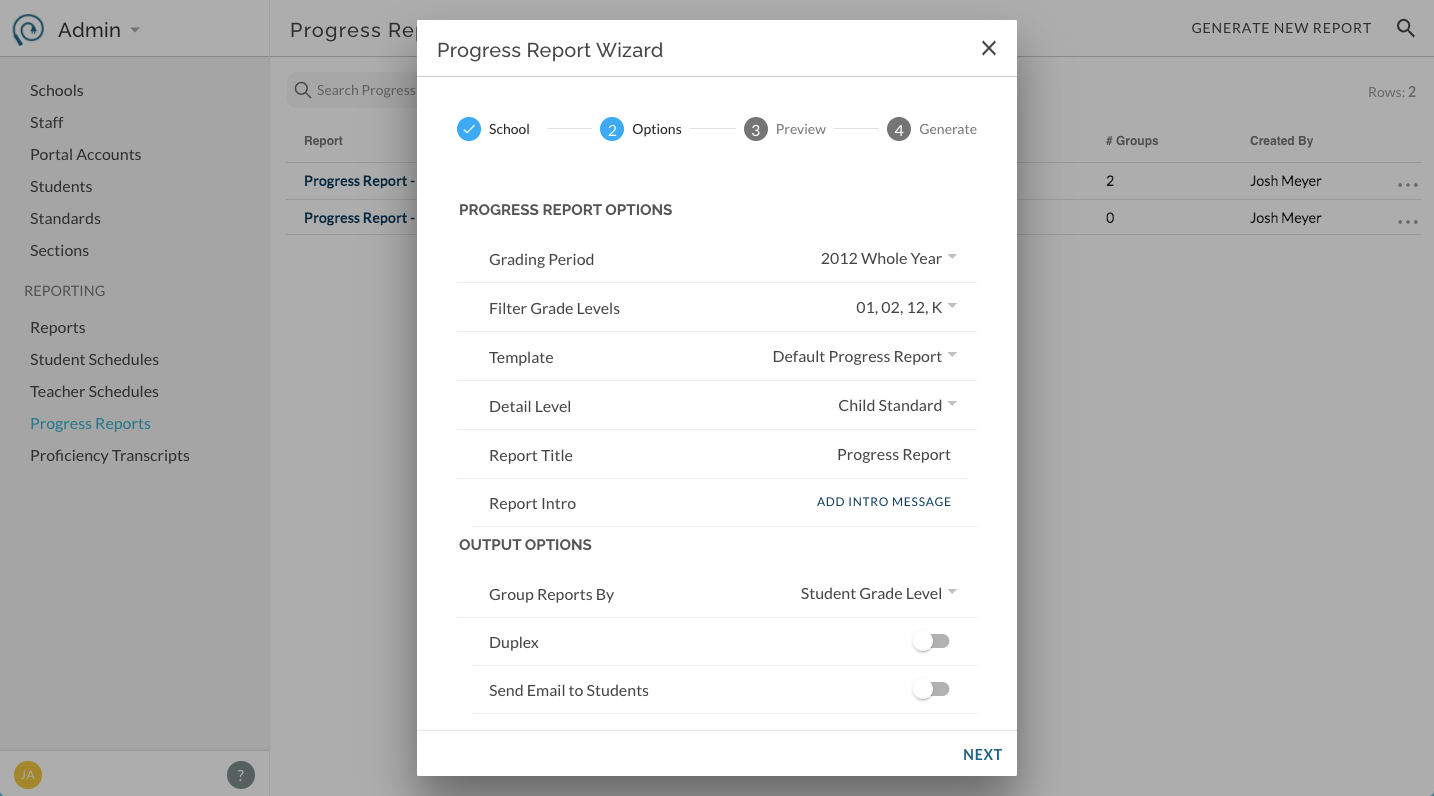
Continue through wizard to the end.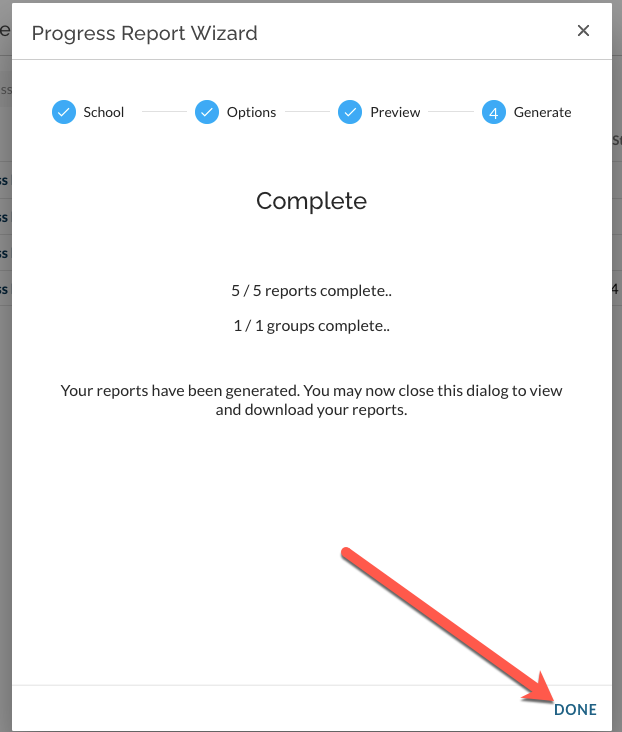
A line item in the Progress Reports list has now been created. From this you can download and preview your reports and you can select to send them via email. 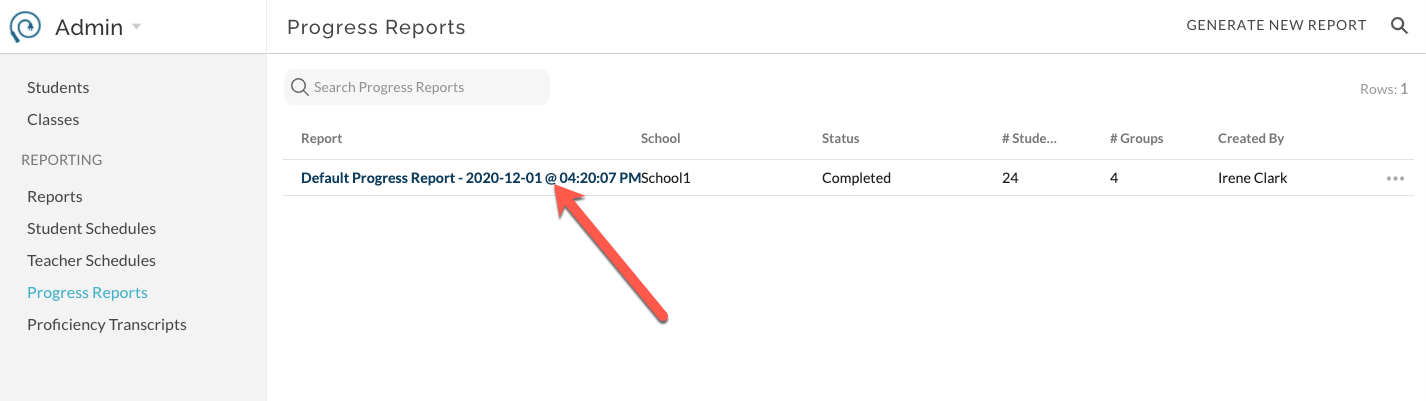
Review the reports by downloading and then start the email wizard by clicking Send Bulk Report Email.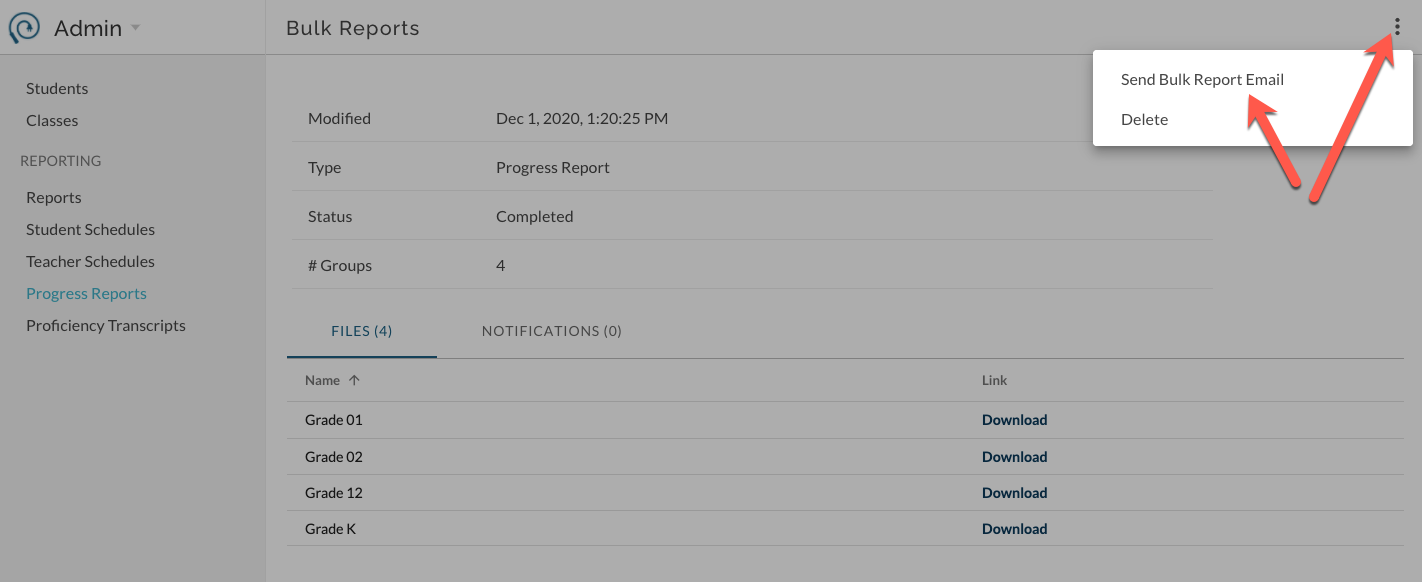
This will take you to the Send Email Wizard.
Option 2 - Create PDF files and Send Email Bulk Blast in One Step
In the first step of the wizard, toggle on "Send Email to Students". Click Next.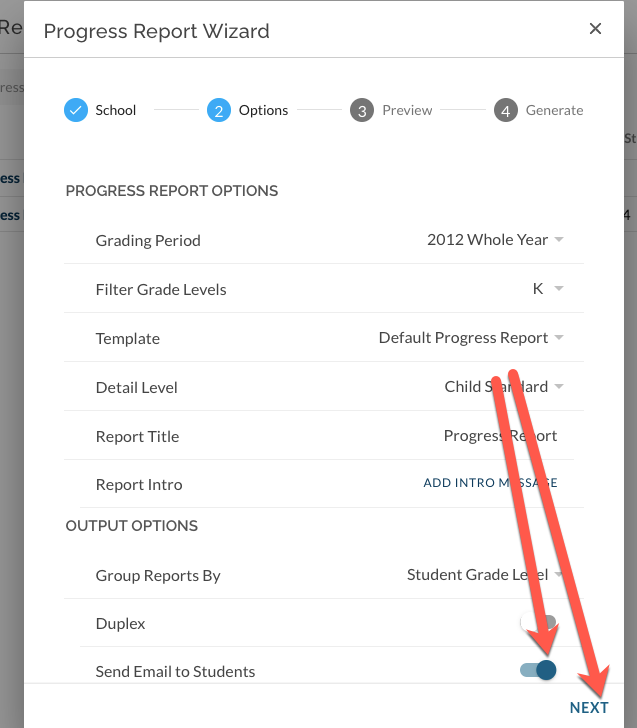
Confirm your selected options and click Next.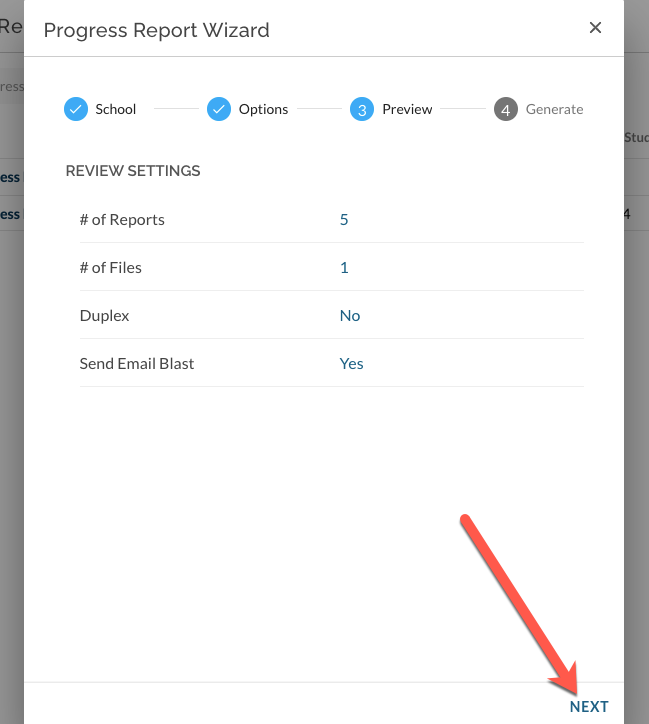
Reports will generate. When complete, click Select Email Recipients.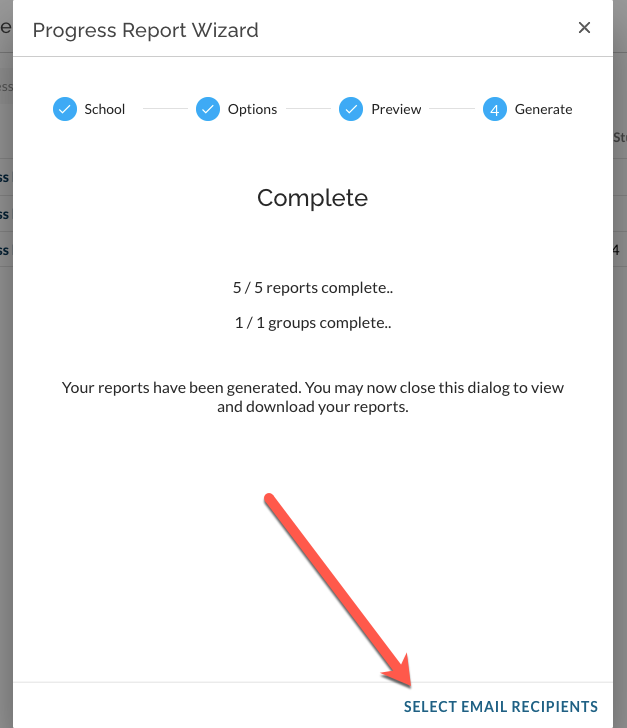
Continue with Send Email Wizard below.
Send Email Wizard
Edit the custom message, select recipient options and click Preview Emails.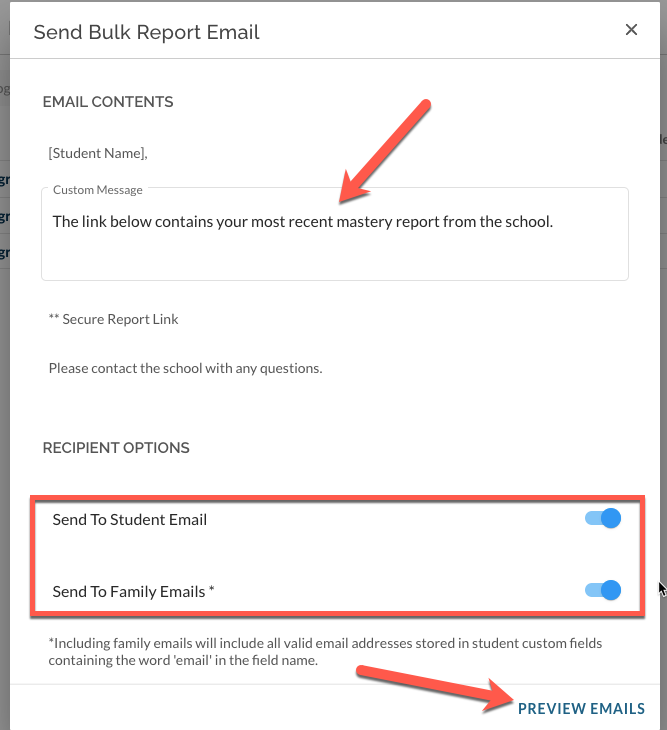
Select email recipients by checking and un-checking the associated boxes. Click Send to send the emails.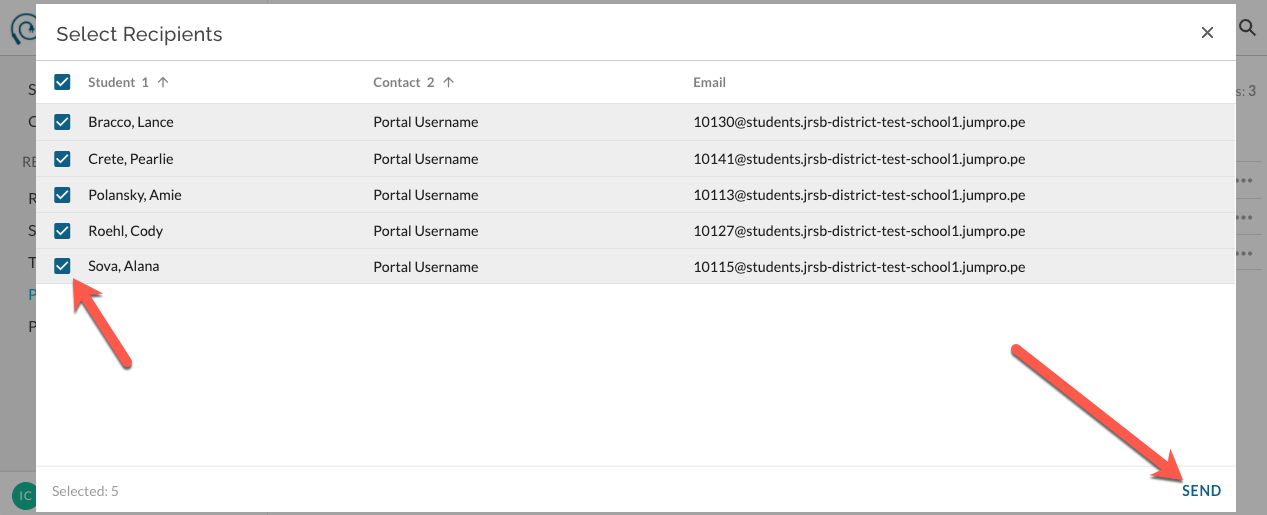
Note: to help prevent accidental spamming, each recipient can only be sent a specific report, at most, once per hour. If you try to resend the same report to the same recipient email more than once per hour, it will not show an error but the email will not be sent and will not appear in the Notifications tab of the bulk report.