

To create a Progress Report like the one shown below:
- Toggle 'on' Allow Multiple Grading Periods on any Progress Report Template (details below) and
- In the Progress Report Wizard, select that template and then select the Grading Periods you wish to include (details below).
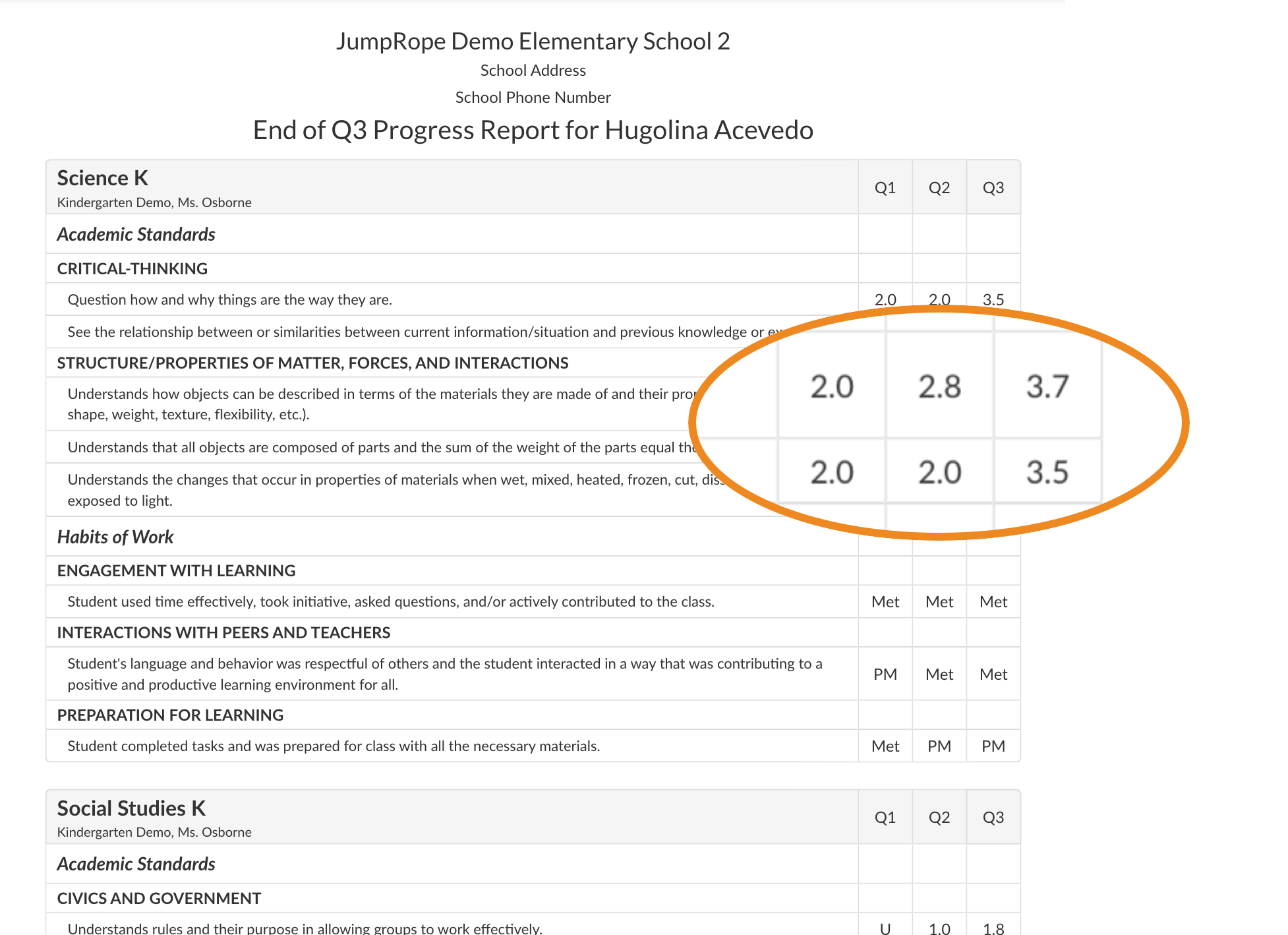
See also: Reference - Progress Reports with Multiple Grading Periods
1. Set up Progress Report Templates
In Setup - Mastery Reports - Progress Report Templates, select an existing template by name to edit or create a new template.
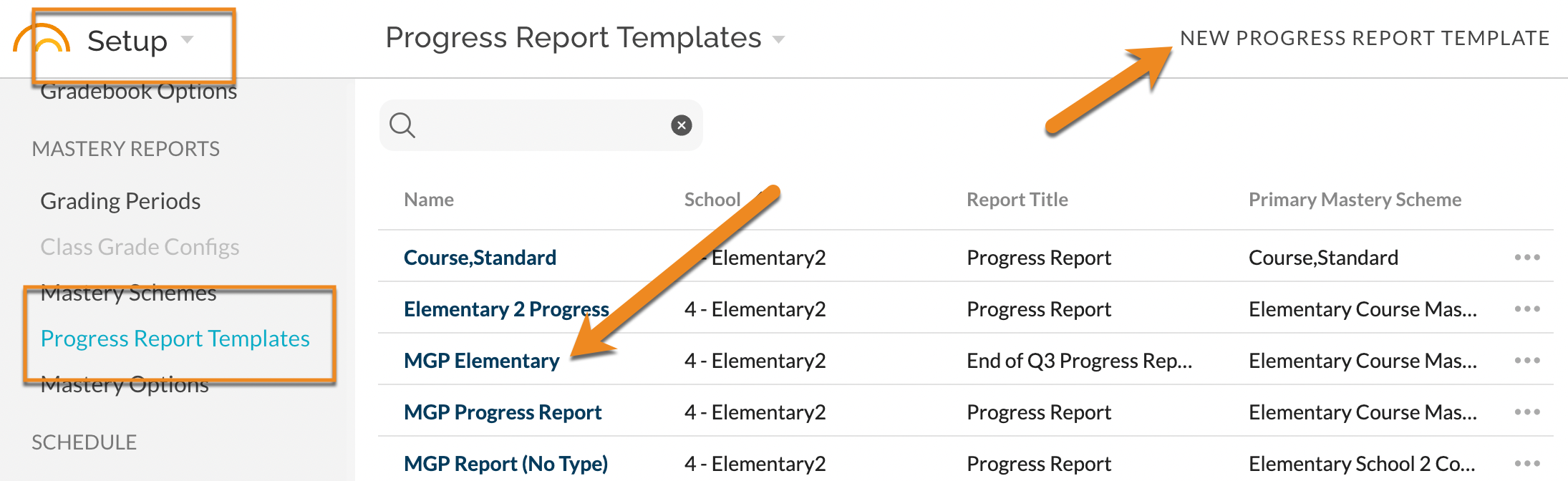
Toggle on Allow Multiple Grading Periods.
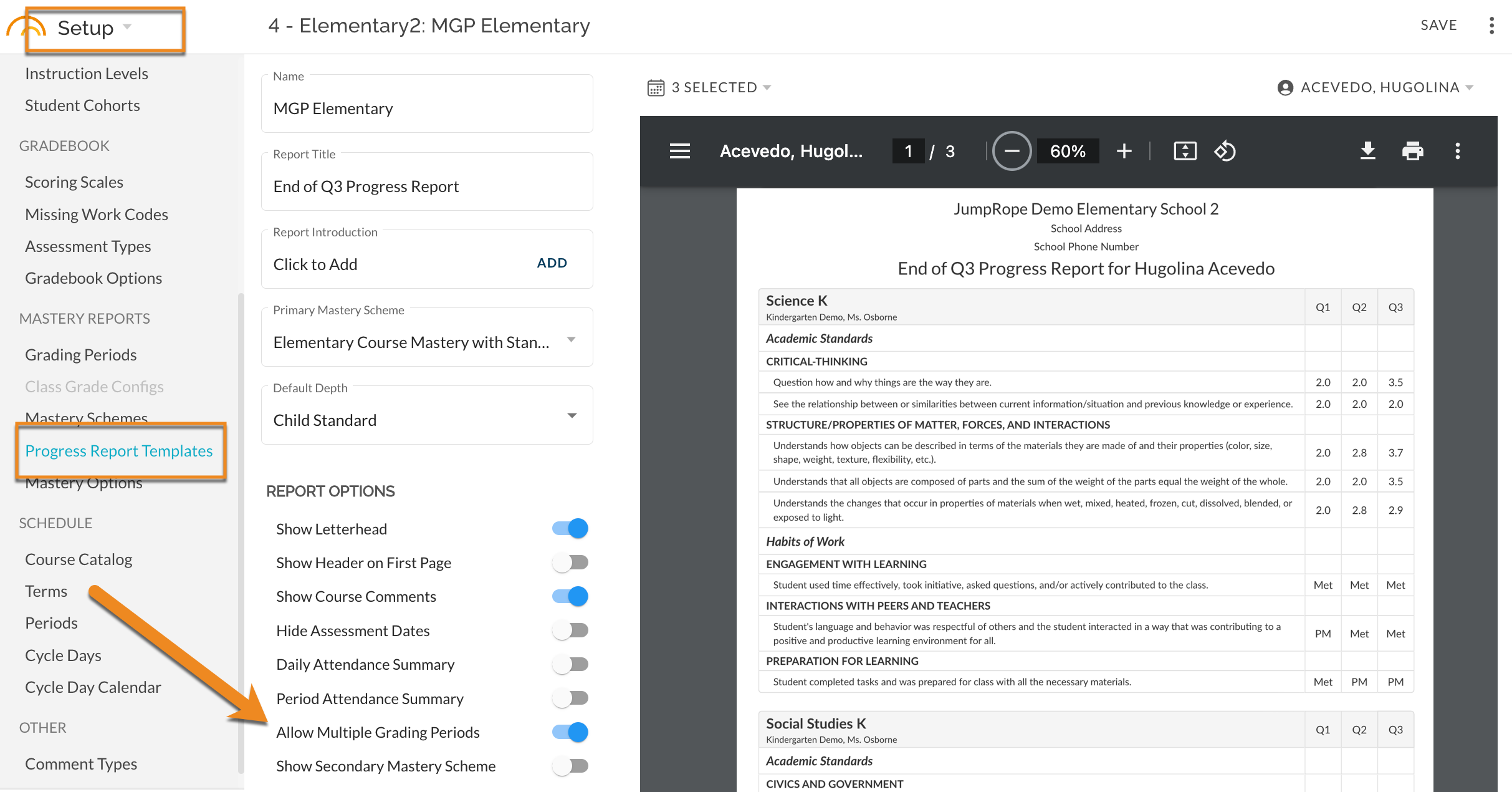 Toggle on Allow Multiple Grading Periods
Select the desired Grading Periods for the preview. Click on Grading Period selector and choose more than one Grading Period (*note: these are for preview only, you can select other desired Grading Periods when actually running the reports).
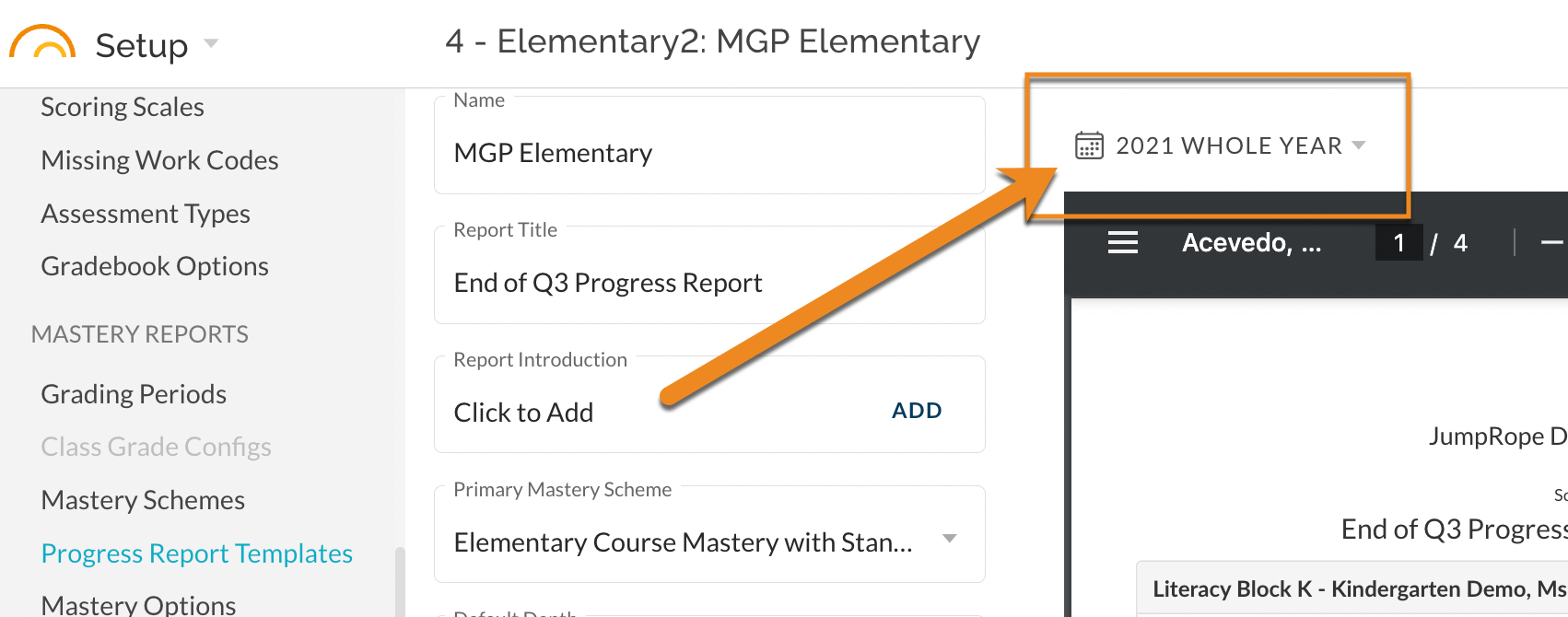 Open Grading Period Selector
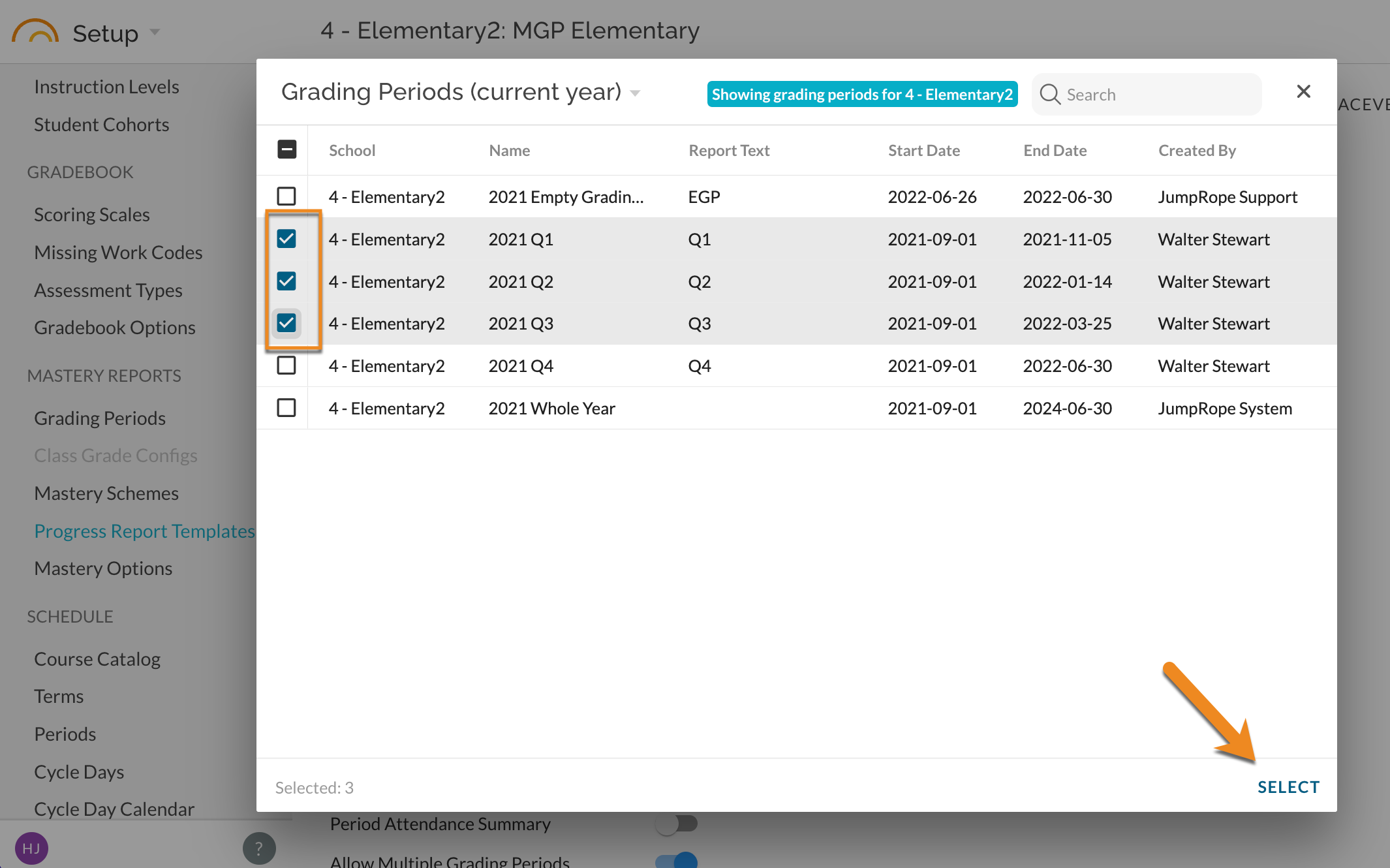 Choose Grading Periods to Include
*To set the column headers for the report, adjust the Report Text in Setup - Grading Periods.
2. Generate Progress Reports with the Template
In the Progress Report Wizard (create progress reports in bulk, for a single roster of students, or for a single student) select a template that has Multiple Grading Periods enabled. Grading Period options will be emptied. Click on Grading Period.
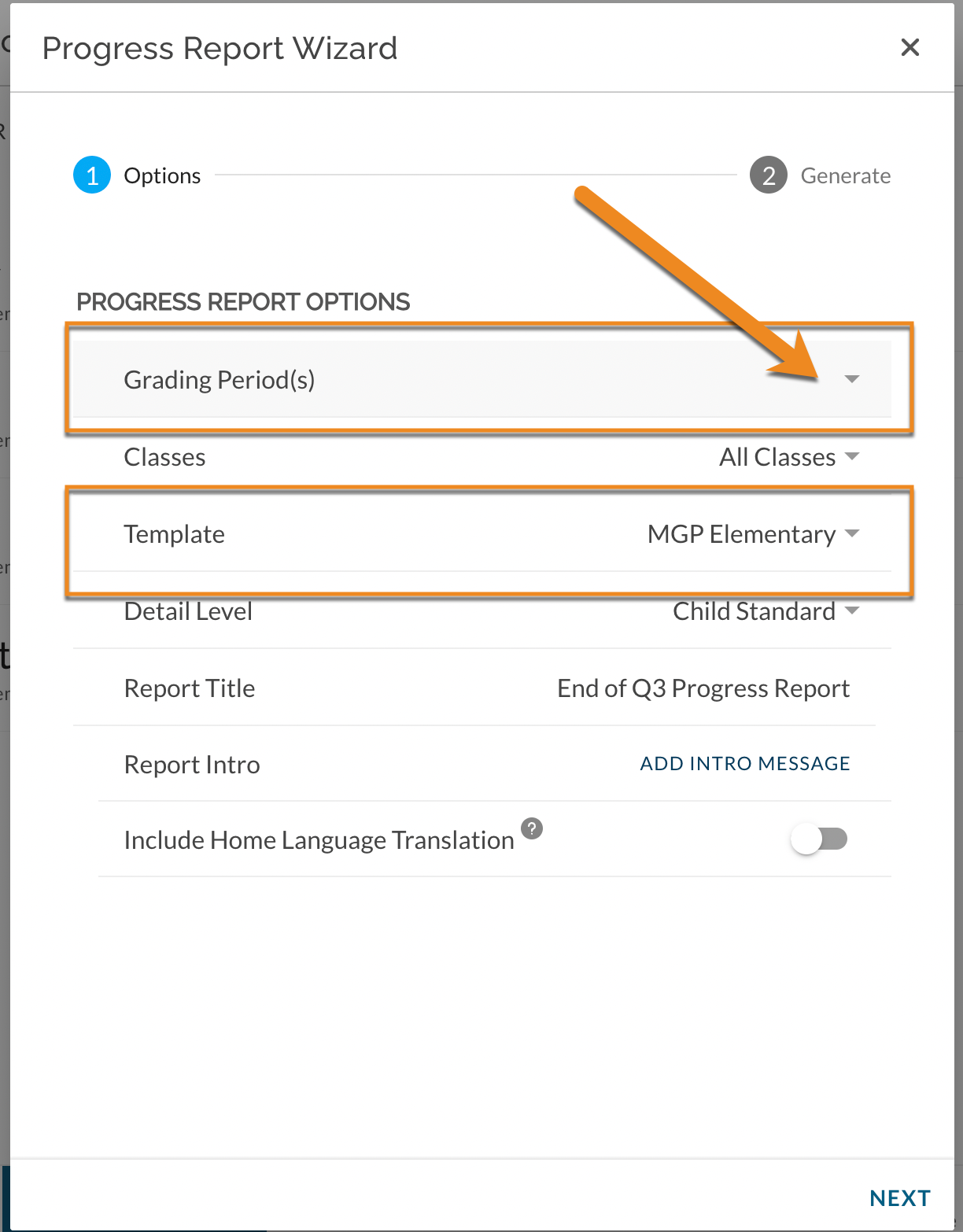 Choose a template. Click on Grading Period(s).
In the Grading Period selector that pops up, select the Grading Periods that you wish to include on the report. Select OK. *note: if you select only one Grading Period, the report that is produced will be a regular Progress Report that includes the colored bars.
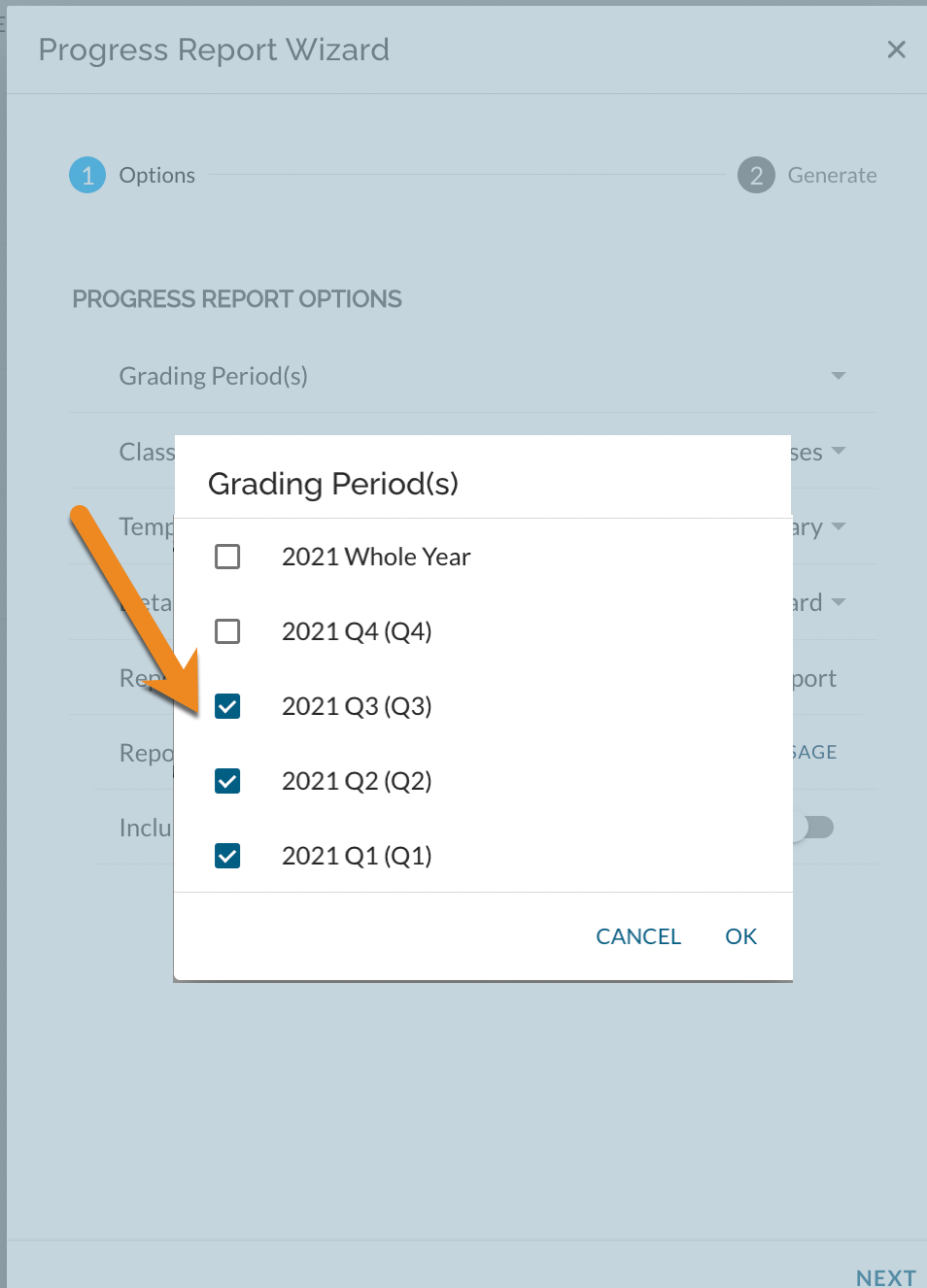 Select multiple Grading Periods
Choose other options as desired and click Next. The report(s) will generate and download just like a regular Progress Report.