

A user with District level Admin permissions can create, edit and manage Course Plans. (See also, How to - Add, edit, and manage content in a Course Plan and Course Plans - Overview)
Create a new Course Plan item
- Navigate to Admin -> Course Plans -> New Course Plan
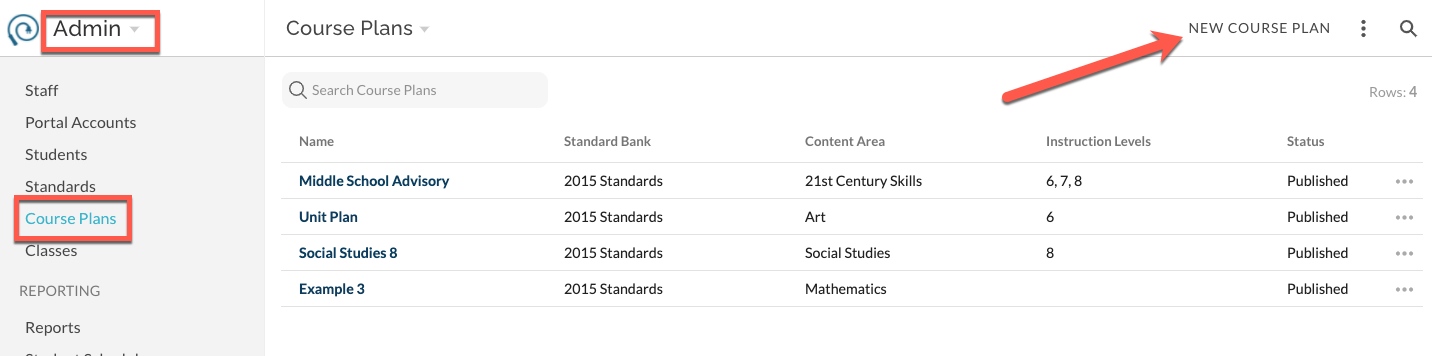
- In the modal that opens, complete the form.
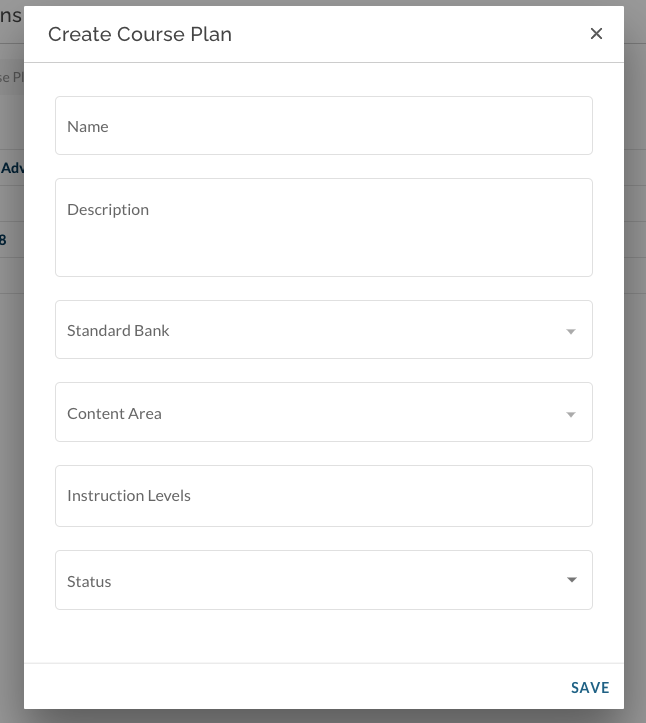
- Name (required) - This is the title that teachers will see when selecting the Course Plan from the Bank
- Description (optional) - Not currently teacher-facing. Visible in Admin list view of Course Plans.
- Standard Bank (required) - Select from existing 'In Design' and 'Published' banks. Course Plan will only be available to users for whom the selected bank is also 'Published'.
- Content Area (required) - Teacher-facing element that can be used to find and sort when searching the bank for desired Plans.
- Instruction Levels (optional) - Teacher-facing element that can be used to find and sort when searching the bank for desired Plans.
- Status (required) - Published Course Plans are accessible to teachers.
- Save and the Course Plan will be added to the list view. Click on desired Course Plan name to add, edit, and manage its content.