Overview ↑
A final year average of semester grades may be calculated for a final year grade mark (FYM) on the report card. The Grading Periods page contains the steps needed to create a grading period for the year and to specify the calculation. See Texas - Grading Periods.
Configurations ↑
- On the Multiple Mark Headingsand Descriptions page, create a final mark and select this mark from the Final Yearly Grade Mark drop-down.
This step must be completed before creating a grading period for the year. Any grading period using the final yearly grade mark will calculate based on courses with the same service id. Currently, the final average only calculates if there is one course in each grade mark with the same service id.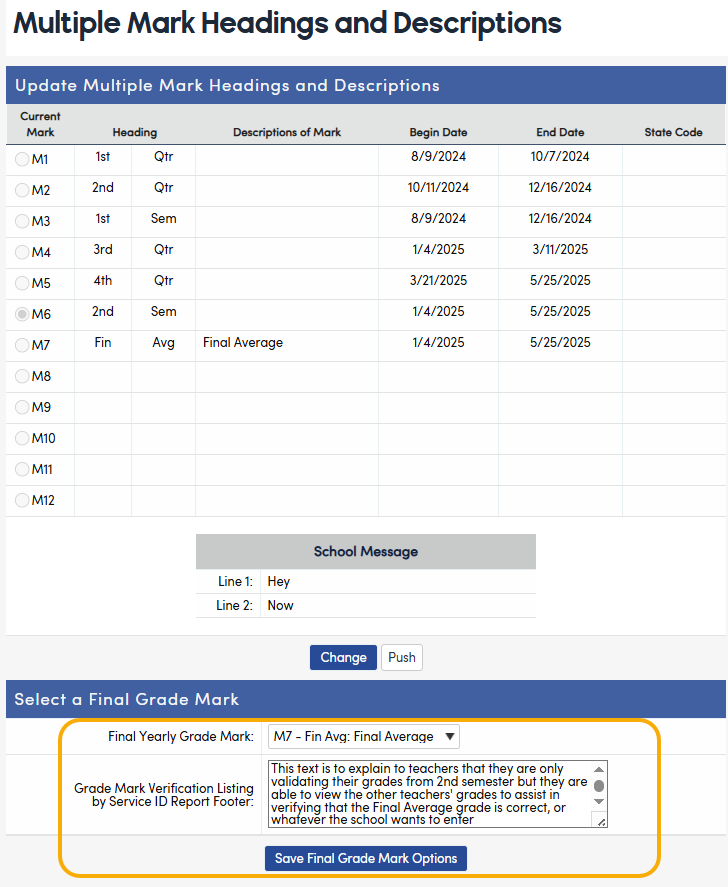
- Enter text in the Grade Mark Verification Listing by Service ID Report Footer field to print custom messages on the report, if desired. Each school may enter custom text up to 255 characters to print on the report that will be visible when the report option to add a signature line is chosen. See Texas - Grade Mark Verification Listing by Service ID and Grade Reporting Multiple Mark Headings and Descriptions
Note: We do not recommend using the Enter key to insert a new line in the footer text unless the text is short as the footer will only print two lines of text on the report. - Navigate to Grade Reporting > Configurations > Grading Periods page and click the +Add Grading Period button
in the Y-Year section to create a new grading period.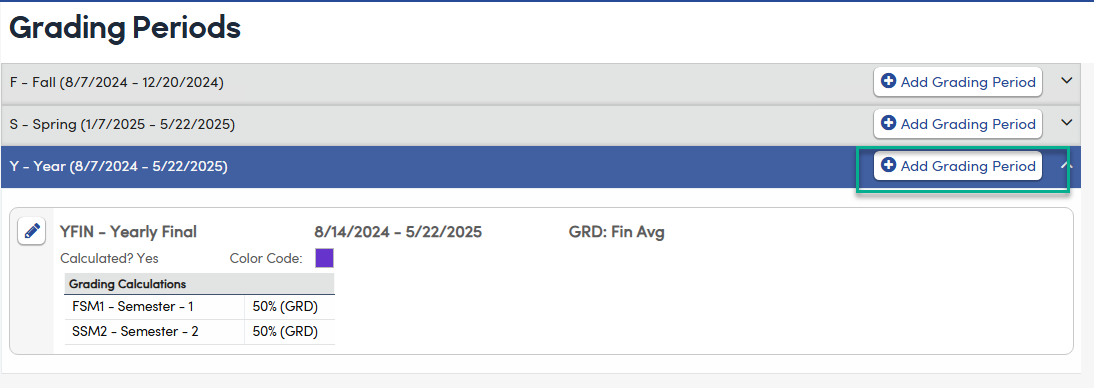
Enter the Grading Period information as outlined in Texas - Grading Periods
In the GRD Marking Period field, select the mark identified as the Final Yearly Grade Mark on the Multiple Multiple Mark Headings and Descriptions page. The Is Calculatedcheckbox will be checked by defaultThe Final Year Mark calculation should align with your grading policies. We advise calculating 50% from the 1st semester and 50% from the 2nd semester to match the transcript averaging calculation if used.
See details on how Transcript Averaging is calculated.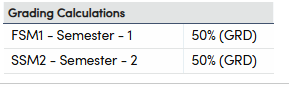
Factors that might affect differences in the Final Year Mark and Transcript Averaging include:- Courses with repeat tags on the Transcript
- Transcript averaging settings on the District Settings page for identifying like courses using options other than Service ID (CRS.SVC) under the Grade Reporting Settings, including:
- Course ID (CRS.CN)
- Next Course (CRS.NC)
- Course Content Group (CRS.CCG)
- Grades from courses taken at other schools within the school district that are not included on the Grades page. Transcript averaging includes all courses taken within the school district based on School Taken (HIS.ST). School Taken (HIS.ST) fields < 1000 are considered schools within the same district.
- Courses manually added or removed from the Avg Mark link on the Transcripts page.
- On School Info > Portal Management > Portal Options - Grades:
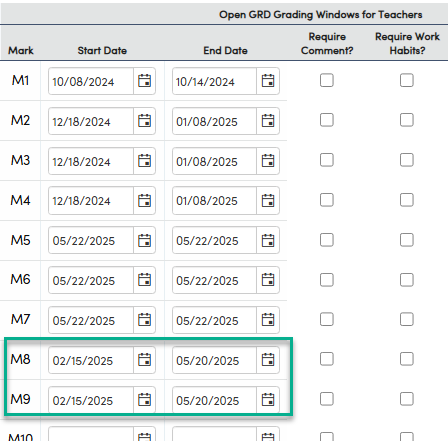
- Open GRD Grading Windows for Teachers for both the last grade mark AND the final yearly grade mark to indicate the date ranges when teachers can enter grades for the grading period.Teachers will import grades into the last mark, for example M8 2nd Semester and since the window for the final yearly mark is also open, this will automatically calculate the final yearly grade mark based on the calculation defined in the grading period on the Grading Periods page.
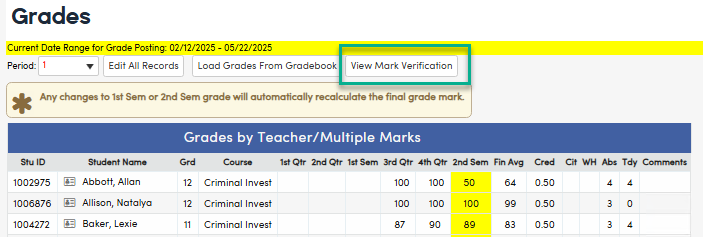
Teachers will also see a button on the Grades page to View Mark Verification when a final yearly grade mark is defined and this mark's grading window is currently open or has been open at some time within the current school year. Clicking this button will open the Grade Report Mark Verification Listing by Service ID report filtered for the current teacher and period displayed on the page listing all of their current students and all of their courses and grades with the same Service ID.
- Grant Permissions to Override the Final Year Mark to appropriate staff:Staff will need Update to the new Permissions Override Final Year Mark in order by manually enter the Final Year Mark.
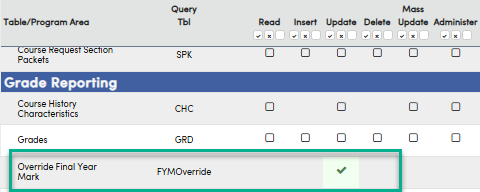
Note: Parents, students, and teachers will NOT be able to Override the Final Year Mark.
Tables ↑
Table |
Multiple Mark Headings and Descriptions (MMR) |
Grading Period (GRP) |
Grades (GRD) |
Portal Options (POP) |
Steps ↑
- Initialize the the New Grade Reporting Cycle for the 2nd semester grades.There will not be an option to initialize the mark identified as the Final Yearly Grade Mark.
- Open the grading window for 2nd Semester and Final Year Marks. Enter the same start and end dates for these on the School Info > Portal Management > Portal Options – Grades tab.
- Teachers will load the grades from their gradebook for the 2nd semester grades on the Grade Reporting > Grades by Teacher page. There will not be an option to load grades into the Final Yearly Grade Mark as the final mark will be calculated.After the teacher loads the grades from their gradebook, if the Final Year Grade Mark grading window is open on the Portal Options > Grades page then:
- The Final Yearly Grade Mark will automatically calculate based on the Grading Periods calculation for the following scenarios:
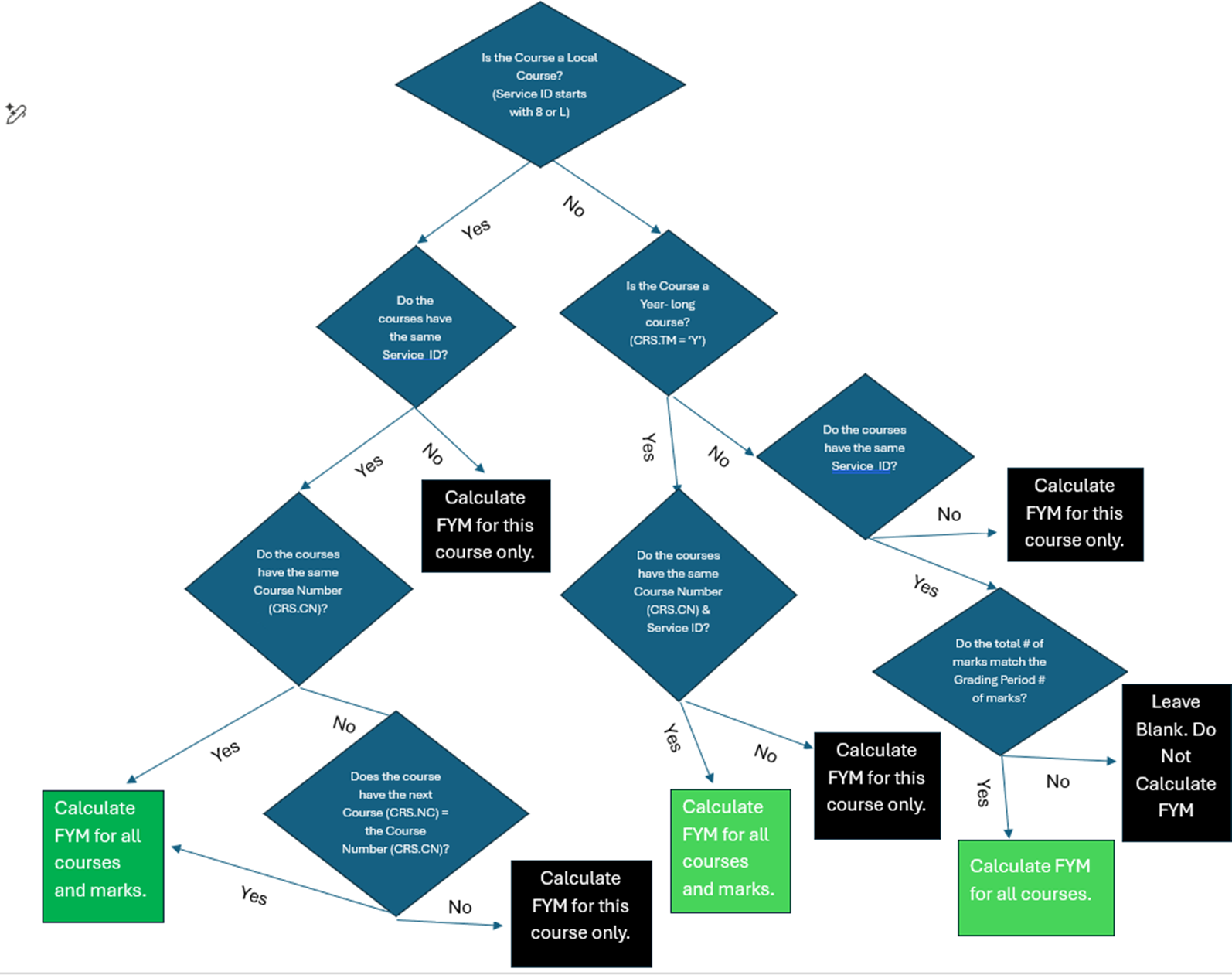
- Year-long courses (CRS.TM = Y) with the same course id (CRS.CN) and Service ID (CRS.SVC)
- Local courses (Service ID (CRS.SVC) starting with an 8 or L) with the same service ID AND the same
- Course Id (CRS.CN) or
- the Next Course (CRS.NC) matches the Course ID (CRS.CN)
- All other courses - when the course has the same number of marks in GRD as defined in the Grading Period. For example, if the FYM Grading Period is 50% of Sem1 and 50% of Sem2, then then the FYM will only automatically calculate for 1 course with the same service id per semester at the same school on the Grades page.
See the Final Year Mark Flowchart at the end of this document. - Users with the Update permission: Override Final Year Mark to Grades (GRD) are able to enter a Final Year Mark or Override and existing FYM from the Grades or Grades by Teacher pages.NOTE: The Final Year Mark calculation requires the use of numeric marks.
- This final yearly grade mark is saved in the Grades (GRD) table for the courses with the current initialized mark (GRD.TM) = the Term currently Initialized on the Initialize New Grade Reporting Cycle page and is viewable on the Grades page. Any changes to the gradebook or the grade marks used in the grading periods calculation will automatically recalculate this final year grade.
- The View Mark Verification button will run the Grade Mark Verification Listing by Service ID report for that teachers current students and all of their courses and grades with the same service id for the entire year. Any grades from another teacher will be indicated in the teacher column.This button is also available on the Grades by Teacher page.
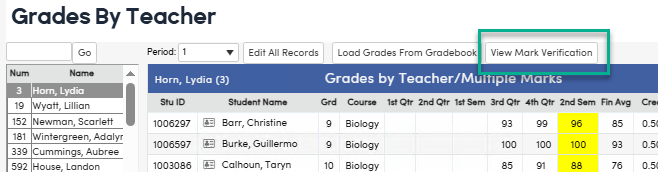
NOTE: When the grading window for the final year mark is closed, this mark will not recalculate when changes are made to on the Grades by Teacher page. Any grade mark changes need to be made on the Student Data > Grades page. The View Mark Verification button and report will continue to be available after the final year mark grading window has closed.
- On the Student Data > Grades page, when any of the marks that affect the final grade are added or edited, the final yearly grade mark will automatically recalculate when saved.
If the final grade mark cannot be automatically calculated or if it needs to be overridden, Users with the update permission to Override Final Year Mark to Grades (GRD) will also able to enter a Final Year Mark or Override and existing FYM from the Grades or Grades by Teacher pages. - Run the Missing Marks Report. See Print Grade Report Mark Verification or Missing Mark Listing to use the option: Ignore Records Marked as Complete to eliminate marks from displaying for non-numeric marks as the The Final Year Mark calculation requires the use of numeric marks.
- Run the Grade Mark Verification Listing by Service ID report from the Reports menu to distribute to teachers for their review and signature. This report will show all of their current student's courses and grades with the same service ID for the entire year. Any grades from another teacher will be indicated in the teacher column. See Texas - Grade Mark Verification Listing by Service ID
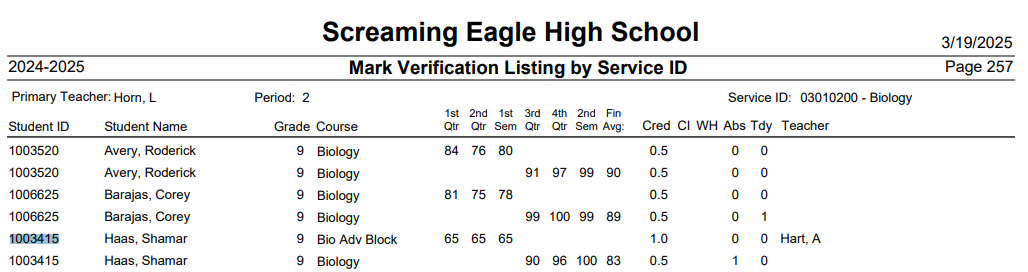
- Override Final Year Mark for any courses where the final mark needs to be adjusted or could not calculate automatically. Users with update permissions to Override Final Year Mark to Grades (GRD) will be able to enter a FYM on the following pages:
- Student Data > Grades
- Click on the pencil icon to edit the course, an Override checkbox will be available.
- Check the Override box, and enter a numeric value in the Final Mark

- Click the Save icon. The FYM will now display with () around it, indicating the FYM was overridden:
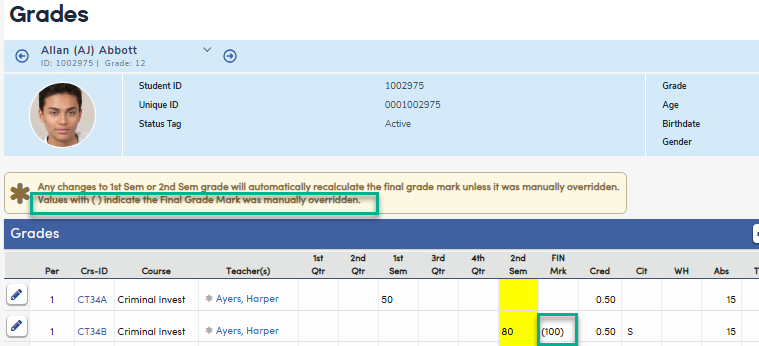
NOTE: Parents and Students will never see the notation of () that the FYM was overridden on the Grades page or Report Card.
- Grade Reporting > Grades by Teacher and Teacher Emulation > Grades by Teacher
- Select a Teacher and click the Override Final Year Mark button
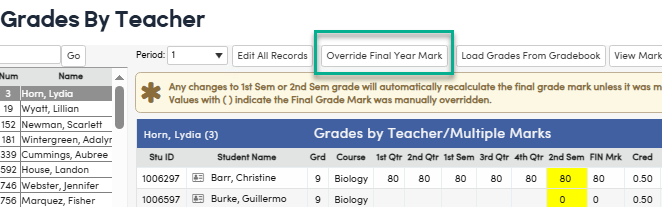
- Check the Override box and enter a Final Mark for one or multiple students.
- Click Done Editing. This will save the final year mark with () around it, indicating the FYM was overridden.
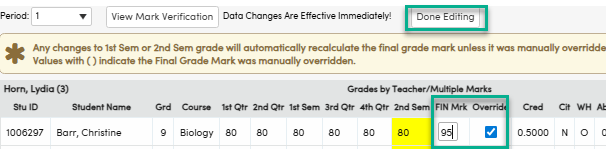
NOTE: Only users with the additional permission to Override Final Year Mark to Grades (GRD) will see see the Override Final Year Mark button and only the Final Year Mark can be edited.
All other marks may be edited by clicking the Edit All Records button.
- Query to find courses without a FYM:
- Run a query to obtain the grade marks. This sample query will provide the grades for Semester 1 (M4) and Semester 2 (M8) for students with a mark in Semester 2 and display the Final Year Mark (M9).
LIST STU GRD STF STU.ID STU.NM STU.SN GRD.CN GRD.SE GRD.SID STF.LN GRD.M4 GRD.M8 GRD.M9 IF GRD.M8 # " " - Add Semester 1 and Semester 2 marks and divide by 2.
If your district uses a different calculation, apply that specific formula.
You may also click the Excel button on the Query screen to open the results in Microsoft Excel and create formulas for the calculations.
- Run a query to obtain the grade marks. This sample query will provide the grades for Semester 1 (M4) and Semester 2 (M8) for students with a mark in Semester 2 and display the Final Year Mark (M9).
- Print Report Cards including all marks.
NOTE: The Copy Grades to Transcripts (HIS) options will NOT include the final average mark. The 2nd Semester grade mark should be copied and the transcript will calculate the average marks based on the transcript averaging settings. See Transcript Averaging.
Final Year Mark Calculation Flowchart: