

The Gradebook Summary By Standards report displays the assignments that are linked to standards in a gradebook, grouped by standard. Teachers run it from a gradebook: click Reports on the gradebook menu bar, then click Gradebook Summary By Standards. Administrators can run it by opening a teacher's gradebook from Teacher Emulation > Gradebook.
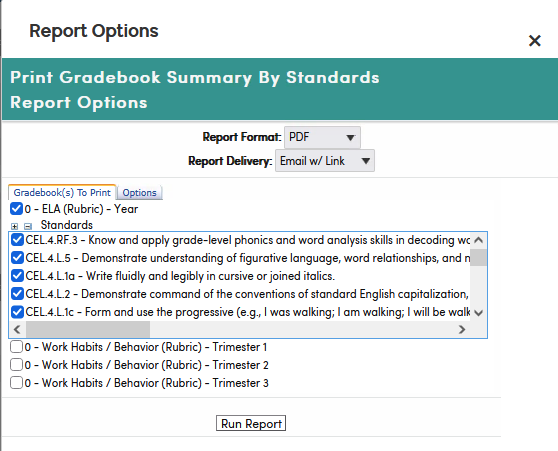
Only rubric gradebooks that have at least one rubric assignment in the term are listed. If none of your gradebooks qualify, the window shows "No Rubric Gradebooks Available".
On the Gradebook(s) To Print tab, check one or more gradebooks; the gradebook you are working in is already checked. Checking a gradebook shows its Standards list, with every standard linked to its assignments selected. Uncheck any you don't want, or use the – and + icons to deselect or select all.
On the Options tab, set the Report Title (defaults to "Gradebook Summary By Standards"), whether to Include Inactive Students, which student information to show, the Student Sort (Student Name or Student Id) and the Assignment Sort (Assignment Number or Due Date). Show Student Grade and Show Class Average are checked by default; Show Assignment Description, Do Not Print Assignments and Show Standard Description are not. Then click Run Report.
The following is an example of the Gradebook Summary by Standards report.
