

Table of Contents
Overview
The Intervention Meetings tab can be used to store meeting information regarding the student intervention.
Security
Security permissions needed to use the Interventions Meetings area are granted through the INV table in Security.
Table | Permission | Description |
|---|---|---|
| Interventions (INV) | Read Insert Update Delete | View Page Add New Record Update Record Delete Record (also requires Update) |
For Users to be able to Query data in the Interventions Meetings area Read permissions need to be granted to the INM table in Security.
Table | Permission | Description |
|---|---|---|
| Intervention Meetings (INM) | Read | Query Only |
Configurations
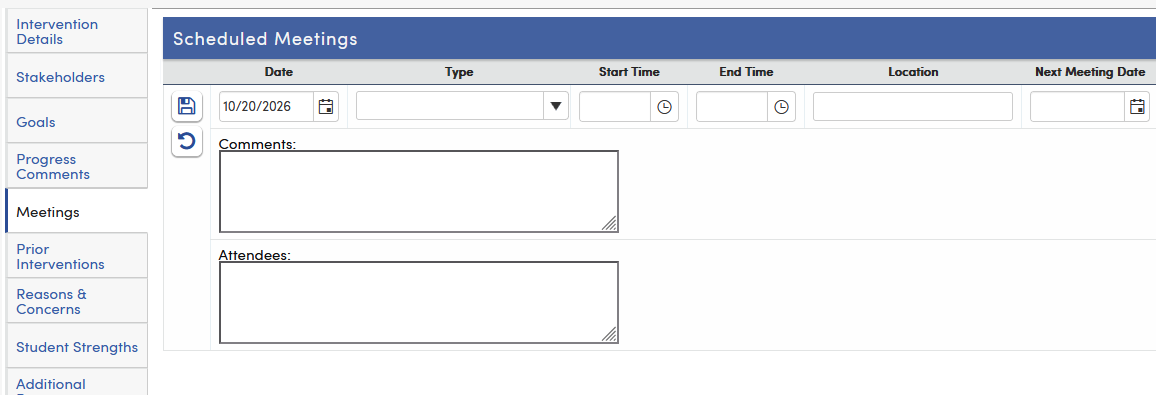
To add a new meeting entry, click the Meetings tab on the left side of the Interventions page. Meetings are listed under Scheduled Meetings. Next, click Add New Record.

The Date field will default with today’s date. Select a Meeting Type from the Type drop down list (types are set up in Update Code Table for INM.TY). The Start Time and End Time fields can be used to add a meeting start and end time. The Location field can be used to add a location of the meeting. The Next Meeting Date field can be used to indicate the date of the next scheduled meeting. To add a Next Meeting Date, click the Calendar icon and select a date. The Created by name will automatically populate with the login name of the current user. Parents and students do not see the Created by name.
The Comments box can be used to type in any comments or notes related to the meeting. The Attendees box can be used to type the names of the participants of the meeting. After all meeting information has been entered, click the Save icon to save the information.
When a new meeting is saved with a future Date or a Next Meeting Date, a meeting invitation email is sent to the intervention's stakeholders (see Intervention Stakeholders). The email goes to the people on the Stakeholders tab, not the names typed in Attendees. A message confirms whether the invitation was sent. Changing an existing meeting does not send an email.
To delete a Meeting for a student, click the Edit icon to the left of the Date field for the meeting entry. Next, click the Delete icon. The message "Are you sure you want to delete this record?" will display. Clicking OK will delete the Meeting information.