Pre-Referral Intervention Report by Student
Overview
The Pre-Referral Interventions page can be used to record details to help identify areas of difficulties students may be encountering. Identifying the student’s needs can help begin the development and implementation of education strategies for students who have recognized problems in the classroom.
The Pre-Referral can begin with the teacher and can then include the parents as well as other school staff involved in the education of the student with the intent of providing intervention that can assist the student in improving their performance.
The Pre-Referral page can be utilized by teachers to begin a pre-referral process. Teachers will only be able to change or delete their own pre-referral records, and can only add Interventions, Reasons and Parent Meetings to their own records.
Security ↑
Table | Permission | Description |
|---|---|---|
| Pre-Referral Interventions (PRI) | Read Insert Update Delete | View page Add new records Update records Delete records (also requires Update) |
To use the Pre-Referral page, the Teacher Portal Group will need permissions to the Pre-Referral Interventions (PRI) security area. Teachers can only refer the student to an intervention if they also have Insert permissions to Referrals to Intervention (RFI).
Configurations ↑
Navigate to Student Data > Interventions > Pre-Referral Interventions.
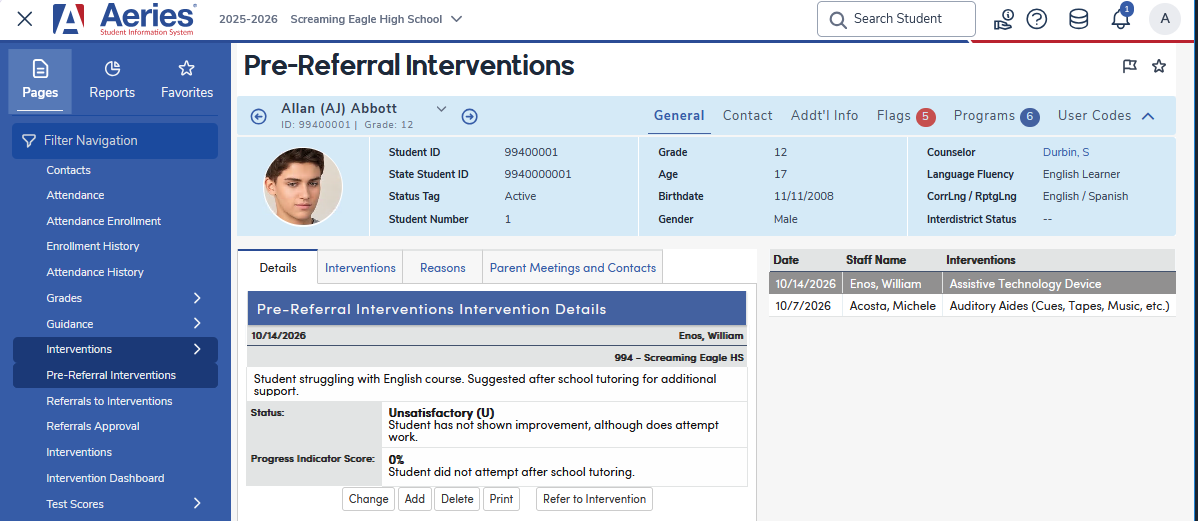
To add a new Pre-Referral record for a student, click Add New Record (shown when the student has no pre-referral records) or the Add button below the details. A record dated today is created for the student's school and the logged-in staff member, and the page displays in edit mode. Fill in the appropriate information under the Details tab and then click the Save button.
Date – Enter the date for the Pre-Referral
School – Defaults to the student's school. This value can be changed by selecting a different school from the dropdown list.
Comment – Area under the School field where a comment can be entered
Progress Status – Select a Status for the Pre-Referral
Progress Comment – Area under the Status field where a comment regarding the status can be entered
Progress Indicator Score – Enter the percent of progress as a number; the % sign is added when the record displays
Progress Comment – Area under the Progress Indicator Score field where a comment can be entered about the student’s progress
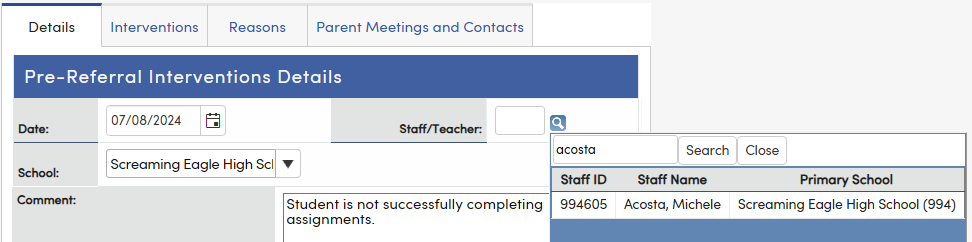
NOTE: When a teacher is creating the Pre-referral record, the Staff/Teacher name field on the Details section will auto populate with that teacher's name and can't be changed.

If the Pre-Referral record is being created by an Admin or a User login, the Staff/Teacher name will display with a search icon that can be used to search for a teacher name to attach to the record.
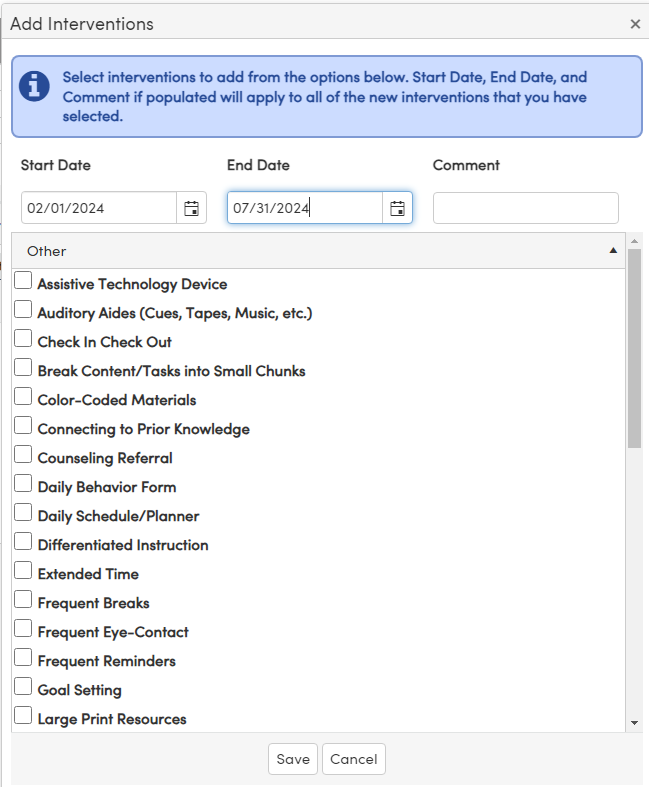
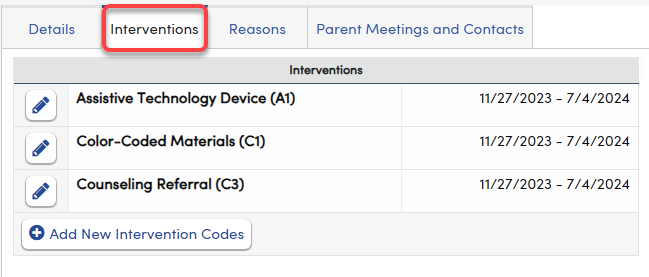
Click on the Interventions tab to continue adding information to the Pre-Referral record. Click Add New Intervention Codes to open the Add Interventions window, where several interventions can be added at once. Enter a Start Date, End Date and Comment if applicable; they apply to every intervention checked. Check the appropriate interventions, which are grouped by category, and then click the Save button at the bottom of the window. Categories can be added to the Code table for the IPI.CD code; codes without a category display under Other. To change or delete an intervention on the list, click its Edit (pencil) icon.
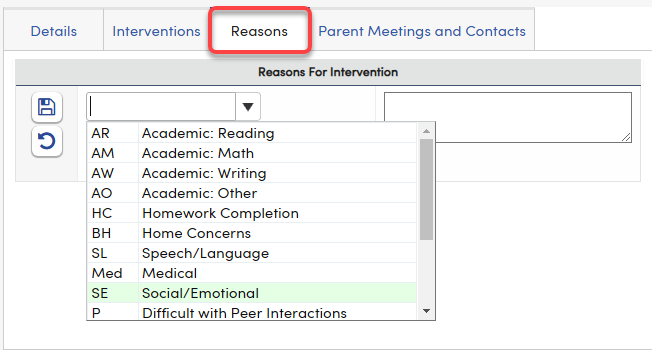
The Reasons tab can be used to list any reasons for the Pre-Referral Intervention. To add a Reason, click Add New Reason. The page will display in edit mode. Select a Reason and enter a Comment and then click the Save icon.
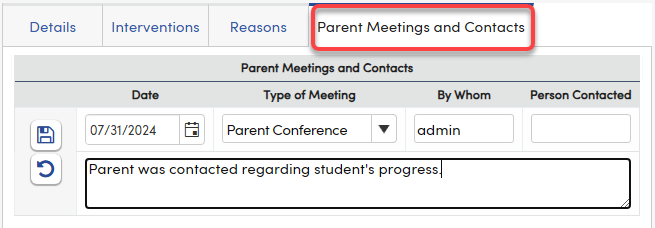
The Parent Meetings and Contacts tab can be used to notate any meetings that are scheduled to take place regarding the Pre-Referral Intervention. To add a meeting, click Add New Meeting. Enter information in the Date, Type of Meeting, By Whom and Person Contacted fields, enter a comment in the box below if needed, and then click the Save icon. The Date defaults to today and By Whom defaults to your user name.
NOTE: The Refer to Intervention button on the Details tab displays for users with Insert permission to Referrals To Intervention (RFI). For teachers, the pre-referral must also be their own record and have at least one entry on the Parent Meetings and Contacts tab. Clicking the button creates a referral linked to this pre-referral, with its interventions already checked as Prior Interventions. See Referrals to Intervention.
Pre-Referral Intervention Report by Student ↑
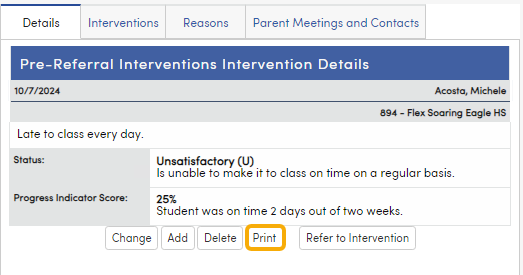
There is a print button on the Pre-Referral Interventions page that prints a report of all the student's Pre-Referral Interventions.
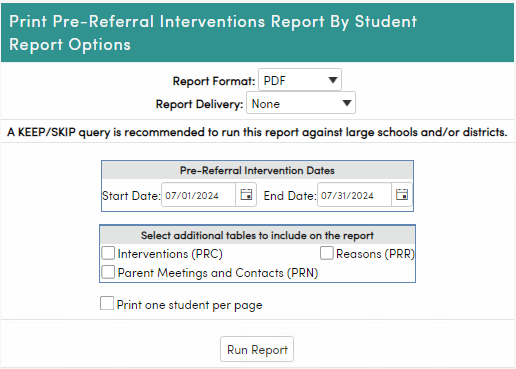
This report can also be accessed under View All Reports > Student Data > Pre-Referral Interventions by Student. A query statement can be used to keep or skip students. Enter the date range for the Pre-Referral Intervention Dates. Additional tables can be included in the report. An option to print one student per page is available that will insert a page break between students.